

If your WooCommerce store feels slow (or isn’t scoring as well as you’d like in PageSpeed Insights), there’s a good chance third-party scripts are part of the problem.
Most eCommerce stores rely on one or more of: pixel tracking, chat widgets, review carousels, video embeds, A/B testing, Facebook tracking, Google Analytics, and heatmaps. And there are many more examples like these! Each one of these tools adds extra JavaScript to your pages, and those scripts often run on the main thread, slowing your site’s response time to shoppers.
The good news is you don’t need to remove these tools to speed things up. In most cases, stopping non-essential JavaScript from loading until the shopper shows intent (for example, tapping, clicking, or scrolling) can solve the problem.
In this guide, we’ll walk through a practical checklist to reduce the impact of third-party scripts on your WooCommerce store without sacrificing any sales-generating features.
What “Third-Party Scripts” Really Mean for WooCommerce Stores
Third-party resources are anything your store loads from a domain other than your own. For WooCommerce stores, this usually means scripts, iframes, trackers, and widgets.
While third-party scripts can be a problem for any type of website, they tend to affect eCommerce stores more because most rely on additional tools to drive sales. For example, product pages often include additional features designed to increase conversions, such as review widgets, social proof, related products, upsells, and more.
These features can definitely benefit your business, but the problem is that each additional script can add work to the browser’s main thread. This can slow page load times and make the store feel less responsive when shoppers tap, scroll, or click. On key pages such as the product, cart, and checkout pages, this can lead to more abandonment and fewer completed purchases.
Thankfully, you usually don’t need to overhaul your site to fix this. Once you know which third-party scripts are responsible, you can make a few targeted changes that improve performance without sacrificing the tools you rely on.
Quickly Find the Worst Third-Party Scripts
Identifying the biggest causes of third-party script problems in your store lets you know exactly where to focus your efforts.
To get started:
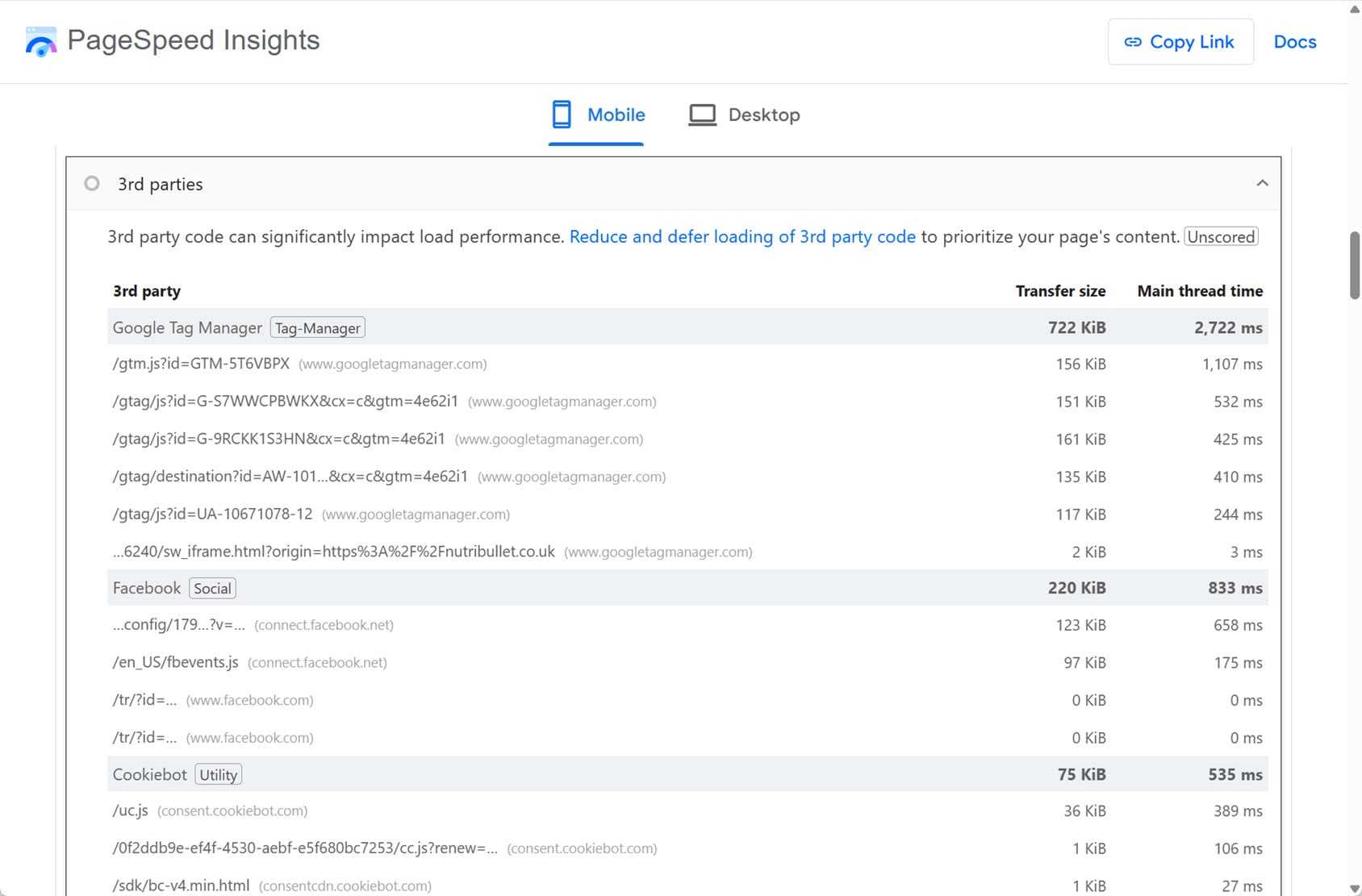
- Check the key pages of your store in PageSpeed Insights.
- Find the “3rd Parties” section.
- Expand that section to view the list of third parties, along with their transfer size and main-thread time.
What Is Main-Thread Time?
The main thread can be considered the browser’s primary worker and it’s responsible for drawing the page and responding when someone taps, clicks, scrolls, or types. If third-party scripts keep the main thread busy, your store can feel laggy because the browser can’t respond as quickly.
Another way to find these third-party scripts is to use DevTools in the Chrome browser (right-click on a page from your store and choose Inspect from the menu). The list of third-party scripts is accessible from the Performance tab.
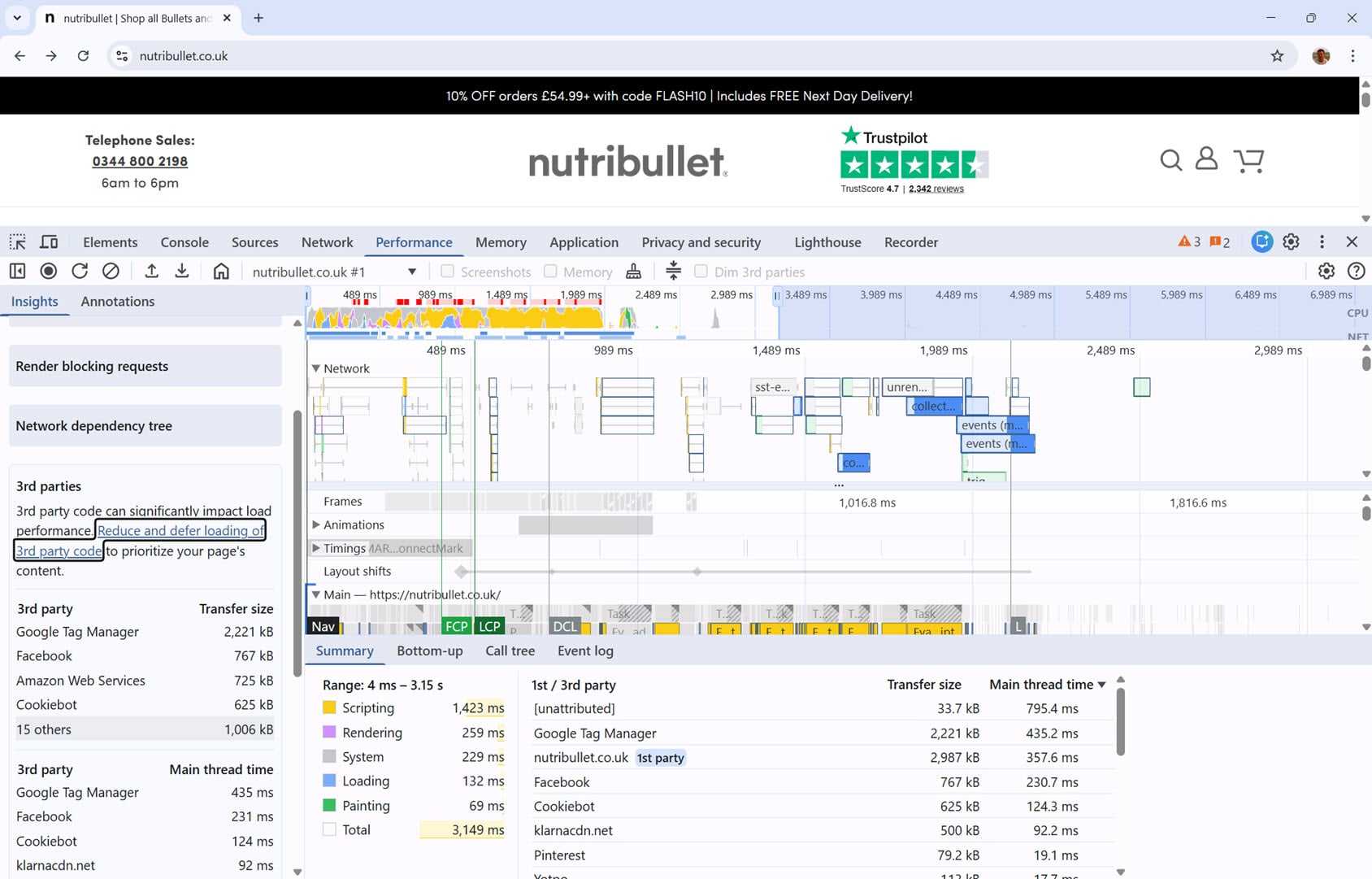
Remember to check a range of your store’s pages, including the product, cart, and checkout, as not each page uses the same third-party scripts.
What to Do Once You’ve Found Your Third-Party Scripts
Once you can see which domains are consuming the most main-thread time, the next step is to decide what to keep, what to remove, and what to delay. The simplest approach is to group each script into one of these categories:
- Must load immediately: Anything required for core store functionality (especially cart, checkout, and payment scripts).
- Useful, but not urgent: Tools that support marketing or conversions, but aren’t needed the moment a page loads.
- Nice-to-have: Scripts that add weight without a clear benefit (often best removed or replaced).
Most WooCommerce stores get the biggest benefits from delaying useful but not urgent scripts. Examples include analytics tags, pixels, chat widgets, video embeds, and A/B testing tools.
Delay vs Defer: What’s the Difference?
When optimizing scripts, you might see the option to delay or defer JavaScript.
- Delay is usually the better option as it prevents the scripts from loading or executing until a user interaction occurs, such as scrolling, tapping, or clicking.
- Defer still downloads and executes the scripts during the initial page load; it just does it later in the sequence.
If the script isn’t required for the page to work immediately, it’s usually better to delay than defer.
How to Delay Third-Party Scripts on a WooCommerce Store
Many WordPress performance plugins, including CommerceGurus Turbo, FlyingPress, LiteSpeed Cache, Perfmatters, and WP Rocket, can prevent non-essential third-party scripts from loading until user interaction.
Some plugins may suggest scripts to delay automatically, while also letting you manually delay specific scripts until user interaction.
To get started, begin with the biggest offenders:
- Identify third-party scripts with the highest main-thread time using PageSpeed Insights or Chrome DevTools.
- Add those domains or script keywords to the delay list.
- Test that your store still works, especially search, product pages, add-to-cart, and checkout flows and functionality.
- Expand gradually, delaying more scripts and testing as you go.
The goal is to delay enough scripts to improve performance without breaking functionality or removing genuinely useful features. Delaying scripts on the checkout carries the most risk, while delaying scripts on browsing pages (home, category, product) is usually the safest place to start.
Rather than wrestling with code snippets for each script, you can delay JavaScript in WooCommerce automatically with CommerceGurus Turbo. Its JS Optimizer module holds back non-critical third-party scripts such as pixels, chat widgets, and heatmaps until the visitor interacts with the page, while leaving anything checkout-critical untouched.
What Not To Delay
As we’ve covered, delaying third-party scripts is a good way to speed up a WooCommerce store. However, it can cause problems if not done correctly.
For best results, avoid delaying scripts that are required for key purchase functionality, including:
- Payments: Don’t delay scripts for gateway providers like Stripe, PayPal, Klarna, etc.
- Security & verification: Fraud protection, bot protection, and 3D Secure (3DS) check scripts shouldn’t be delayed.
- Checkout validation: Avoid delaying scripts for address autocomplete, postcode lookup, required-field validation, and error handling.
- Totals & shipping: Delaying scripts that calculate or refresh shipping rates, taxes, discounts, or order totals will cause problems.
- Cart and checkout UX: Any scripts responsible for cart and checkout functionality should be left alone.
Some performance plugins, such as Perfmatters and WP Rocket, include WooCommerce-safe default or exclusions for cart and checkout pages from optimization, but always double-check the settings to be sure they’re enabled or working.
You should also be able to manually exclude parts of your store by URL patterns, such as /cart/ and /checkout/, or by excluding specific script keywords or domains.
Other Steps to Take
As well as identifying and handling the biggest scripts at your store, there are other, more general steps you can take to fix common third-party script issues.
Clean up Google Tag Manager (avoid overtracking)
If Google Tag Manager (GTM) shows up near the top of your “3rd Parties” list, it’s worth taking a closer look. GTM is rarely the problem on its own, but it often becomes a repository for every tracking script a store has ever added.
You can delay GTM, but you’ll usually get better results from reducing what it’s doing:
- Delete old tags that you no longer use, such as those from past campaigns and tools you’ve stopped using.
- Avoid running everything sitewide and only load tags on the pages where they’re needed.
- Remove duplicates caused by multiple tools doing the same job.
- Use triggers so that heavier scripts fire only when a shopper takes an action or reaches a specific part of a page.
The goal is to keep the tags you rely on without loading every script on every page.
Video and Embeds: Lazy-Load iframes (and Use Click-to-Play)
Third-party embeds (especially video from YouTube) can add lots of JavaScript and network requests to a page.
This can be particularly problematic when content is embedded near the top of WooCommerce product pages.
The simplest fix for this is to make sure embeds don’t load until they’re needed:
- Lazy-load iframes so they only load when they’re about to appear on screen.
- Show a lightweight preview image and load the video iframe only after the shopper clicks play.
Some performance plugins, such as Perfmatters, make setting iframes to lazy load very straightforward.
Embedded social media posts can cause problems, too. Replacing them with static images that link to the post lets you keep the visual impact of the content without adding a heavy embed load on every visit.
Reduce Third-Party Font Requests
If Google Fonts or Font Awesome is listed in the “3rd parties” audit it is because your store is downloading external font files. While fonts don’t always generate a lot of main-thread time, they can still increase requests and slow down rendering, especially if you’re loading multiple families and weights.
To reduce font-related third-party requests:
- Host fonts locally via your performance plugin or a dedicated tool.
- Stick to one or two font families and a small set of weights.
If you’re using a page builder, such as Divi or Elementor, take advantage of their font hosting and preloading features.
Optimize Analytics and Tracking Scripts
Google Analytics scripts can negatively impact performance, and like fonts, it can also be hosted locally. Several plugins make this possible, including Perfmatters, WP Rocket, and others.
Perfmatters is a particularly good example as it can enable local analytics, load analytics in the footer, and prevent it from loading any requests until user interaction.
Switch to Lightweight Social Sharing Buttons
Many WooCommerce stores use plugins to display social sharing buttons. However, these solutions often rely on third-party scripts that degrade site speed without much positive impact on conversions.
However, instead of removing the buttons, switch to simple “share links” (especially on product pages) rather than script-heavy widgets.
You can add the share links yourself or use a lightweight plugin like Scriptless Social Sharing.
More Options to Reduce the Impact of Third-Party Scripts Further
There are a few extra fixes that can make a noticeable difference, especially if you’re still seeing room for improvement in PageSpeed Insights or Chrome DevTools.
Disable Scripts On Pages That Don’t Need Them
Many tools you could be using don’t need to load sitewide. Depending on your store, you might be able to disable the review and chat widgets on pages where they’re not needed.
Selectively Load Email Collection Scripts
Some email marketing tools often inject scripts into every page; however, it’s best to restrict them to pages where you’re actually displaying opt-in forms or actively want to collect sign-ups.
Clean Up Scripts You’re No Longer Using
Removing tools you’re no longer using will stop their scripts from running on your store.
Optimize Comments
If your store uses user comments, Gravatar may load images from a third-party domain. Disabling Gravatar or switching to local avatars could improve performance.
Disable Email Obfuscation Scripts
If you ever enabled a tool like Cloudflare Email Address Obfuscation to hide email addresses, check whether you still need it. If your store no longer displays plain email addresses, you may be able to disable the obfuscation script and remove another unnecessary third-party script from your pages.
Use Preconnect When You Can’t Delay
For truly essential services that must load early (such as certain payment or security providers), preconnect can help speed up the initial connection so the browser is ready to fetch those resources sooner.
However, you should only use it sparingly. Adding too many preconnects encourages the browser to open lots of early connections, which can increase work on the critical path and actually slow down your page.
Cloudflare Zaraz for Advanced Users
A more technical option is to offload some third-party scripts to Cloudflare Zaraz. This is something you can start doing for free, as every Cloudflare account gets 1,000,000 free Zaraz Events each month. For additional usage, Zaraz plans start from $5/month.
Offloading some third-party scripts to Zaraz is worth considering if you’re still looking for further improvements.
Putting It All Together
Third-party scripts are one of the biggest reasons WooCommerce stores feel slow, especially as plugins and marketing tools accumulate over time.
The fastest and safest option for most stores is to delay non-essential JavaScript until a shopper interacts with the page, then limit scripts to pages where they are useful and necessary.
Start with the biggest main-thread offenders you see in PageSpeed Insights, make changes gradually, and test your core user flow (product → add to cart → cart → checkout) as you go.
With a few targeted changes, you should be able to improve performance without sacrificing the tools your store relies on.
⚡ Delay third-party scripts safely. The CommerceGurus Turbo JS Optimizer feature delays tracking pixels, chat widgets, and analytics until user interaction – without touching payment or checkout scripts. It’s the difference between a 50 and a 90 on mobile PageSpeed for script-heavy stores.
WooCommerce Third-Party Script Optimization FAQ
Will delaying scripts break things?
It can if you delay critical tags or events. Start delaying on browsing pages, then test your user flows and integrations to ensure everything’s working after each change.
Should I delay WooCommerce third-party scripts on cart and checkout pages?
Be cautious and avoid delaying payments, totals, validation, and security scripts.
How many scripts should I delay at once?
Start with three to five and then expand gradually, testing as you go.
How do I test if a delayed script broke something?
After delaying a script, walkthrough a critical user journey at your store, for example:
- Open an incognito browser window so you’re not relying on cached scripts.
- Test the full purchase flow, going from product page → variations → add to cart → cart updates → apply coupon → proceed to checkout → select shipping → select payment → place order.
- Look for issues, such as the add-to-cart button not doing anything, totals not updating, shipping methods not loading, or unavailable payment methods.
- Check the browser console for JavaScript errors (Chrome DevTools → Console). If errors appear only after interaction (scroll/click), you probably delayed something that was required earlier.
- If something has broken, temporarily remove the newest delayed scripted or exclude it on /cart/ and /checkout/ and retest to confirm.
Which scripts are safe to delay first?
Start with scripts that don’t affect store functionality when the page starts to load.
Scripts that are usually safe to delay on browsing pages (home, category, and product) include:
- Analytics (Google Analytics, Meta pixel, heatmaps, etc).
- A/B testing and personalization tools.
- Chat widgets.
- Video embeds and other media widgets.
- Social sharing widgets.
Avoid delaying these scripts (or exclude on the cart and checkout):
- Payment gateways, fraud or bot protection, 3DS.
- Anything that updates totals, shipping, taxes, discounts, or checkout validation.
Why didn’t my PageSpeed score improve after delaying scripts?
A few common reasons include:
- The main problem isn’t third-party scripts; it might instead be your theme, plugins, or hosting.
- You improved one page, but you’re testing a different part of your store that loads different scripts.
- Caching hasn’t cleared, so PageSpeed is still seeing an old configuration.
- You’ve added too many preconnects or optimizations, which have increased work on the critical path.
You can try verifying the changes by re-running the same URL in PageSpeed and comparing the “3rd Parties” main-thread time before and after optimization.
How do I exclude delayed scripts on specific pages (like /checkout/)?
Many WordPress performance plugins let you add URL-based exclusion so that delay rules don’t apply to certain pages.
You can exclude by page URL or pattern, including common WooCommerce paths like:
- /cart/
- /checkout/
- /my-account/
- /order-received/
Some plugins have a toggle to automatically avoid optimizations on the cart and checkout.




 WooCommerce SEO
 WooCommerce 2.2 Feature – Automatic Refunds
 WooCommerce Subscriptions – become a recurring revenue powerhouse
 How to Fix Slow Third-Party Scripts in WooCommerce (Without Removing Them)