

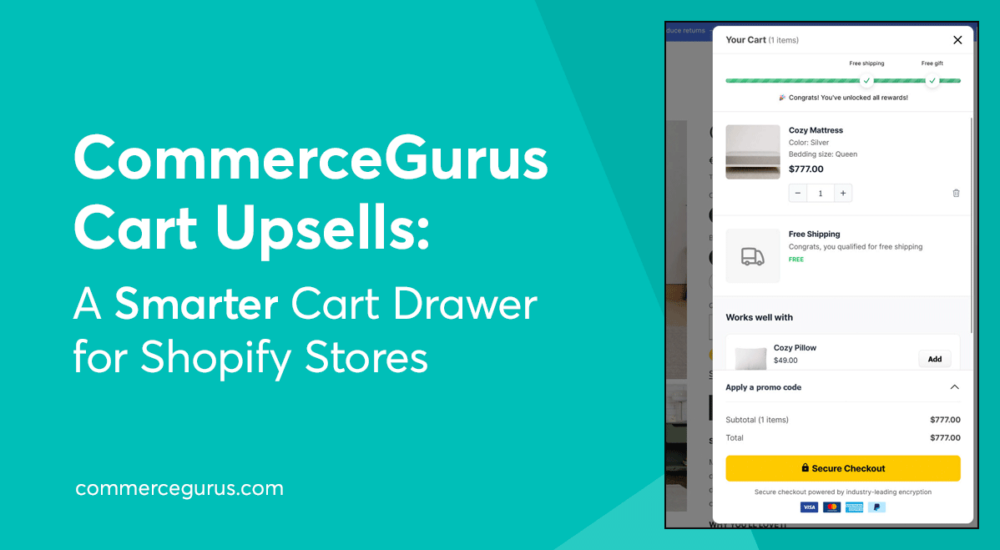
Cart abandonment remains one of the biggest challenges for eCommerce stores, but there’s another missed opportunity that’s often overlooked: the moment just before checkout.
When a customer has already decided to buy, they’re often open to adding more – if the right products are suggested at the right time.
That’s where cart drawer upsells come in. Rather than redirecting shoppers to product pages (which risks breaking their buying momentum), a well-designed cart drawer lets you suggest relevant items directly in the cart, making it easy for customers to add them with a single click.
Our new Shopify app, CommerceGurus Cart Upsells, adds a feature-rich cart drawer to your store designed specifically for this purpose – helping you increase average order value without disrupting the checkout experience.
In this guide, we’ll walk through what our app can do, how it works, and how it can help your store generate more revenue. Let’s get started!
Key Features of CommerceGurus Cart Upsells
Adding a cart drawer populated with conversion-focused elements is a tried-and-tested way to sell more products and increase revenue.
When building the app, we drew inspiration from many of the very best eCommerce cart drawers to ensure the most effective features were included.
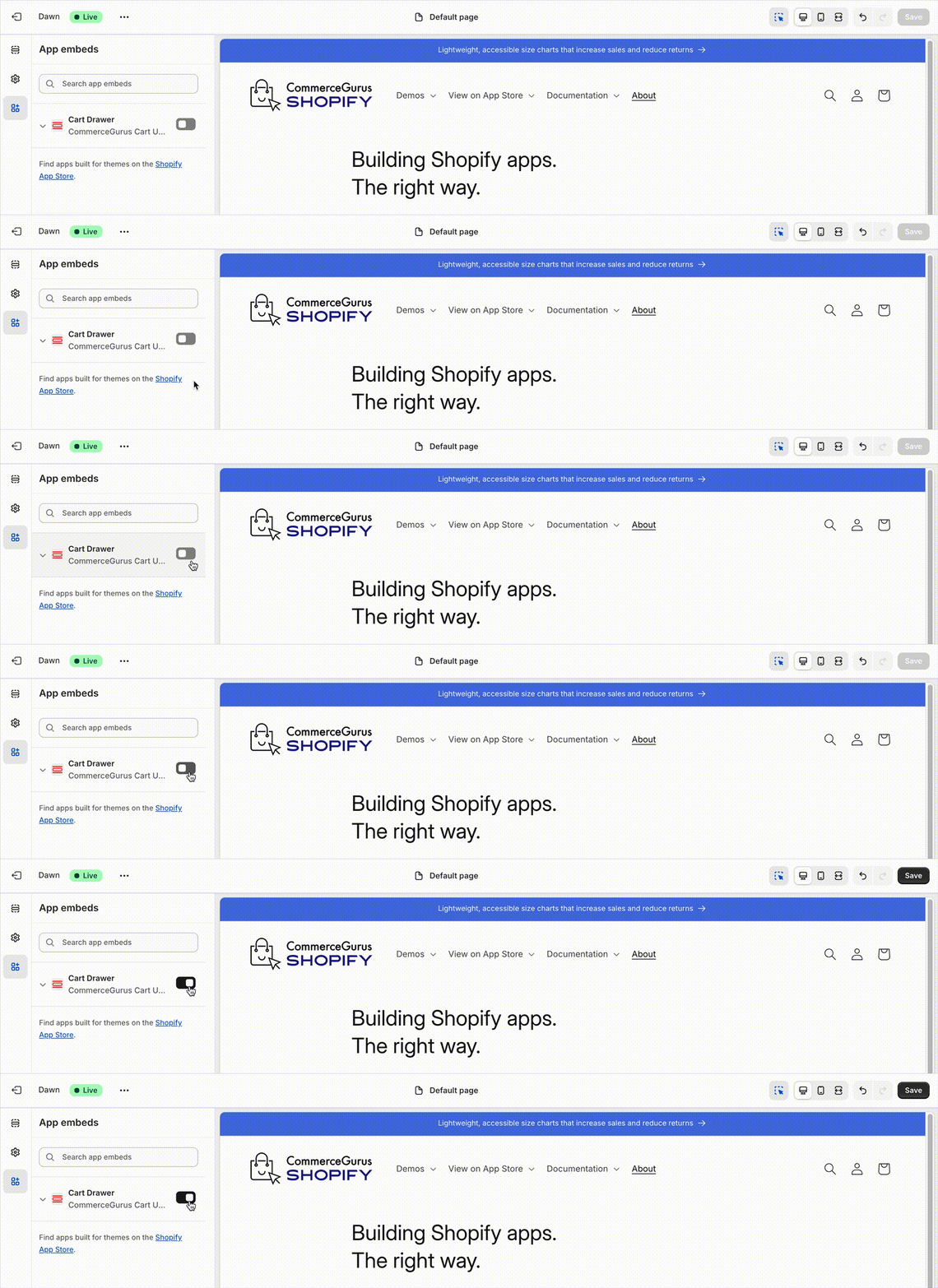
Once you’ve installed the app, it’s just a case of activating the Cart Drawer in your theme’s App Embeds section to enable the upsell functionality.
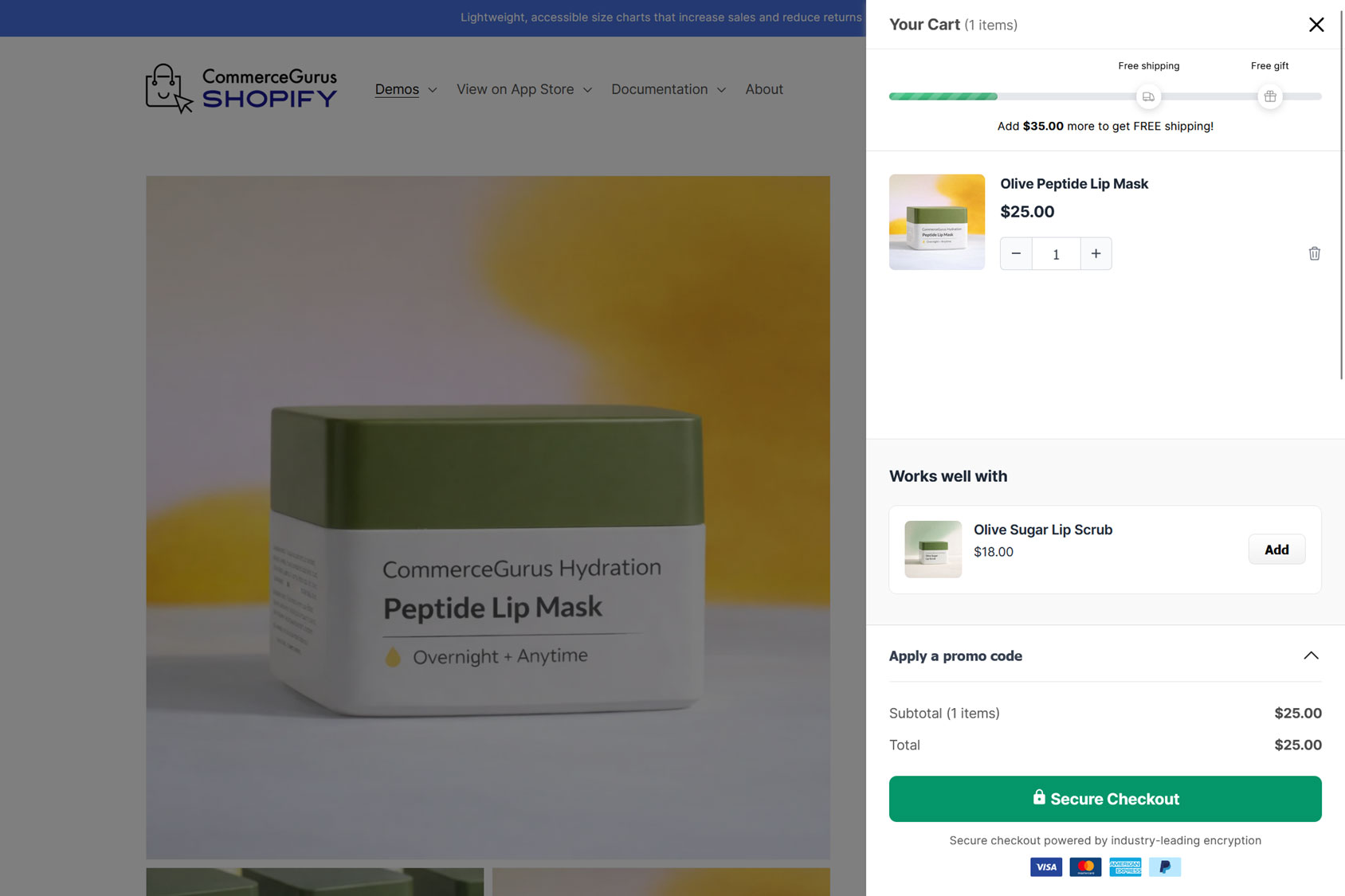
After you’ve done that, you can add a range of elements to the drawer to help you sell more products, including:
- Announcement Bar: Displays promotional messages or announcements in the cart.
- Reward Bar: Allows merchants to add reward steps for free shipping and gifts.
- Upsells: The core upsell functionality that suggests additional products.
- Promo Code: Promotional code/discount input.
- Checkout Button: Customize the checkout button functionality.
- Payment Method Logos: Display accepted payment method logos.
Here’s a look at the features of the app, how they work, and how they can help you to sell more products.
Recommended Upsells
Suggesting products in the cart is one of the most effective ways to generate upsells at your eCommerce store.
While the CommerceGurus Cart Upsells app lets you promote products in the cart drawer, it doesn’t just suggest random products. Instead, you can use the upsell rules to control when items are displayed in the cart drawer and which products are suggested.
With this targeted approach, the suggested products are more likely to appeal to shoppers, resulting in higher conversion rates.
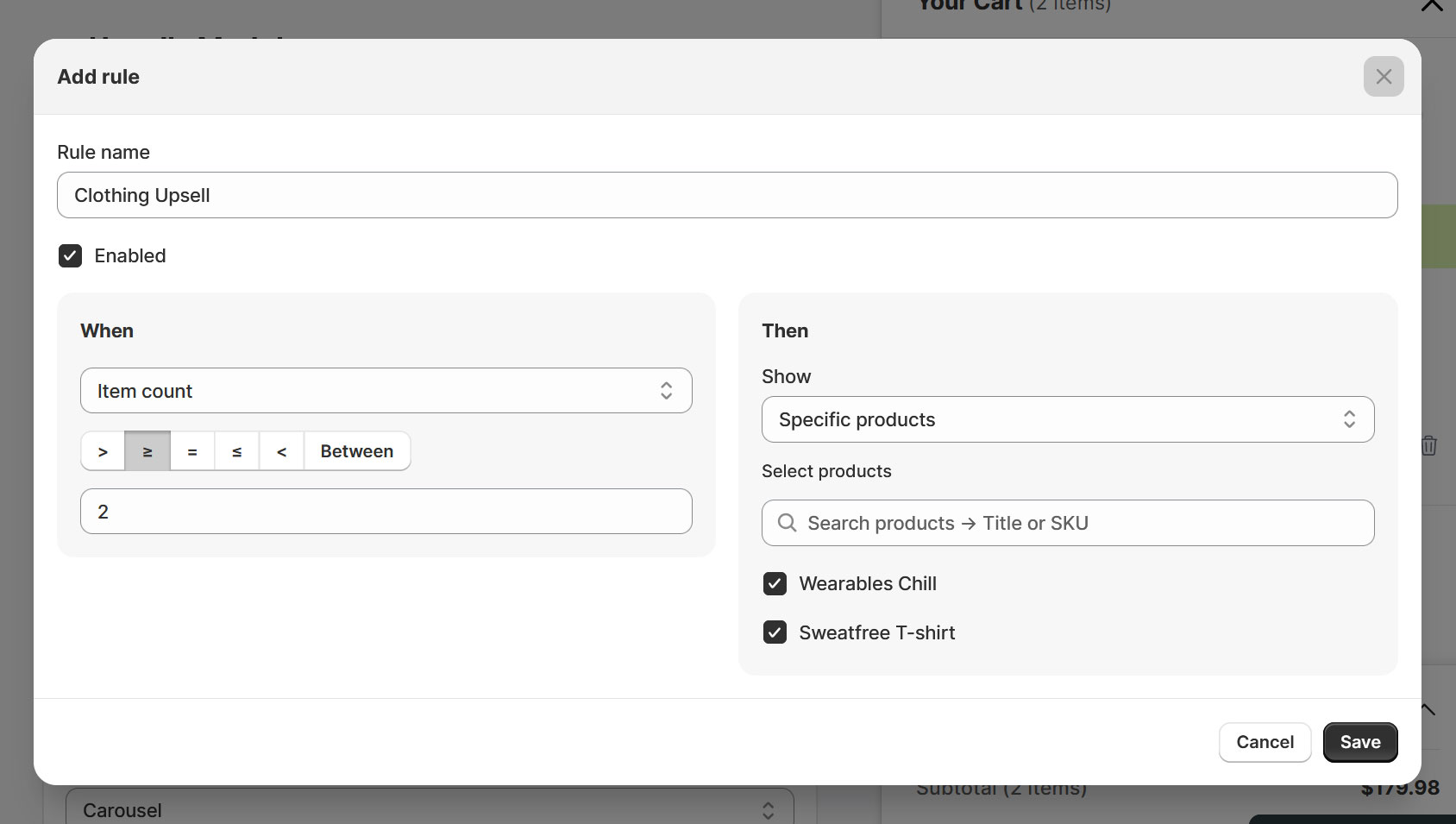
Through the rules, you can decide to suggest products based on a range of conditions, including:
- What products are in the cart.
- The number of items in the cart (including less than, greater than, and ranges).
- Total value of the cart.
When the conditions are met, the specific products or product collections you defined in the rules are shown.
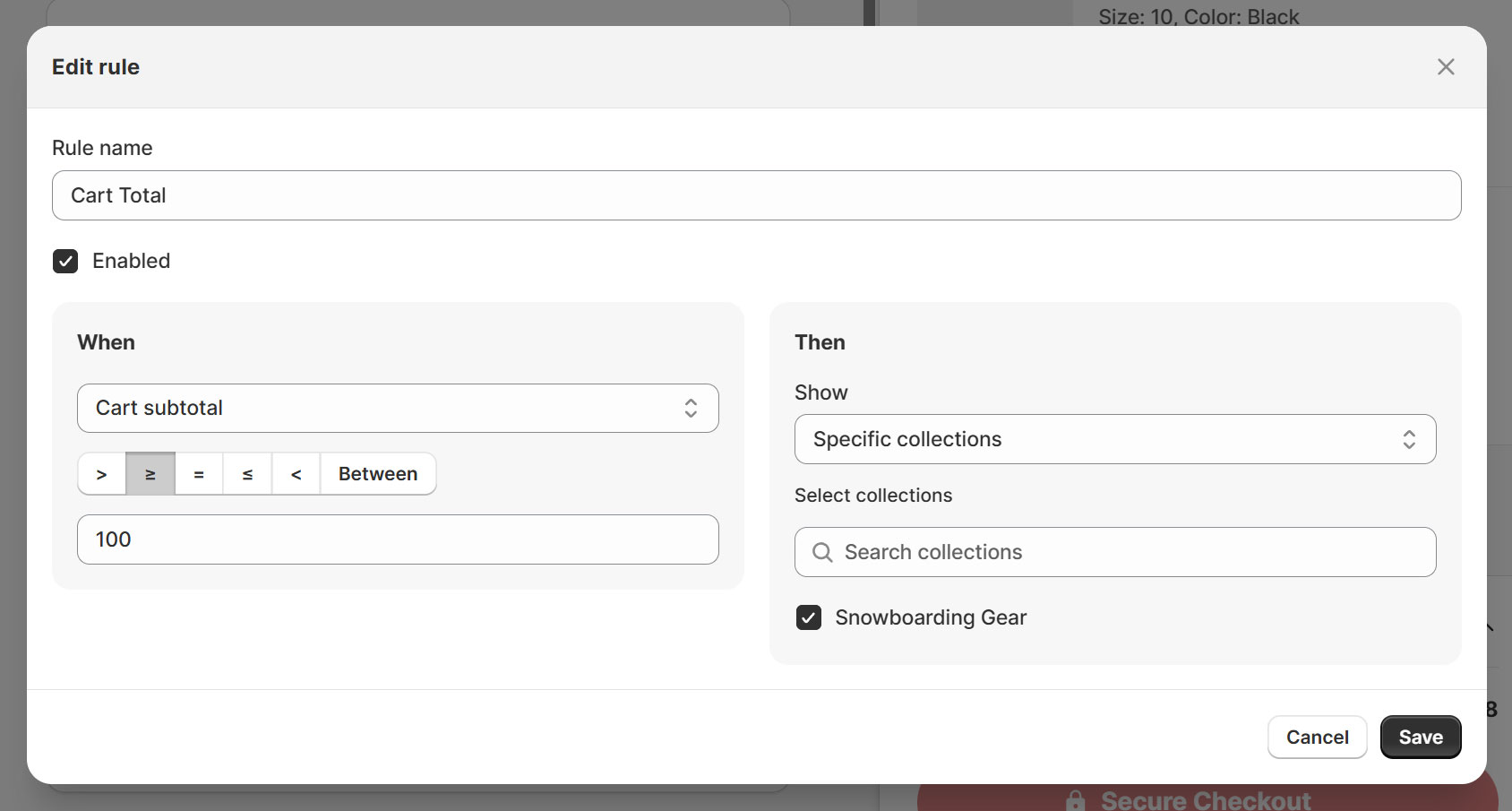
For example, in the rule below, when the cart subtotal is $100 or more, the Snowboarding Gear collection is displayed in the cart drawer:
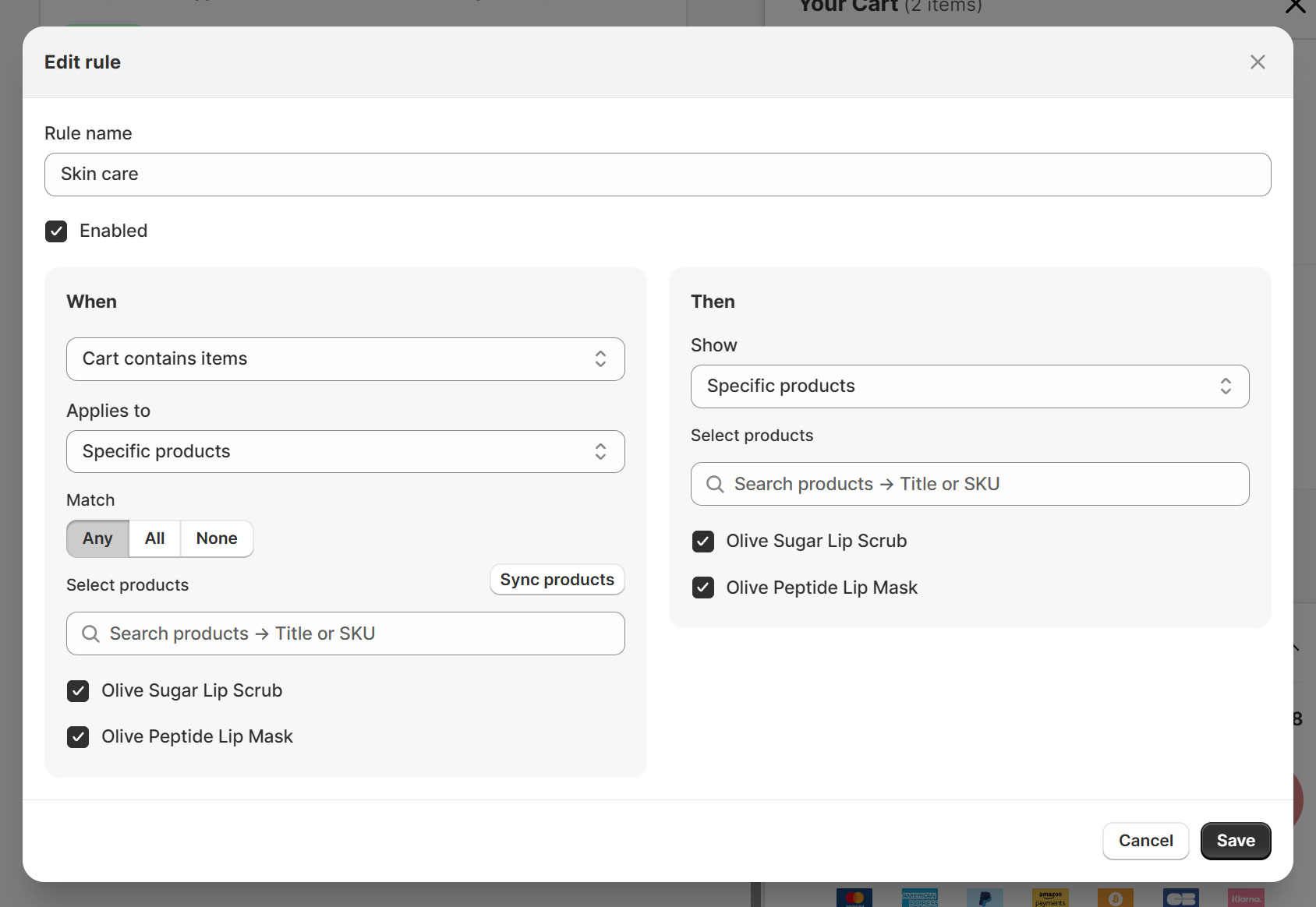
The rule below suggests specific products when the cart contains certain products:
Suggested products can be displayed in the cart in two ways: a carousel or rows.
The carousel layout is best suited to displaying multiple upsell products in a compact, mobile-friendly horizontal scrolling format. The row layout displays products in a simple vertical list, making it easier to share more details and help customers focus on each item as they scroll.
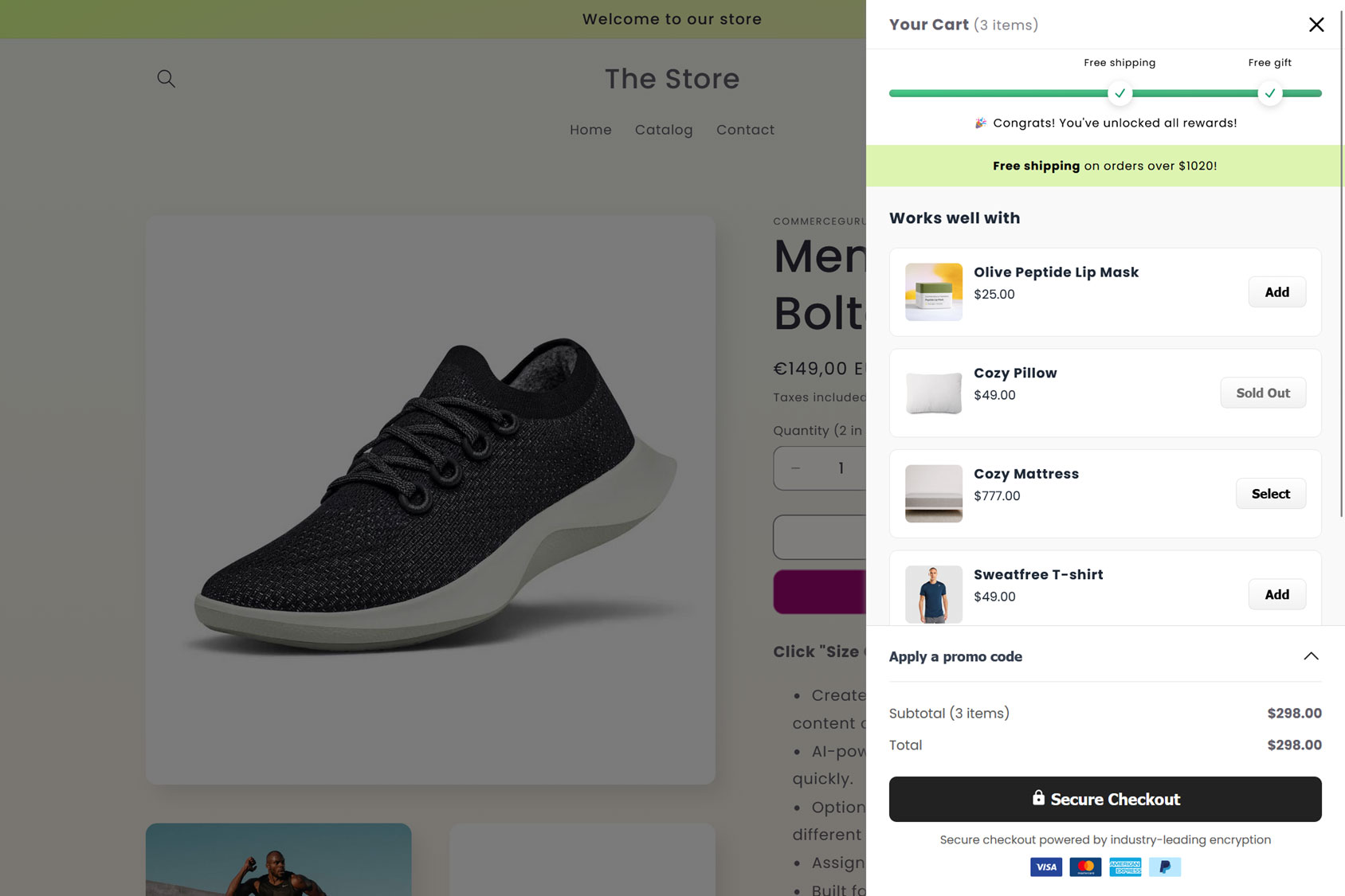
Regardless of how you display the suggested products, they can be added to the customer’s order with a single click directly from the drawer. There’s no need for customers to click through to the product page, which would disrupt their buying journey.
Announcement Bar
In addition to suggesting products, the app can use the Announcement Bar module to display a promotional message at the top of the cart drawer.
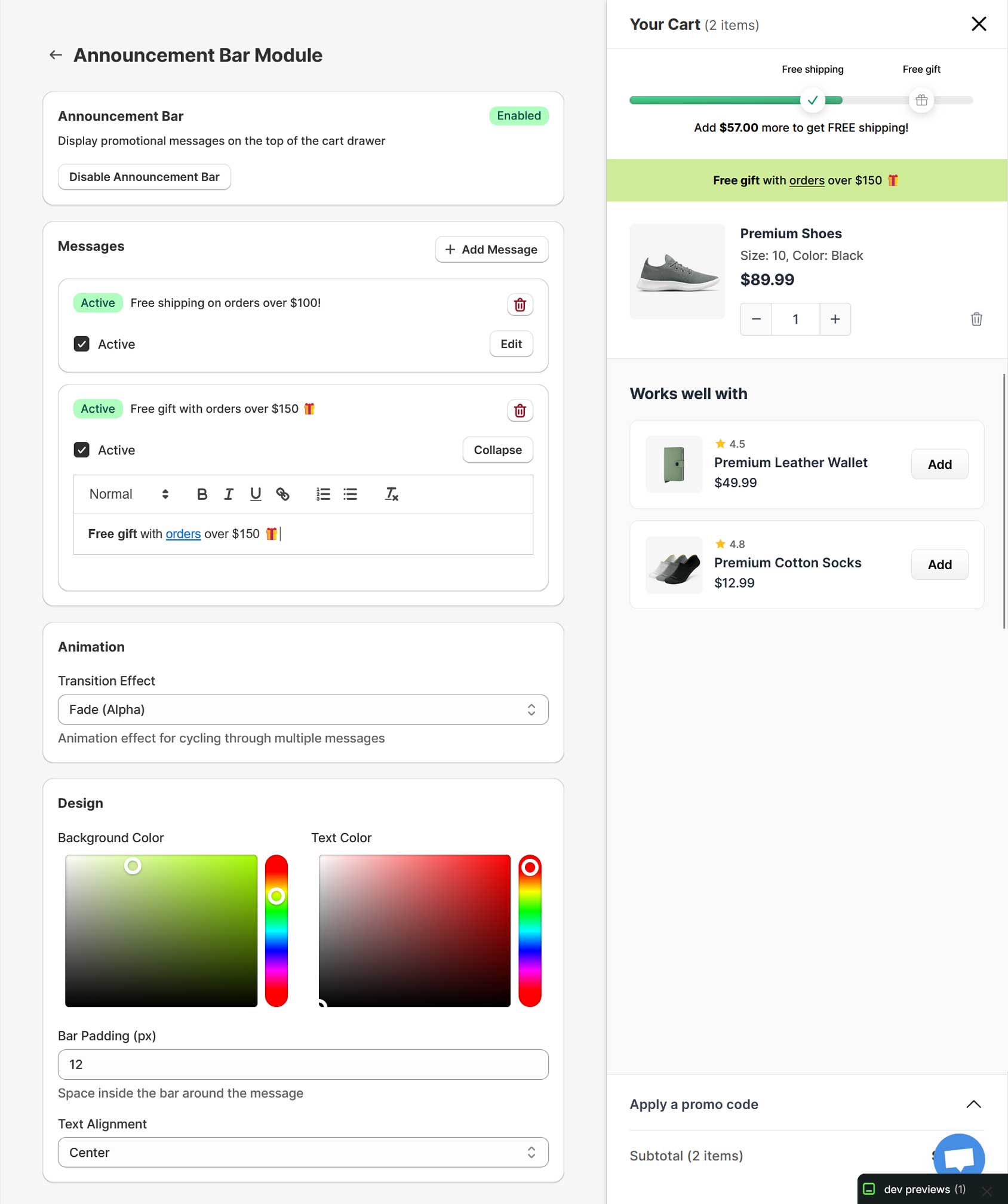
The announcement bar can display a text-based message and could be used to inform customers about promotions, such as a free shipping offer.
You can create multiple announcements, and the app will rotate them in the cart. The announcements can contain text links, and their appearance can be customized.
The announcement feature is really useful as it makes it easy to communicate offers and other messages with customers. If a customer knows they’ve qualified for a free gift or are close to qualifying, they’re more likely to complete their order or increase its value.
Rewards Bar
Another feature of the app is the Reward Bar module. This displays a status bar at the top of the cart drawer that indicates how close shoppers are to qualifying for a reward, based on the total value of their cart. The reward could be free shipping or a free gift.
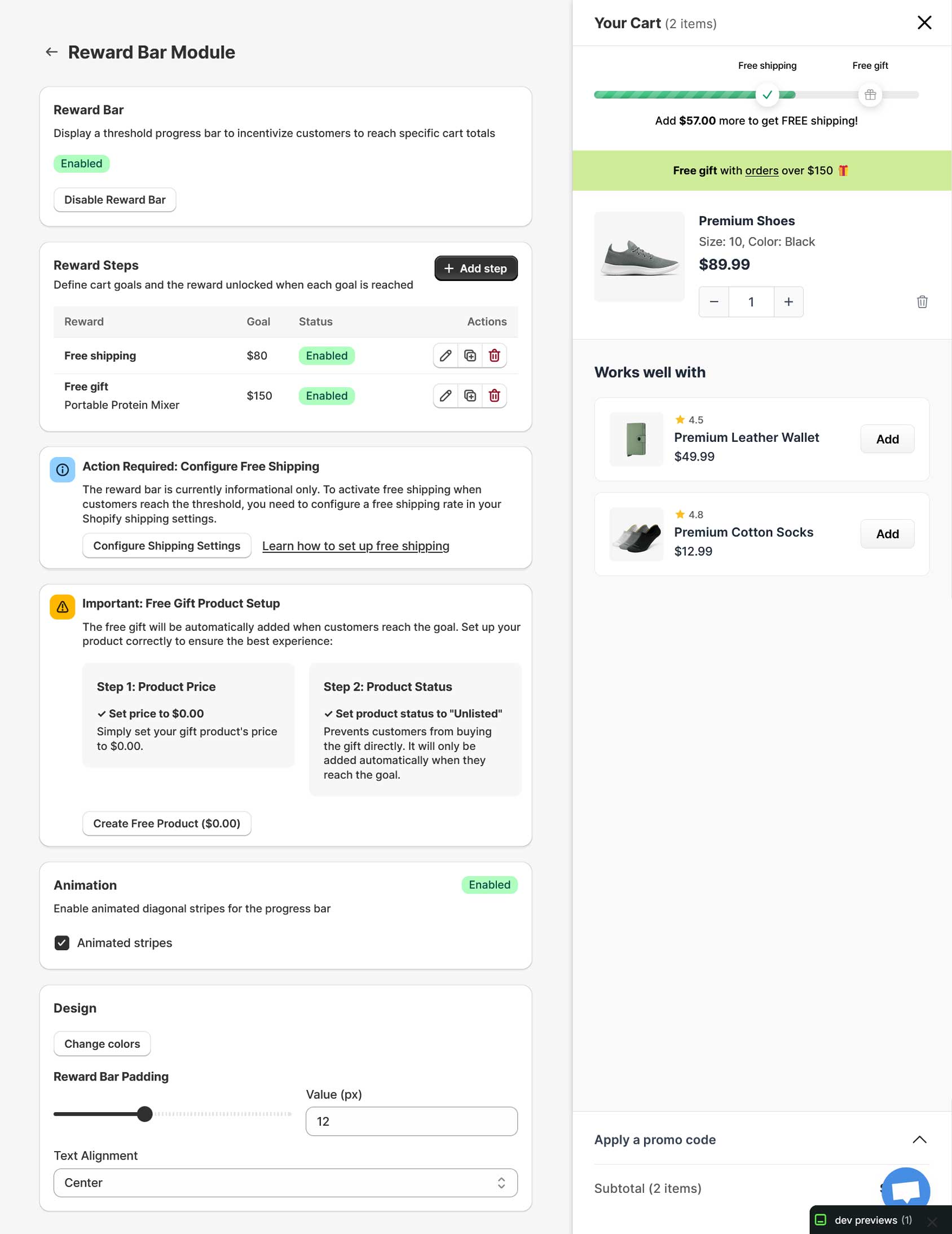
Again, you can customize the appearance of the reward bar, including adding an attention-grabbing animation effect.
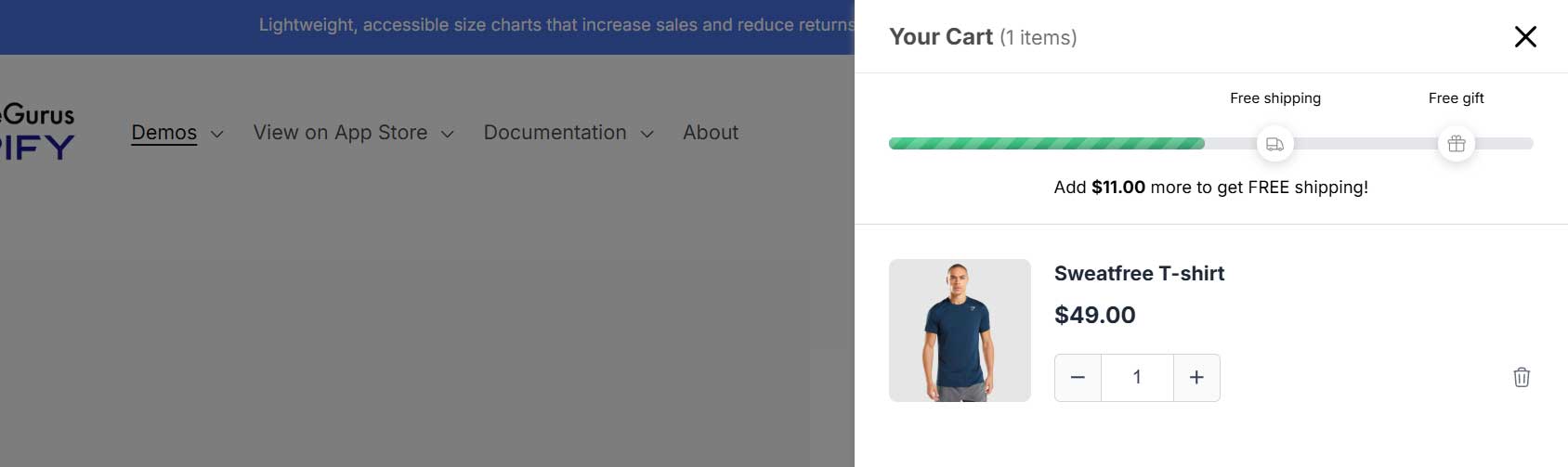
The reward bar is an effective tool for encouraging customers to increase their order value to qualify for a reward.
Promo Codes
The Cart Upsells App also lets you display a promo code field in the drawer.
When expanded, the promo code area reveals a field for customers to enter a coupon code.
If the customer enters a valid code, a success message is displayed, and the discount is applied. If the code isn’t valid, then an error message is displayed.
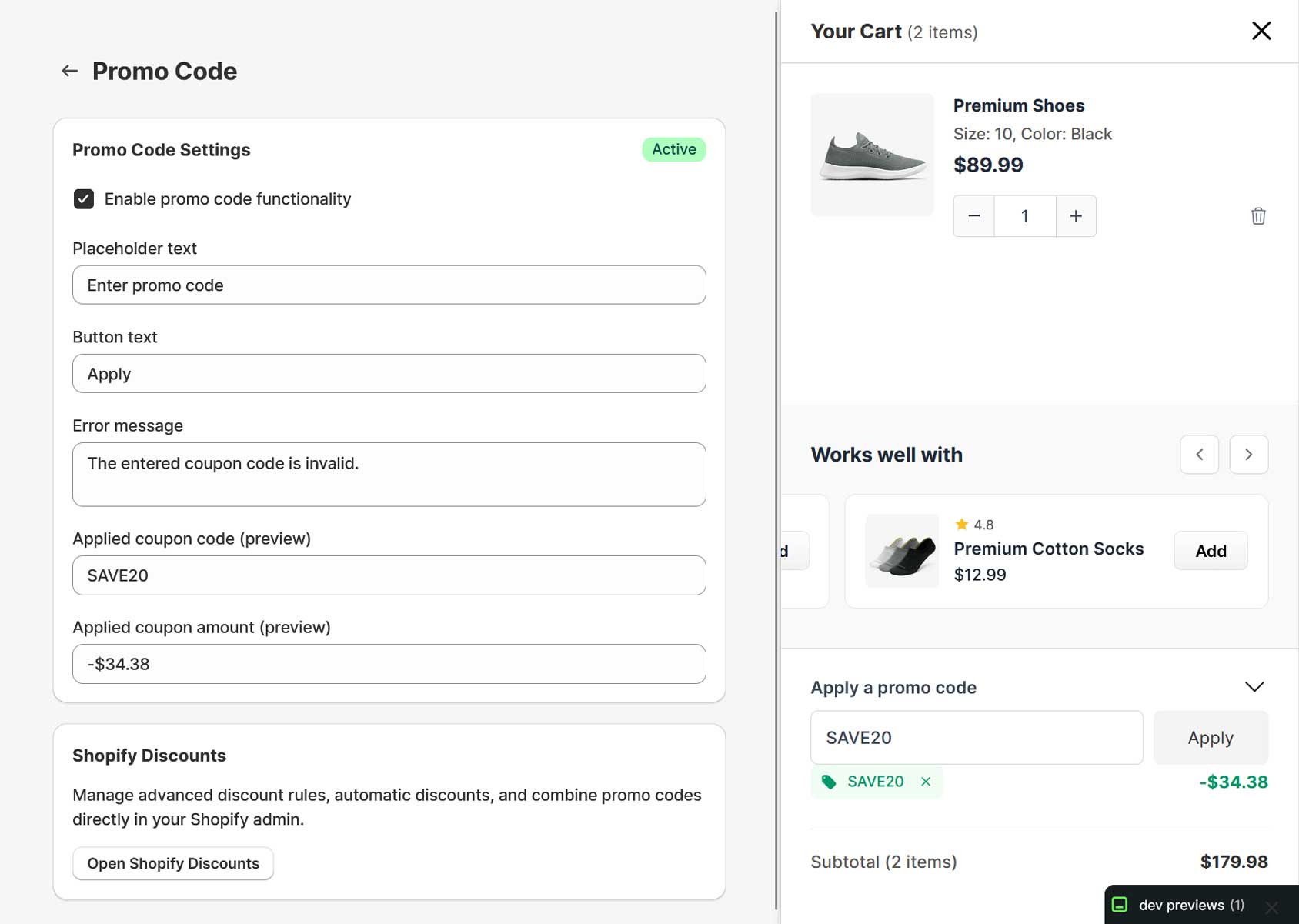
When setting up the Promo Code module, you can customize the error message, placeholder, and button text.
There are many promo code strategies for increasing sales, so it’s helpful that the app makes it easy for customers to use their coupons from the drawer.
Checkout Button Customization
The app provides a good level of control over the cart drawer’s checkout button.
Through the settings, you can customize the checkout button in several ways, including:
- Button Text: Enter custom text for the button.
- Button Styling: Adjust the border radius, button padding, and the button and text colors.
- Button Icons: Choose whether to show a lock icon and a hover-activated arrow.
- Trust Elements: Decide whether to show a custom trust message and payment method logos, including custom logos.
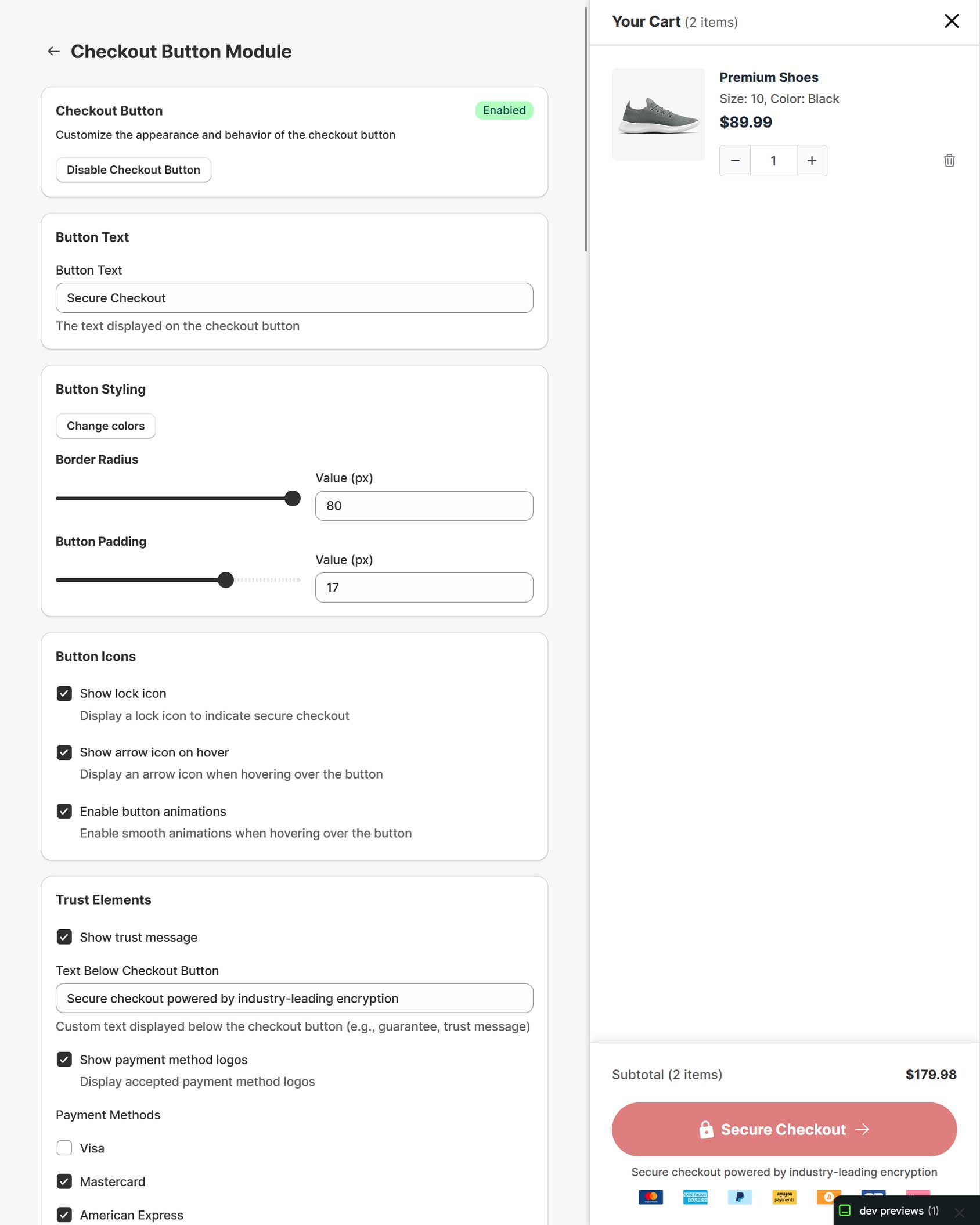
Thanks to these settings, you can ensure the cart drawer’s checkout button matches your store’s branding and features the content and styling that convert best with your audience.
Displaying trust elements in the cart drawer, including payment method icons and custom logos, makes your store look more credible and helps you address the concerns many customers have about shopping online.
Cart Display Settings
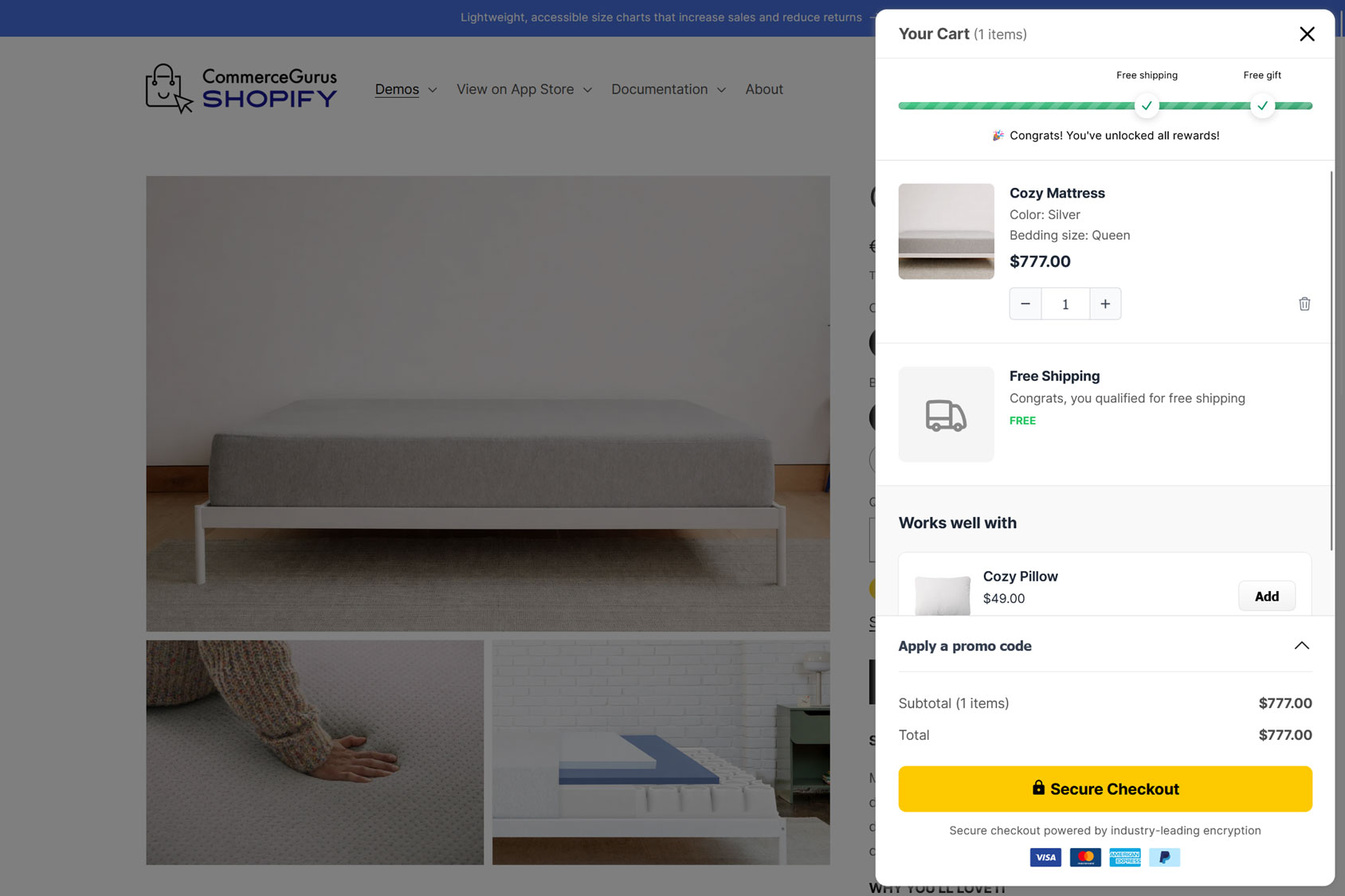
As well as controlling what’s displayed in the cart drawer, you can also configure the appearance and behavior of your cart drawer in several ways, including:
- Drawer Position: Display the cart drawer on the left or right side of the screen.
- Drawer Style: Choose either the standard or floating format.
- Drawer Width: Display a standard or wide cart drawer.
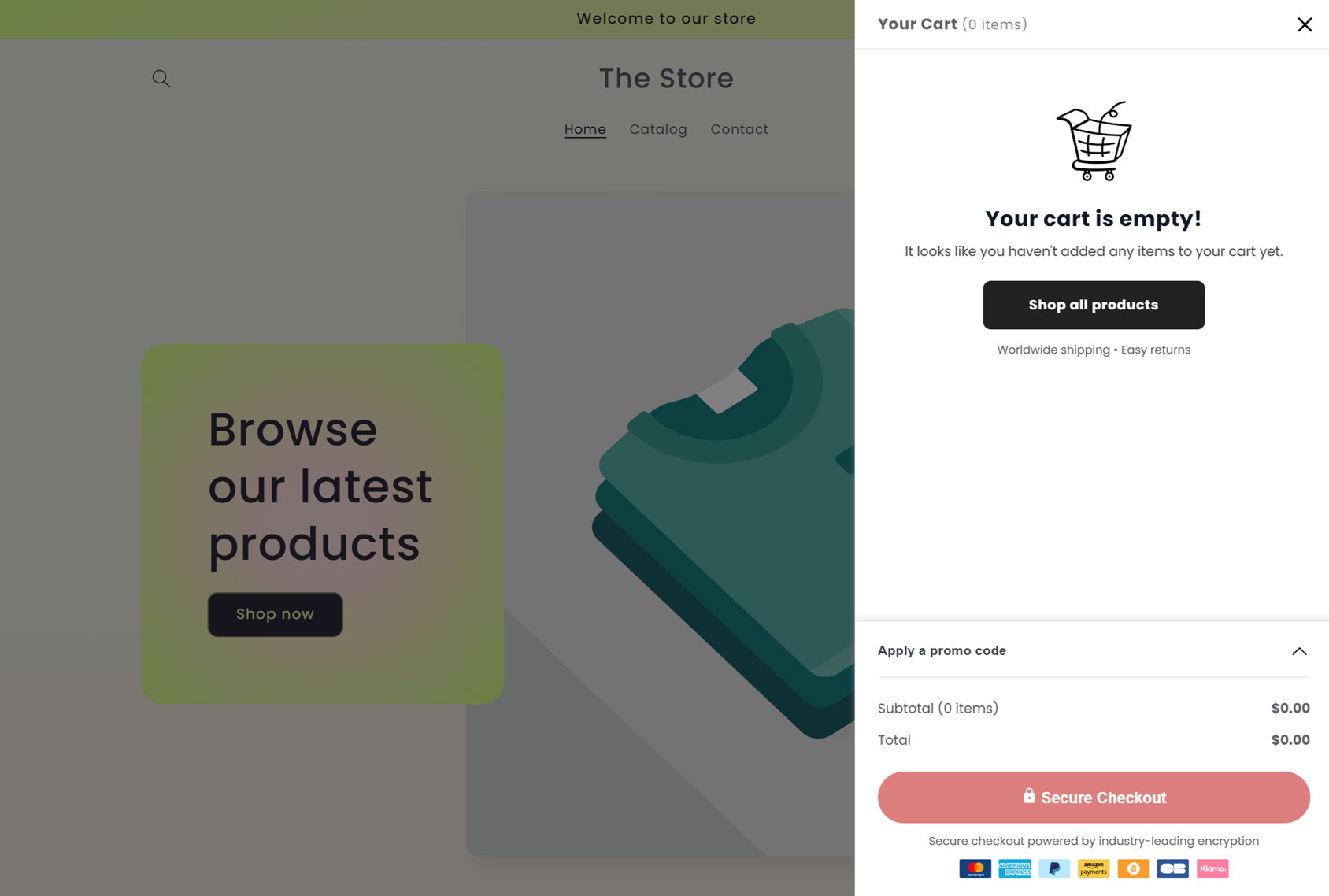
- Empty Cart Design: Display an empty cart icon or a minimal empty cart design.
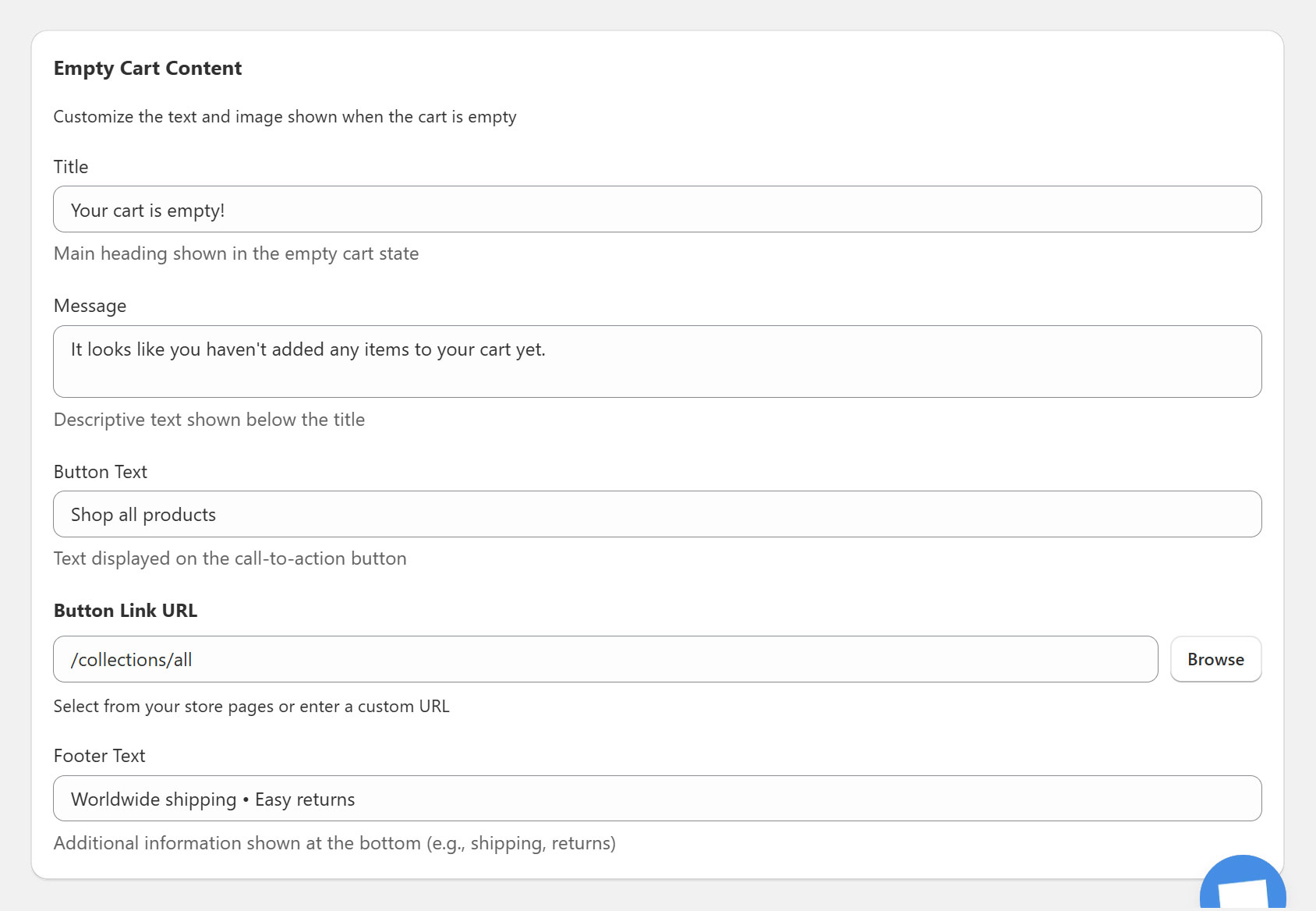
The text and image that are shown when the cart is empty can be customized. When the cart is empty, you can also display a custom button that takes shoppers to your main product category or to any other page on your site.
The app documentation has detailed information on how the cart drawer settings work.
Adding the Cart Upsells App to Your Shopify Store
After installing the app, you can add the cart drawer to your store in just a few clicks.

When a customer adds an item to their cart or clicks the cart icon, the app’s cart drawer opens.
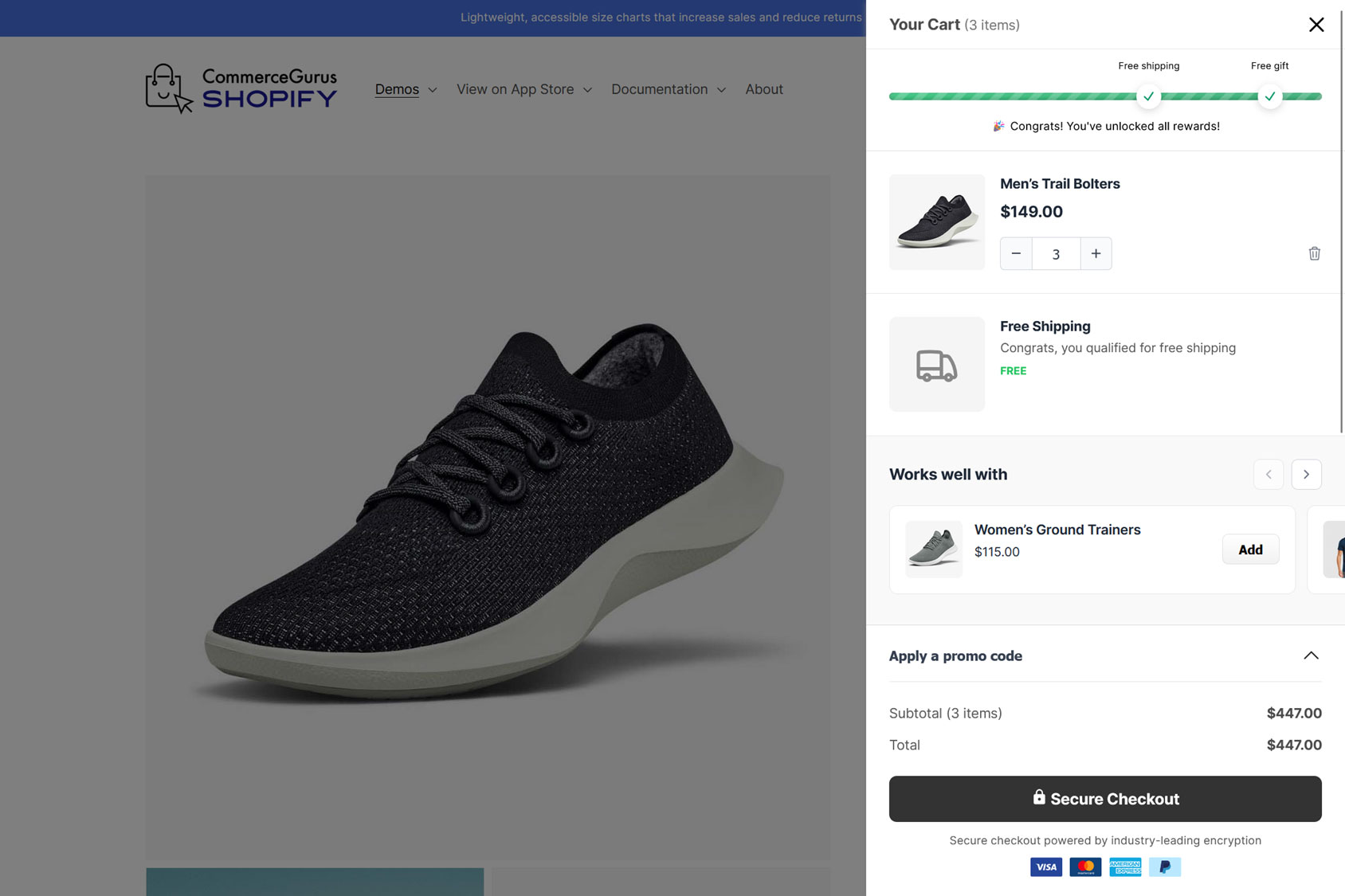
You can then customize which modules are enabled and how they work.
App Support
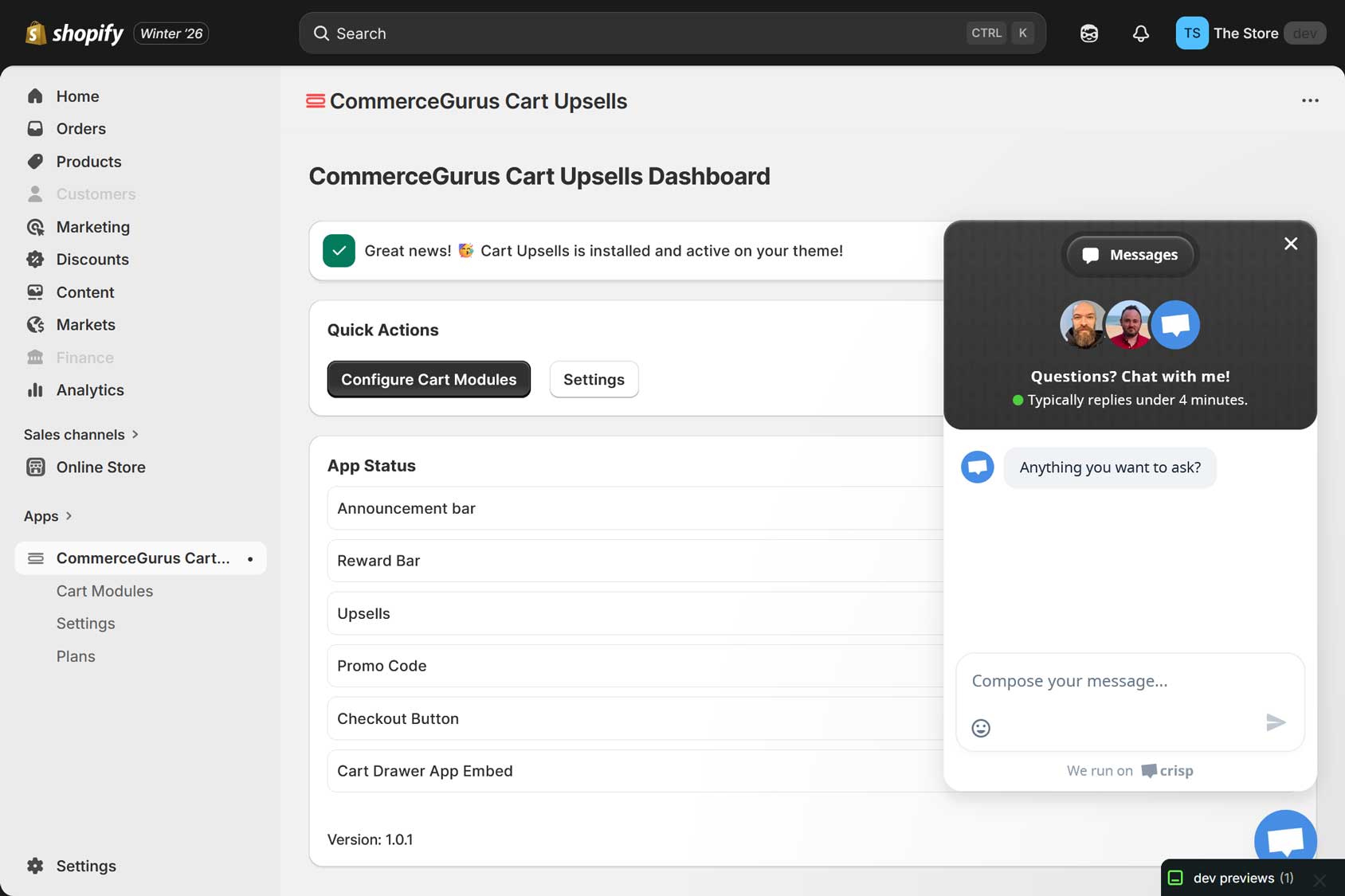
If you need help, you can use the support widget in your store’s dashboard to contact the team.
Summary
Suggesting products directly from the cart drawer is a proven way to increase a store’s average order value, and it’s something you can enable in just a few clicks with this app.
Combining the product suggestions with custom announcements and reward bars effectively encourages customers to add more items to their order.
Thanks to the app’s settings, you can configure the drawer and its elements to work exactly the way you want, including the button text to display, the colors to use, and whether to show payment method and other icons in the drawer.
Like the other CommerceGurus Shopify apps, Cart Upsells was built with accessibility and performance in mind, so you can enhance the cart experience without compromising speed or usability.
Try CommerceGurus Cart Upsells for Shopify today.
CommerceGurus Cart Upsells App FAQs
Here are some common questions and answers about the app.
What is the CommerceGurus Cart Upsells app?
CommerceGurus Cart Upsells is a Shopify app that adds a customizable cart drawer with conversion-focused modules, including upsells, announcements, reward goals (like free shipping), promo codes, and trust elements.
How does this Shopify cart upsell app increase average order value?
It helps you increase AOV by showing relevant upsell and cross-sell recommendations directly in the cart drawer, so shoppers can add extra items without leaving the cart or disrupting checkout.
How do upsell rules work in CommerceGurus Cart Upsells?
You set conditions, such as what’s in the cart, the number of items, or the cart total, and then choose which products or collections to recommend when those conditions are met.
Can I show upsells based on specific products or collections?
Yes. You can trigger product recommendations when the cart contains certain products or products from a certain collection.
Will CommerceGurus Cart Upsells work with my Shopify theme?
The app is enabled via Shopify’s App Embeds and is designed to integrate with modern Shopify themes with minimal setup.
Can I change the cart drawer layout and behavior?
Yes. You can control settings like drawer position (left or right), style (standard or floating), width, and the empty-cart design and messaging.
Does the app impact performance or accessibility?
CommerceGurus Cart Upsells is built with performance and accessibility in mind, so you can enhance the cart experience without compromising usability.
Is there a free plan or trial available?
Yes. There’s a free plan available, plus a 14-day trial for the paid Professional plan.
What’s included in the Professional plan?
The Professional plan includes everything in the free plan plus additional modules that cover upsells, announcement bar, reward bar, and promo codes.
 Building a Multivendor Store With Dokan and Shoptimizer
 Rank Math Pro Review – The Best SEO Plugin for WooCommerce Stores?
 Suave WooCommerce Theme Launch – plus Sample Sites
 How to Make Your WooCommerce Product Pages Stand Out