

Slow server response times are a common problem for WooCommerce stores because of their dynamic nature. High time to first byte (TTFB) can affect SEO, user experience, and conversions, but it’s not always easy to identify the cause of poor performance.
In this guide, we’ll cover the most effective ways to reduce server response times (TTFB) in WooCommerce, starting with the changes that usually make the biggest difference.
What is TTFB and Why Does It Matter?
Time to First Byte (TTFB) measures how long it takes for the server to begin responding to a request. Images, CSS, JavaScript, and the rest of the page still affect overall load time, but they aren’t included in the TTFB measurement itself.
| Rating | TTFB |
|---|---|
| Good | Under 800ms |
| Needs improvement | 800–1.8s |
| Poor | Over 1.8s |
Google’s web.dev guidance considers TTFB of 800ms or less to be good, with anything over 1.8 seconds rated as poor. However, for WooCommerce stores, aiming for sub-200ms gives you the best chance of strong LCP scores.
TTFB isn’t a Core Web Vital itself, but it feeds directly into LCP, one of Google’s three Core Web Vitals, which is why getting it right matters for both performance and search rankings.
If your TTFB is high, then everything else will be delayed, too, as the page can’t start rendering until that first byte arrives. That’s why it’s so important and has a big knock-on effect on overall page speed.
TTFB can vary significantly by page type. A cached homepage may respond quickly, while product, cart, checkout, and account pages often have higher TTFB because they involve more dynamic processing.
WooCommerce stores naturally have higher TTFBs than simpler sites because of the database queries involved (product data, pricing, inventory, sessions, etc.). This makes TTFB worth actively working on, particularly since faster load times directly impact user experience and conversions.
How to Test Your WooCommerce Store’s TTFB
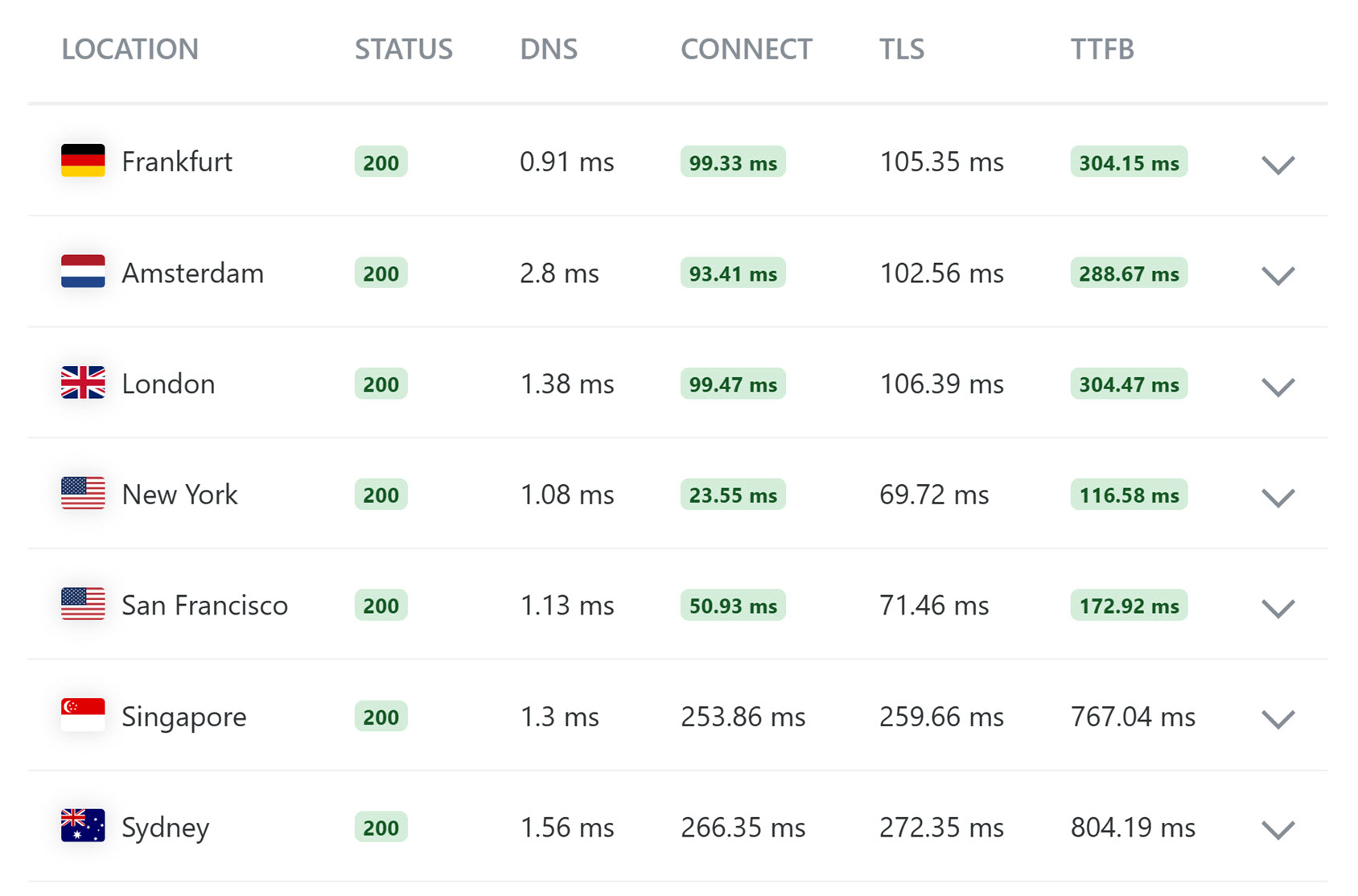
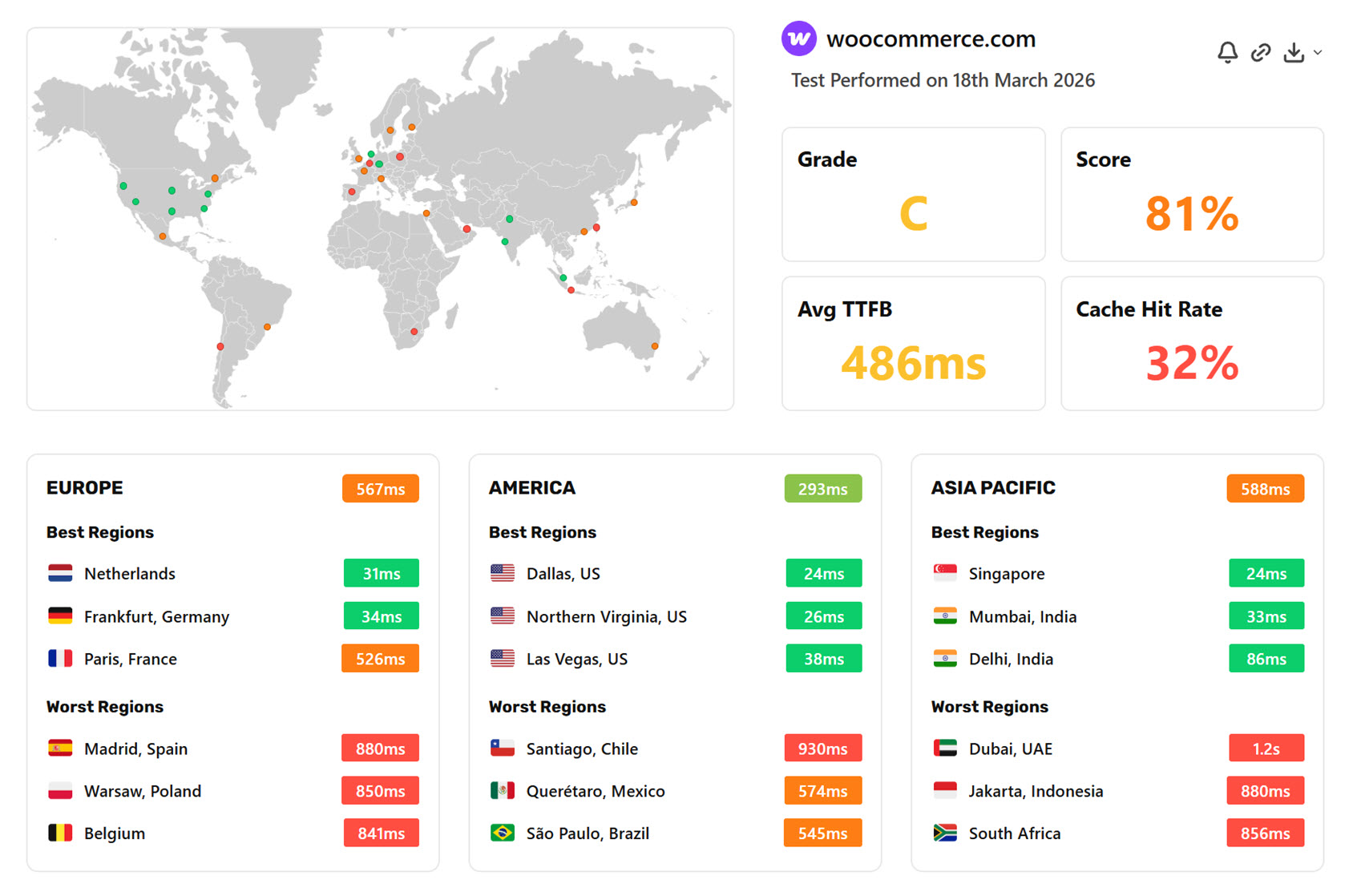
Testing your WooCommerce store’s TTFB from multiple global locations gives you a fuller picture than running a test from just one location.
For TTFB specifically, tools like KeyCDN Performance Test and SpeedVitals are often more useful because they let you test from multiple global locations.
Also, run the test three times to ensure cached resources are being served properly. Be sure to test your store’s most important pages, such as the product pages, cart, and checkout, not just the homepage.
Look at the TTFB values across locations, not just the average. If results are consistently high everywhere, the issue is likely with your hosting or server configuration. If TTFB is low from locations near your server but high from further away, a CDN will make the biggest difference.
How to Improve WooCommerce TTFB
Here are the most impactful changes you can make to improve your WooCommerce store’s TTFB, starting with the ones that make the biggest difference.
Upgrade Your Hosting
Google’s documentation recommends starting with hosting when trying to improve TTFB, as no plugin or CDN can fully compensate for a poor hosting environment.
While migrating to a new host is a big task, it can have the biggest impact on TTFB if you aren’t already using high-quality hosting.
The problem with low-cost shared hosting is that your store competes for resources with hundreds of other sites. Because WooCommerce is more resource-intensive than a standard WordPress site, it can quickly lead to slower server response times.
Server stack matters too. In many WooCommerce hosting environments, LiteSpeed can deliver better performance than Apache, particularly when paired with server-level caching. That said, a well-configured Apache server can still perform very well.
When evaluating hosts, look for NVMe SSD storage, support for the latest PHP version, Redis object caching, and a data center location near the majority of your customers.
Our free WooCommerce hosting guide will help you find the right option for your store.
Use a CDN
A CDN helps reduce TTFB by serving content from locations closer to your shoppers, which lowers geographic latency. This is especially useful for WooCommerce stores with customers in multiple countries.
It’s also worth paying attention to DNS performance. Before a browser can request your page, it must first resolve your domain name to an IP address. Slow DNS adds delay before your server even starts processing the request, so using a fast DNS provider such as Cloudflare can help reduce that overhead.
Choose a CDN with Full Page Caching
A standard CDN mainly helps with static assets such as images, CSS, and JavaScript. For a bigger TTFB improvement, look for a CDN or caching layer that supports full page caching. This allows cacheable HTML pages to be served from the edge instead of being generated by your origin server on every request.
For WooCommerce, this is most useful on cacheable pages such as the homepage, category pages, and many product pages. Cart, checkout, and account pages should normally bypass full page caching so shoppers always see fresh, session-specific content.
Cloudflare APO and QUIC.cloud are both worth considering. For higher-traffic stores, Cloudflare Enterprise, available through some managed hosts, may offer additional performance benefits through features such as smarter routing.
Optimize Your Server and Caching Layer
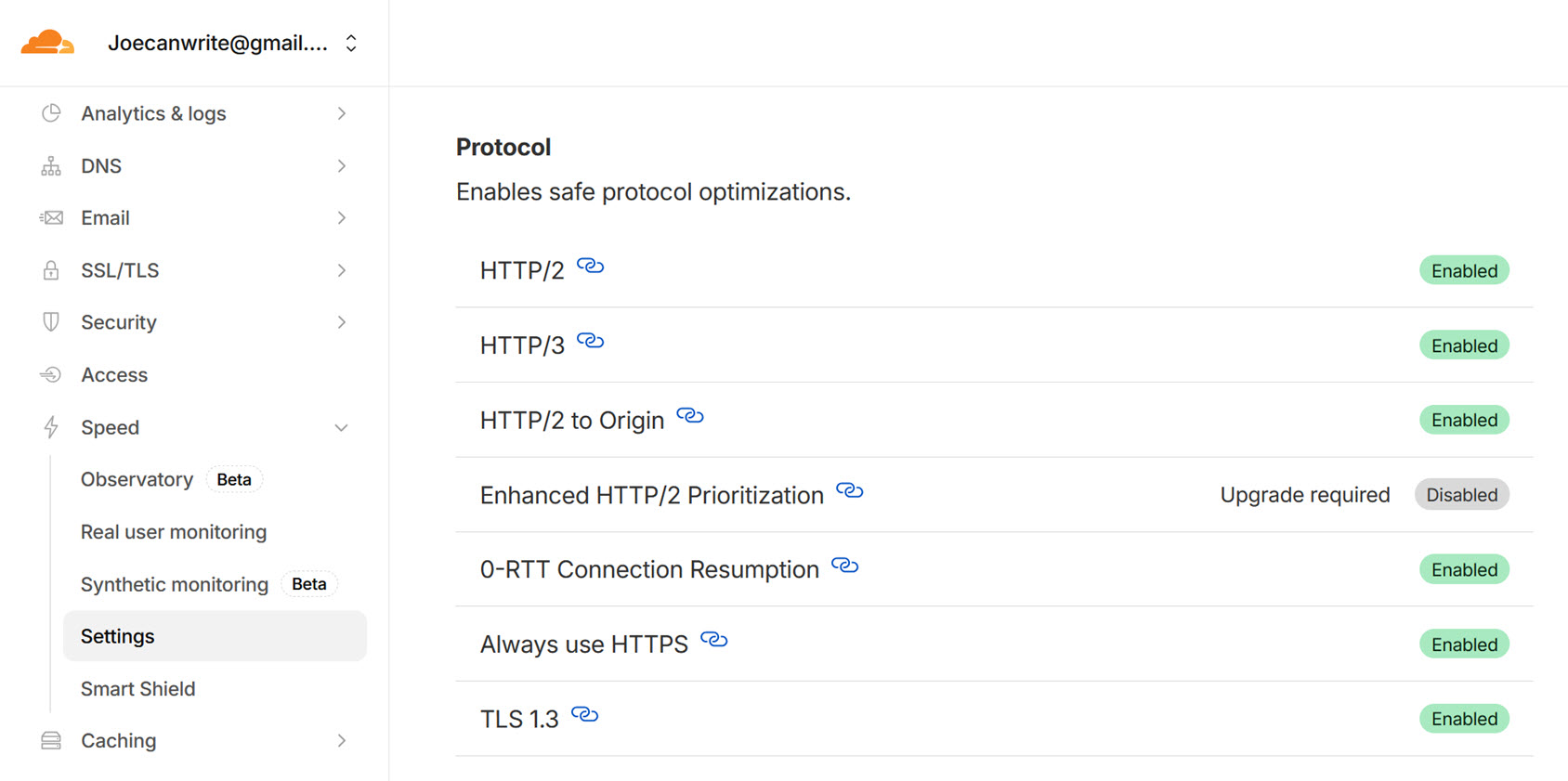
Once your hosting and CDN are in place, there are several server-level settings worth enabling. Most of them can be adjusted directly from your hosting control panel or Cloudflare dashboard.
Not all of these will apply to every store — your host may have already enabled some. Work through them in order and apply what you can as you go.
Enable Redis Object Caching
WooCommerce makes a lot of repeated database queries on every page load — product data, pricing, inventory, tax rules, shipping zones, and more. Without object caching, each of those queries hits the database every time a page is loaded. Redis stores the results in memory so they don’t need to be re-run, which can noticeably reduce TTFB.
If your host supports Redis, you should be able to enable it from your hosting control panel. Redis Object Cache Pro is worth enabling, too, if your host offers it, as it’s particularly well-suited to WooCommerce.
Update to the Latest PHP Version
WordPress and WooCommerce run on PHP, and newer versions handle significantly more requests per second than older ones. Updating to the latest stable version usually takes only a few clicks in your hosting control panel. Be sure to check plugin compatibility first and take a backup, but in most cases, it’s a straightforward way to improve TTFB.
Enable TLS 1.3 and HTTP/3
TLS and HTTPS encrypt data transferred between your store and shoppers.
TLS 1.3 establishes encrypted connections faster than older versions by reducing the number of round-trips required. HTTP/3 improves on HTTP/2 by handling data more efficiently, particularly on mobile or higher-latency connections. Cloudflare reports that HTTP/3 can improve TTFB by around 12%.
If you’re on Cloudflare, both can be enabled with a toggle; otherwise, check your host’s control panel or contact them. You can check your current HTTP and TLS versions quickly online.
Increase Your Cache TTL
The time-to-live (TTL) setting controls how long cached resources are stored before expiring. A longer TTL means fewer repeat requests reach your server, but it can also increase the risk of old content being displayed if applied too broadly.
For static assets such as CSS, JavaScript, and images, a longer TTL is usually beneficial. For many WooCommerce stores, a cache lifetime of several weeks or longer for versioned static assets is a sensible starting point, while HTML caching rules should be more conservative and page-specific.
Test Gzip and Brotli Compression
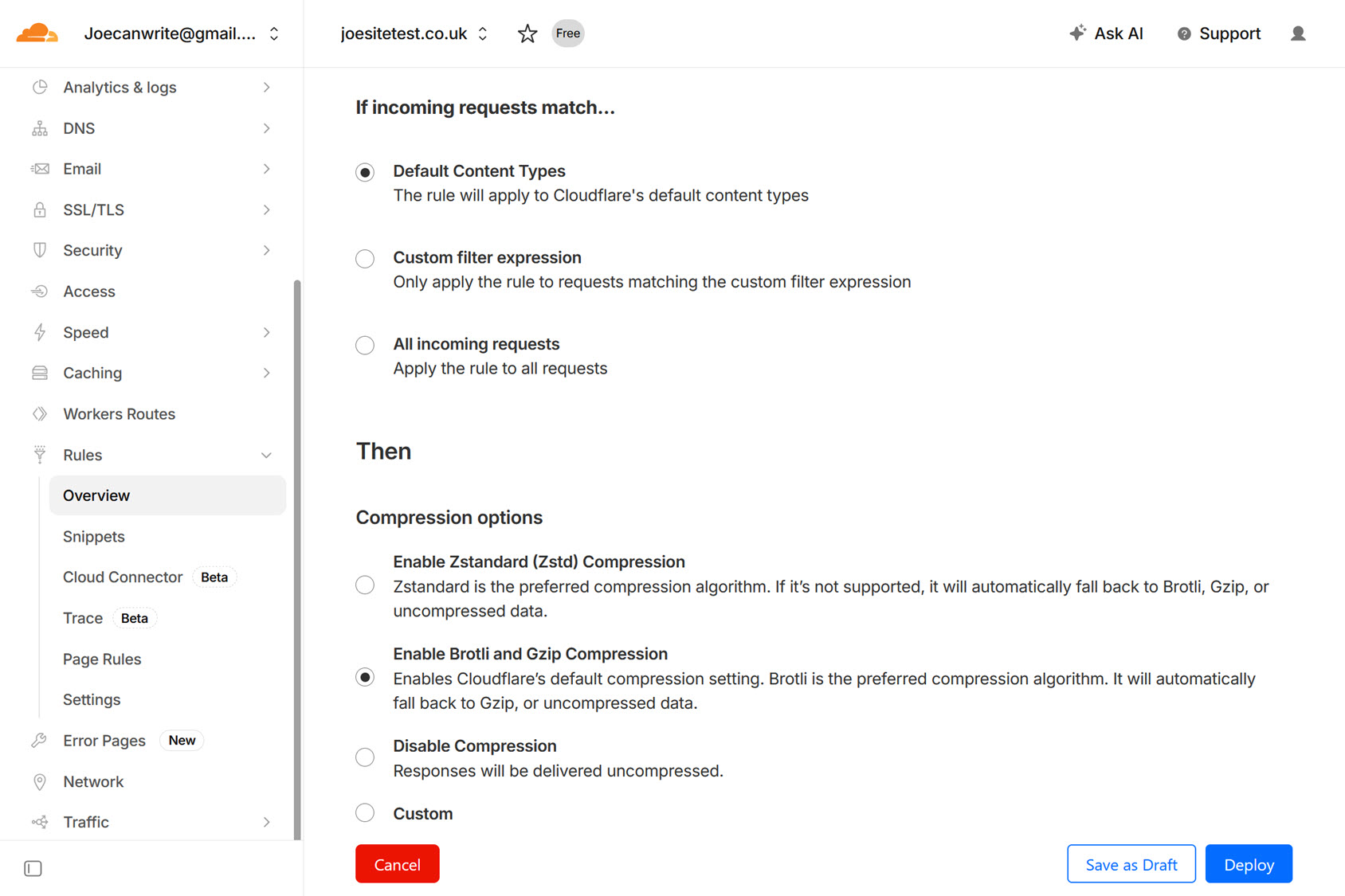
Compression reduces the size of files sent between your server and your shoppers’ browsers, resulting in faster transfer times. Brotli is the faster of the two and is supported by most modern hosts and Cloudflare. Regardless of which one you use, you should test before and after, as some configurations can slightly increase TTFB because the server has to compress the response before sending it.
Gzip and Brotli can usually be enabled via a toggle in your host’s control panel or in Cloudflare’s Rules settings.
Use a WooCommerce-Friendly Cache Plugin
Caching reduces the amount of PHP processing and database work your server has to do on each request, which can lower TTFB on cacheable pages.
For WooCommerce stores, it is important to use a caching plugin that handles page caching correctly and excludes dynamic areas such as cart, checkout, and account pages.
If your store is hosted on a LiteSpeed server, the LiteSpeed Cache plugin is usually the best fit, as it can work with server-level caching. On other setups, a plugin such as FlyingPress can be a strong option if you want more control over page caching and cache preloading.
Reduce Unnecessary Server Requests
Beyond hosting and a CDN, there are several smaller changes that can reduce server load and further chip away at TTFB.
Replace wp-cron
WordPress uses wp-cron to fire scheduled tasks when someone visits your site, which is inefficient on busier stores. Replacing this with a real server cron job is more reliable and reduces unnecessary load.
Reduce the WordPress Heartbeat API
The WordPress Heartbeat API sends frequent background requests to the server for tasks such as autosave, login expiration checks, and more. Turning it down with a plugin like Perfmatters or WP Rocket reduces unnecessary server requests.
Block Bad Bots
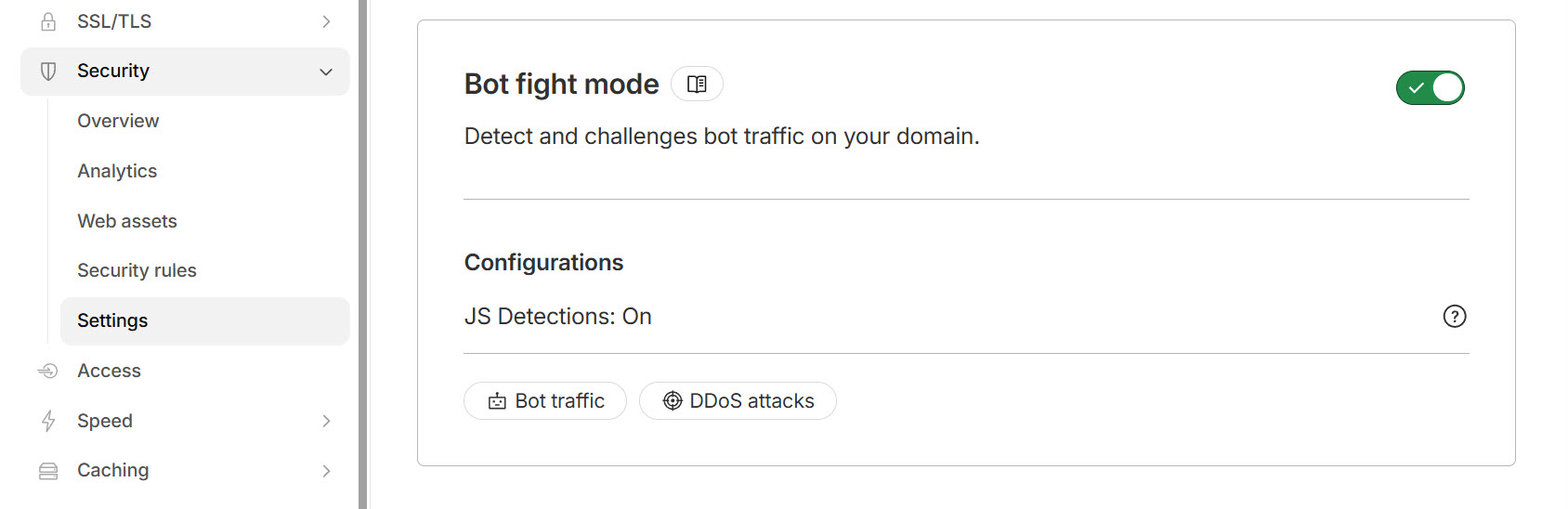
Bots crawling your store consume server resources without contributing anything. Cloudflare’s bot protection handles this well. Consider the Wordfence or Solid Security plugins if you’re not with Cloudflare.
Remove Unused Plugins
Redundant or duplicate plugins add overhead, so remove any you don’t need. It’s worth auditing your plugins regularly, particularly any that load scripts sitewide or duplicate functionality you’re already getting elsewhere.
Clean Up Your Database
Optimizing your store’s database can also improve TTFB. When a database becomes bloated with expired transients, orphaned order data, post revisions, and more, queries run more slowly, increasing TTFB.
Autoloaded options are a common problem. WordPress loads every option marked as autoload from the wp_options table into memory on every page load, whether it’s needed or not. Over time, plugins can add a lot of data here — settings, cached API responses, license keys, and more. If your autoloaded data grows large, it adds measurable overhead to every request before WordPress even starts building the page, directly increasing TTFB.
WP-Optimize is a reliable tool for cleaning up database bloat. It lets you review and remove leftover data and is worth running regularly. It’s also worth limiting post revisions in wp-config.php to prevent them from accumulating in the first place.
Some plugins, such as Rank Math, can increase the database size by storing analytics data there, which can make queries slower. So, it’s worth disabling any unused features or modules to prevent this.
Improving Server Response Times: Where to Start
There are many ways to reduce server response times (TTFB) in WooCommerce. Good TTFB (sub-200ms) is a realistic target for most stores. Start with the biggest levers: hosting, a CDN, and full page caching for cacheable pages. Then work through the smaller optimizations, such as Redis, PHP updates, database cleanup, and reducing unnecessary background requests. Measure TTFB after each change to see what’s making a difference.
Lower server response times can improve Core Web Vitals, PageSpeed scores, and the overall shopping experience, so it’s worth working through the steps above.
Reduce Server Response Times (TTFB) in WooCommerce FAQs
Here are answers to frequently asked questions on how to reduce server response times (TTFB) in WooCommerce:
What is a good TTFB for a WooCommerce store?
Google’s web.dev guidance considers under 800ms good and flags anything over 1.8 seconds as poor. However, for WooCommerce stores, aiming for sub-200ms gives you the best chance of strong LCP scores. On shared hosting, getting under 800ms is a realistic starting target, while sub-200ms can be achieved on better hosting with a CDN and full page caching in place.
What is the biggest factor affecting TTFB in WooCommerce?
Hosting is the single biggest factor. No CDN or plugin configuration can fully compensate for an underpowered server. If your TTFB is consistently poor, upgrading your hosting is the most impactful change you can make.
Does a CDN improve TTFB for WooCommerce stores?
Yes, particularly CDNs that support full page caching. These can reduce TTFB much more than CDNs that only cache static assets, because cacheable HTML can be served from the edge rather than generated by the origin server on every request.
How do I measure TTFB for my WooCommerce store?
Use KeyCDN’s Performance Test or SpeedVitals rather than PageSpeed Insights or GTmetrix, as both test from multiple global locations simultaneously. Run the test three times and check your most important pages, product pages, cart, and checkout, not just the homepage.
Does TTFB affect SEO?
Yes, indirectly. TTFB contributes to LCP (Largest Contentful Paint), which is one of Google’s Core Web Vitals and a confirmed ranking factor. Finding ways to reduce server response times (TTFB) in WooCommerce can help improve LCP, especially when TTFB is a major bottleneck.




 WooCommerce Memberships review – reward frequent buyers
 Best Cookie Compliance Plugins for Performance
 Best Cart Recovery Services for WooCommerce
 How to Find and Fix Rich Snippet Errors