

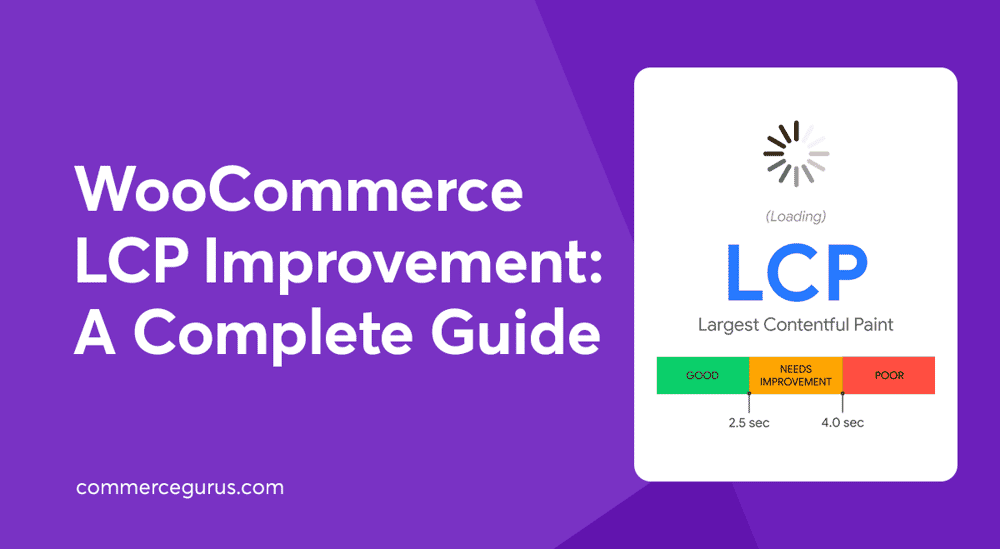
Improving LCP should be a priority for all WooCommerce stores as it directly impacts user experience, brand reputation, and conversions.
In fact, Rakuten 24 found that achieving a good LCP score lead to a conversion rate increase of up to 61%, as well as improvements in revenue per visitor and average order value. Renault reported a 14% decrease in bounce rate and a 13% increase in conversions after improving LCP.
If you’re not sure what LCP is, what a good score is, how to measure it, or how to improve it, this guide will get you up to speed.
By following the nine actionable strategies, you’ll be able to ensure your main content loads quickly, shoppers get a smooth first impression, and your conversions have the best chance to improve.
What is LCP?
Largest Contentful Paint (LCP) is a Core Web Vitals metric from Google that measures the render time of the largest image, text block, or video visible in the viewport, relative to when the user first navigates to the page. In simpler terms, it tells you how long it takes for the main content of your page to appear for shoppers.
For WooCommerce stores, LCP is critical because slow-loading product images, category banners, sliders, or promotional hero sections can frustrate customers, lower conversions, and even harm brand perception. Pages that appear visually complete quickly create trust and encourage users to stay and make a purchase, while pages with delayed LCP risk losing sales.
How to Identify a WooCommerce Store’s LCP Elements
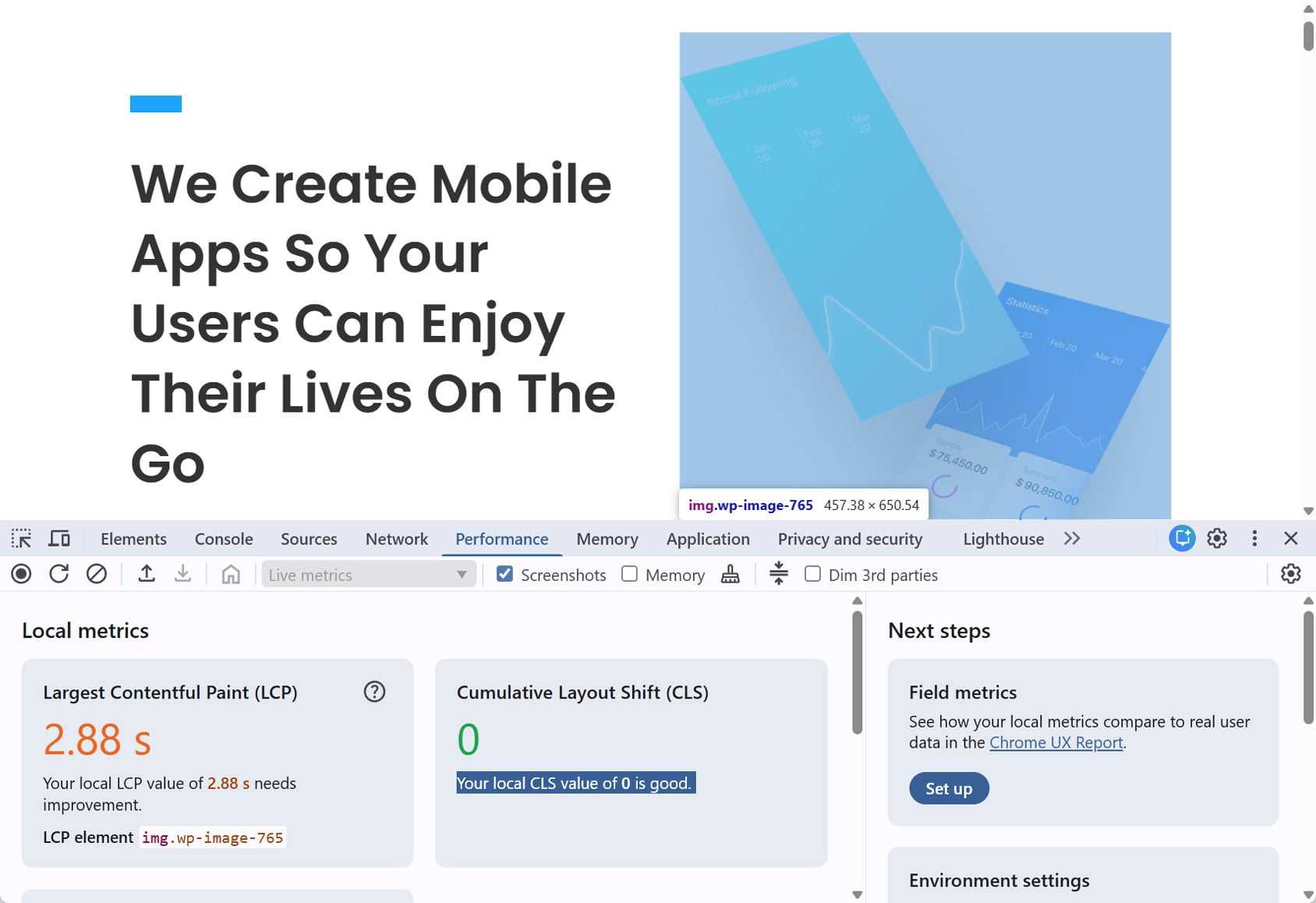
Before you can improve LCP, you need to know which elements on your store contribute to it. Common LCP elements include:
- Featured product images on product pages.
- Category or collection banners.
- Homepage hero sliders or promotional sections.
What to check:
- Test mobile and desktop experiences separately.
- Focus on revenue-generating pages, not just the homepage (product pages, cart, checkout).
- Tools you can use:
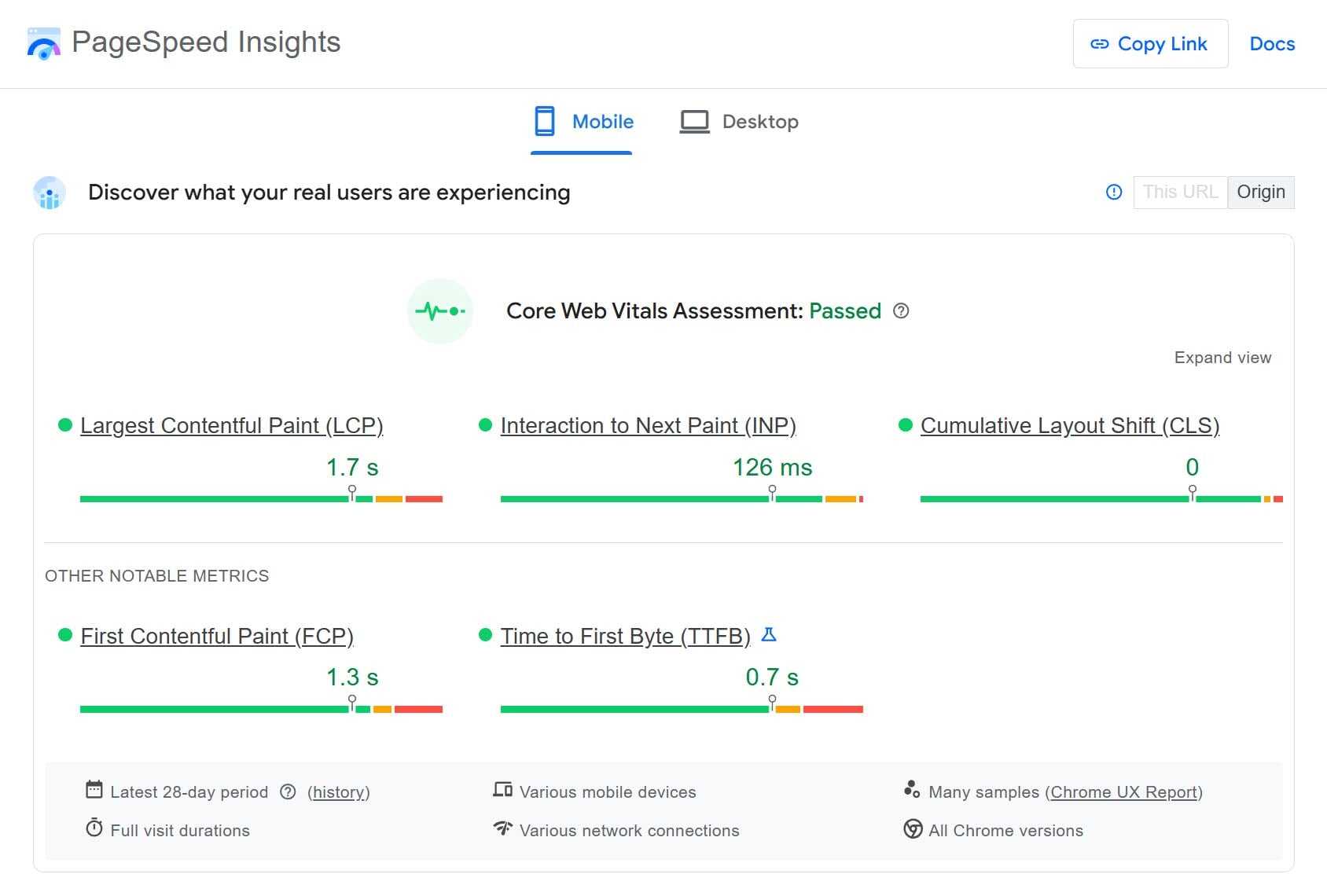
- PageSpeed Insights: identifies the LCP element and provides performance recommendations.
- Chrome DevTools: shows the loading sequence and resource timing.
- Google Search Console: gives real user metrics and reports on pages with poor LCP.
A good LCP score is generally 2.5 seconds or less for at least 75% of page loads. But don’t focus solely on scores; pay attention to how fast your store feels to shoppers.
Common LCP Problems on WooCommerce Stores
Now that we know what LCP is and how to measure it, here are nine practical ways to tackle common WooCommerce performance issues, from slow-loading images and fonts to heavy scripts and CSS.
1. Exclude Above-the-Fold Images From Lazy Load
Lazy loading makes pages feel faster by deferring image loading until they’re needed.
However, because LCP measures the time from the start of page load until the largest image or text block in the viewport finishes rendering, lazy-loading images displayed above the fold actually worsen LCP scores.
Therefore, if your store’s featured product images or category banners are lazy-loaded, the browser will wait before downloading them. This creates what Google calls resource load delay, one of the biggest LCP bottlenecks in real-world data.
What to do: Configure your lazy-loading plugin or theme settings to exclude above-the-fold images. This ensures critical images start loading as soon as the HTML is received.
2. Prioritize Above-the-Fold Images
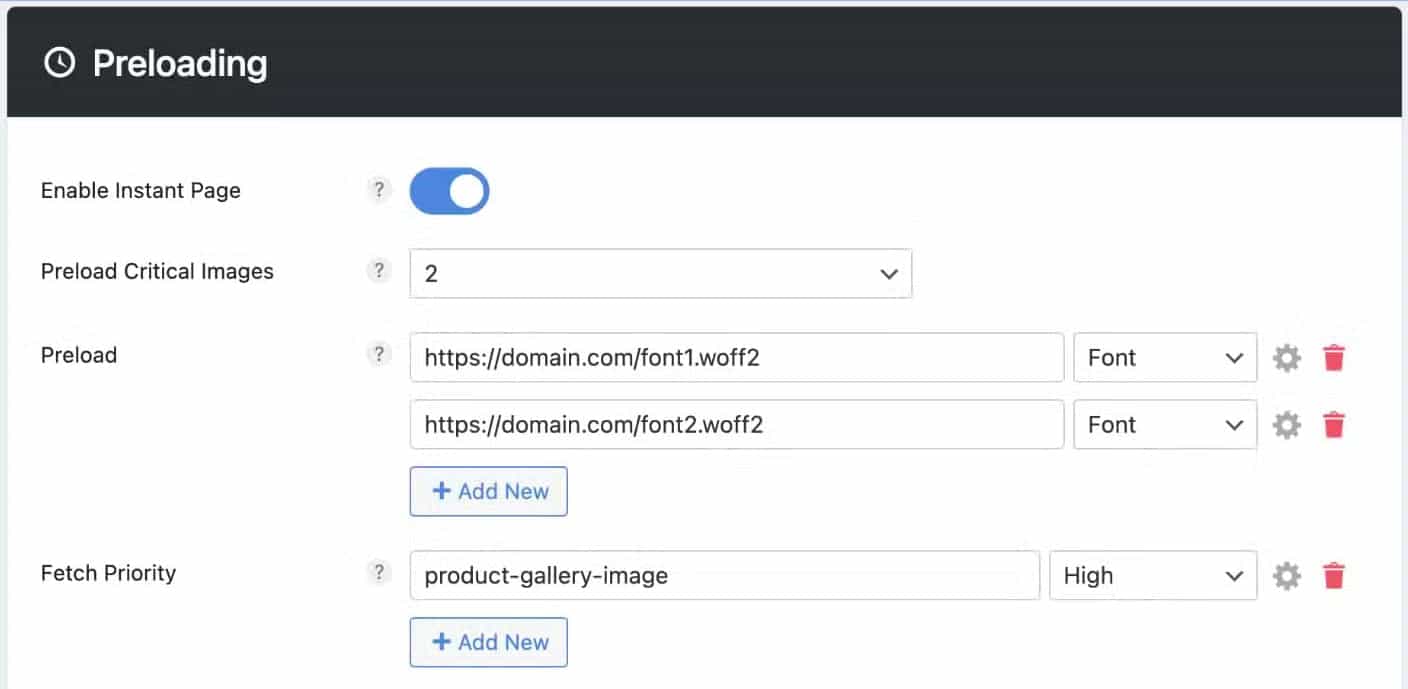
As well as excluding above-the-fold images from lazy loading, you also need to prioritize them. This instructs browsers to load the LCP element as early as possible, reducing resource load delay and improving LCP times.
What to do: This works by either preloading the LCP image or assigning it a high fetch priority, signalling to the browser that it should be downloaded before less important resources.
For example, you can use preload to tell the browser to start downloading the LCP image as soon as possible, even before it’s discovered in the HTML:
<link rel="preload" as="image" href="https://example.com/wp-content/uploads/hero-image.jpg">Alternatively, you can use fetchpriority to increase the importance of the LCP image without preloading it explicitly:
<img src="https://example.com/wp-content/uploads/hero-image.jpg" fetchpriority="high">
If you’d rather not edit code, performance plugins, such as Perfmatters or WP Rocket, let you mark specific images as high priority so they load first.
CommerceGurus Turbo also handles this automatically for WooCommerce stores. Its Preload module adds fetchpriority="high" to your critical images (the hero, key product photos) while the Lazy Load module excludes LCP images from deferral so they always load at full speed. The Cloudflare Images module also shrinks those images dramatically; for example, 420KB JPEGs can drop to 28KB on mobile.
Only preload the single image that is actually your LCP element. Preloading too many images can overwhelm the browser, compete with critical resources, and end up hurting performance instead of improving it.
3. Use Modern Image Formats (WebP or AVIF)
Even when images are prioritised correctly, their file size still affects how quickly your LCP element loads. Modern formats like WebP and AVIF are much smaller than JPEG or PNG files, allowing images to download faster without sacrificing quality.
What to do: Use WebP or AVIF formats for above-the-fold images wherever possible. Tools like Optimizilla or Imagify make it easy to convert images into these formats. Our guide to WooCommerce images has more information on this topic.
4. Replace Image LCP Elements With Text
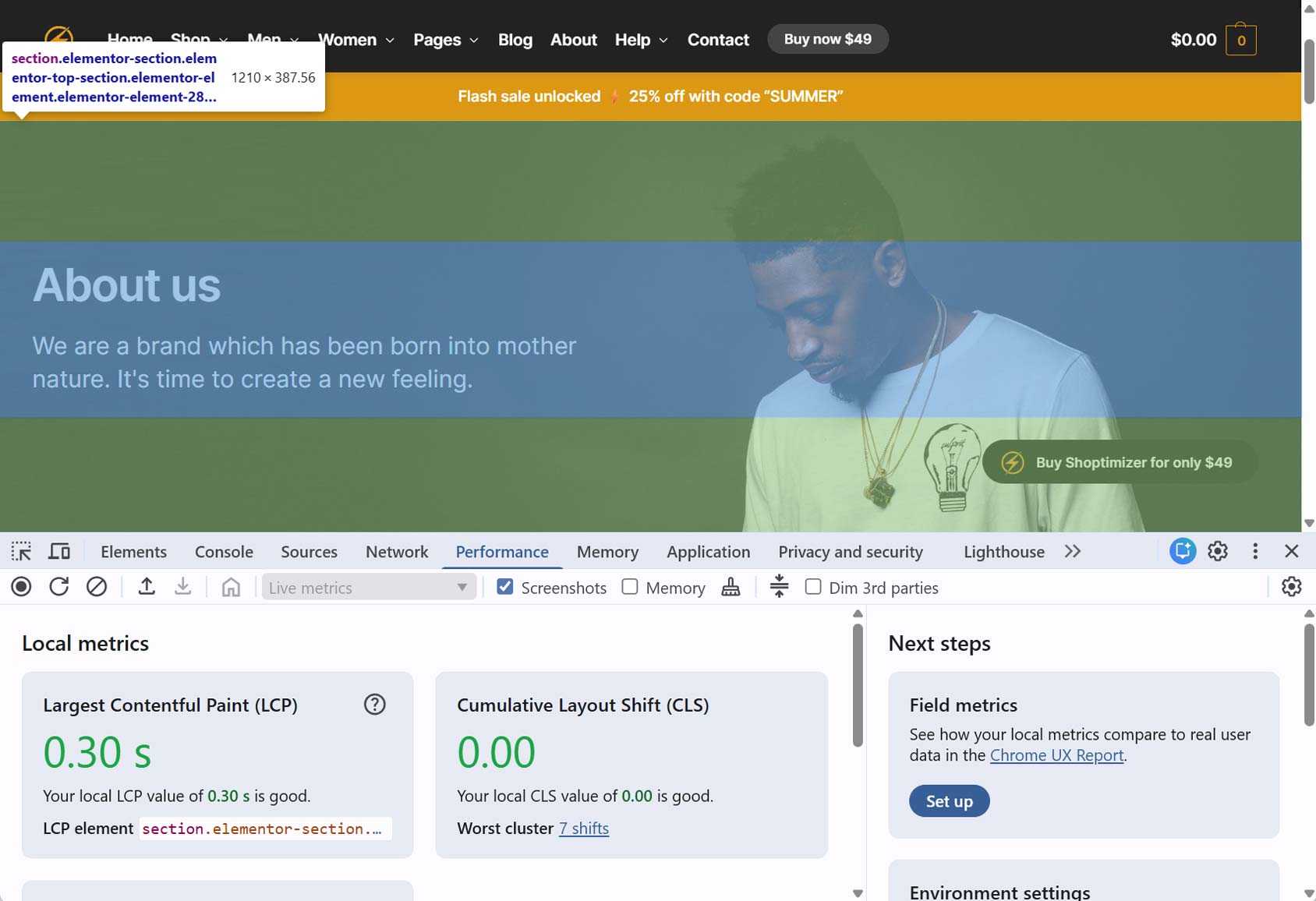
Even when above-the-fold images are prioritized and excluded from lazy loading, your LCP score is still limited by how long those files take to download.
So instead of trying to optimize images, consider designing your pages so the LCP element is text, such as an H1 heading, which loads instantly compared to even a well-optimized image. Using system fonts further eliminates resource load time, removing one of the most significant LCP risk factors.
This doesn’t mean abandoning visuals — it means rethinking what appears first and largest in the viewport. For example, the hero image could be positioned below the fold. In this case, the text-based heading loads instantly as LCP, and the image comes into view as users scroll down the page. This is a common approach for high-converting landing pages and could work well for your store.
Another option is to use a smaller product image grid instead of a single hero image. Using multiple smaller images means none of them becomes the LCP element on their own, and the text heading is likely to take over.
For WooCommerce stores, leading with clear, large text headings and treating images as secondary content is a reliable way to improve LCP without sacrificing design or conversions.
What to do: Redesign key landing pages so the largest visible content above the fold is text. You can still include images, just adjust their position or use smaller images so they’re not the LCP element. When working with text, use system fonts where possible, and position images after headings to reduce LCP delays.
You can run A/B tests to compare the text-first version of a page with the version where the image is the main element so see their LCP scores and conversion rates.
5. Remove Unused CSS
Even if your images are optimized, CSS can cause LCP issues. One of the most common issues is large stylesheet files that need to load before the page can begin rendering.
WooCommerce stores often load CSS for layouts, widgets, and plugins that aren’t actually used on every page. This extra CSS increases render time and delays when your LCP element can appear.
What to do: Use a performance plugin that can remove unused CSS on a per-page basis. Tools like Perfmatters or WP Rocket automatically analyse which styles are needed and delay or remove the rest. This reduces the amount of CSS the browser has to process, helping your main content, including your LCP element, render sooner.
6. Delay Third-Party Code Until User Interaction
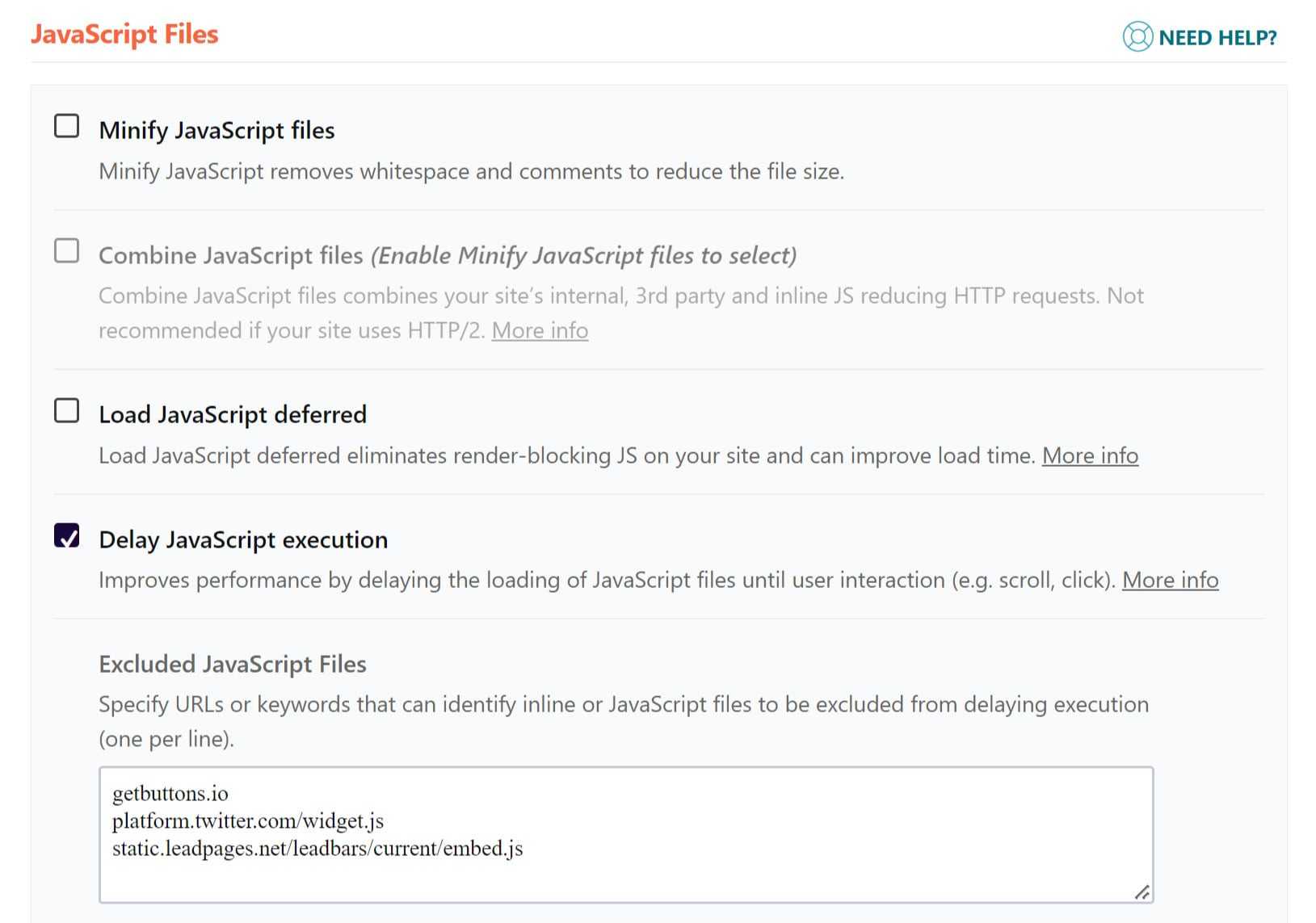
Third-party scripts can delay LCP, even though they don’t affect what the shoppers see first.
Common culprits include scripts from analytics tools, chat widgets, heatmaps, and marketing tags that load before the main page content.
When these scripts load too early, they compete with your store’s critical resources and slow down the LCP element’s rendering.
What to do: Use a performance plugin to delay third-party scripts until after user interaction, such as a scroll, click, or tap. This allows the browser to focus on rendering your main content first, improving LCP without removing important tracking or functionality.
7. Reduce TTFB – Hosting is Key
Time to First Byte (TTFB) measures how long a shopper’s browser waits before your server sends the first response. Until that happens, nothing can load, making TTFB the foundation of LCP.
Reducing TTFB starts with fast, WooCommerce-optimized hosting, combined with proper caching and a CDN to deliver the initial HTML as quickly as possible. Even small improvements to TTFB can noticeably improve LCP.
What to do: Fast hosting, proper caching, and a CDN are the simplest ways to reduce TTFB and give your LCP a real boost.
8. Reduce Font Requests
Font choices aren’t just cosmetic. Each font file is an extra request that can delay text from appearing and slow your LCP. Using web-safe system fonts eliminates this issue, as no files need to be downloaded.
What to do: If you use web fonts, stick to a single font family and limit weights to one or two. You can also preload critical fonts or use a font-display strategy like swap to ensure text appears quickly, helping your LCP and perceived page speed.
9. Use the Right Caching Plugin
Caching can significantly improve your site’s performance and boost LCP. We built our own WooCommerce caching plugin, CommerceGurus Turbo, specifically for this – it serves fully-rendered pages before WordPress even boots, while automatically excluding cart and checkout. The right caching plugin helps serve HTML faster, reduces TTFB, supports image preloading, and safely delays non-essential scripts.
What to do: Choose a WooCommerce-optimized caching plugin, such as WP Rocket, LiteSpeed Cache, or Perfmatters. Configure it to cache pages, preload critical resources, and defer non-essential scripts. This ensures the browser receives a ready-to-render page quickly, helping your LCP improve without breaking functionality.
10. Use a Lightweight Theme
Your store’s theme has a big impact on load performance and LCP. Lightweight themes, like our Shoptimizer, minimize unnecessary CSS, JavaScript, and layout complexity above the fold. This reduces both resource load delay and render delay, two LCP components that real-world data shows are often the most significant bottlenecks.
What to do: Choose a WooCommerce-optimized, lightweight theme that focuses on performance. Keep customizations minimal above the fold, and avoid themes that load excessive scripts or large stylesheets by default. This ensures your main content renders quickly, giving shoppers a faster, smoother experience.
Start Improving Your WooCommerce Store’s LCP Today
Largest Contentful Paint (LCP) is more than just one of the Core Web Vitals. It’s a key indicator of how fast your WooCommerce store feels to shoppers, and it directly impacts conversions, user experience, and brand reputation.
By following the nine strategies outlined in this guide, from excluding above-the-fold images from lazy load to using a lightweight theme, you can tackle the most common LCP bottlenecks and ensure your main content loads quickly.
Remember to measure your store before and after making changes, across both mobile and desktop.
⚡ Fix your LCP automatically! CommerceGurus Turbo handles the heavy lifting from this guide with one click. Page caching, unused CSS removal, image preloading, and delay JS – all with safe WooCommerce defaults. Most stores see mobile PageSpeed scores jump from the 40s to the 90s.
WooCommerce LCP Optimization FAQ
What is LCP?
Largest Contentful Paint (LCP) helps you understand how fast your store feels to shoppers by measuring how long it takes for the main visible content, such as an image, text block, or video, to load after a user reaches the page.
What is a good LCP score for my WooCommerce store?
Google recommends 2.5 seconds or less for 75% of page views. However, perceived speed matters too; a page that feels fast can outperform a technically “good” score.
Which elements usually cause poor LCP in WooCommerce stores?
The largest visible images or text above the fold, such as featured product images, hero banners, sliders, and category headers, are the most common culprits.
Can I improve LCP without changing my store’s design?
Yes. Optimizations like prioritizing images, delaying third-party scripts, reducing font requests, and using a caching plugin can improve LCP without altering your visual layout.
How do I test LCP for my store?
Use tools like PageSpeed Insights, Chrome DevTools, and Google Search Console. Test multiple pages, both desktop and mobile, especially revenue-critical pages like product, category, and checkout pages.
Will improving LCP increase WooCommerce store conversions?
Yes. Faster-loading main content keeps shoppers engaged, reduces bounce rates, and encourages purchases, all of which contribute to higher conversion rates and better user experience.

 The Ultimate Guide To WooCommerce Dropshipping: Everything You Need To Build Your Business
 Why You Should Use Exit Intent Popups on Your eCommerce Store
 WordPress Database/MySQL optimisation guide
 Turbocharge your WooCommerce store load times