Page caching is one of the most effective ways to speed up a WooCommerce store. Without caching, every page visit requires WordPress to run PHP, query the database, and build the HTML from scratch.
With page caching enabled, CommerceGurus Turbo stores a static HTML copy of each page and serves it instantly to subsequent visitors – bypassing all of that processing.
The result? Server response times will drop dramatically, often from hundreds of milliseconds to low single digits. A huge impact.
Navigate to WooCommerce > CG Turbo > Modules > Page Cache to configure these settings.
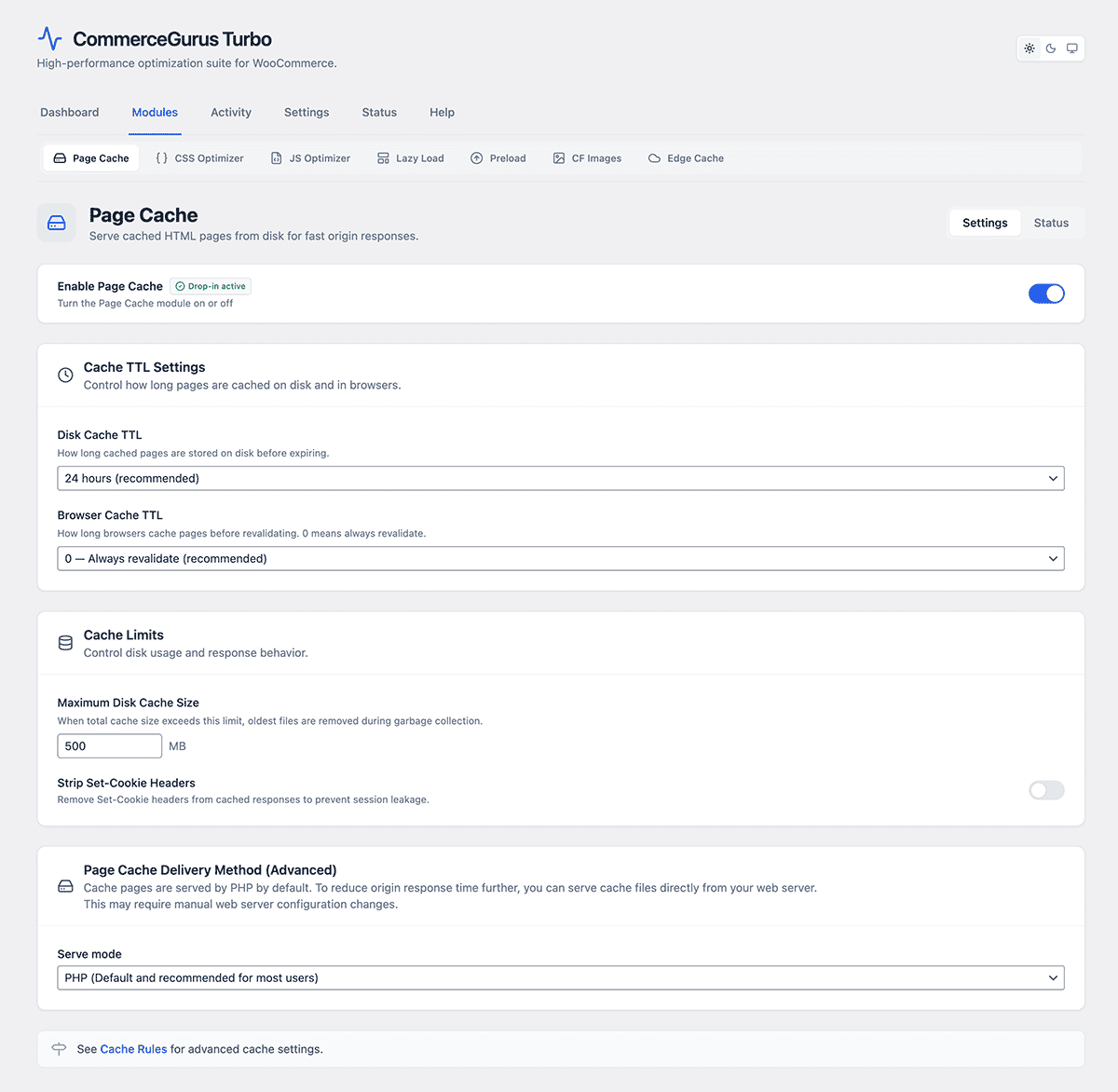
Serve modes
CommerceGurus Turbo offers three ways to serve cached pages. The right choice depends on your hosting environment.
PHP Drop-in (default)
Uses WordPress’s advanced-cache.php system. CommerceGurus Turbo automatically creates this file and sets the required WP_CACHE constant.
This works on all hosting environments and is a great starting point.
If you see a notice about WP_CACHE not being defined, you may need to include this line in your wp-config.php file manually:
define(‘WP_CACHE’, true);
On Bedrock-based installs, add it to your .env or application.php configuration.
Apache
Generates .htaccess rules that serve cached pages directly from disk, bypassing PHP entirely. This is the fastest option for Apache-based hosting.
CommerceGurus Turbo adds the required rules to your .htaccess file automatically.
Nginx
Generates an Nginx configuration snippet that you’ll need to add to your server configuration manually. The snippet is displayed in the admin UI. This is the fastest option for Nginx-based hosting but requires server access.
Settings
- Cache TTL – how long cached pages are valid before they expire. Default is 24 hours (86400 seconds).
- Browser TTL – how long the visitor’s browser should cache pages. Default is 0 (revalidate every time). Set this higher if your content doesn’t change frequently.
- Max cache size – the maximum disk space used by the cache. Default is 500MB.
- Strip cookies – removes `Set-Cookie` headers from cached responses. This can improve cacheability but should be tested carefully, particularly if you use plugins that set cookies for analytics or personalization.
Cache warming
This is a great option to have – after a full cache purge, CommerceGurus Turbo automatically re-warms your cache by crawling the URLs from your sitemap.
This ensures your most important pages are cached and ready before visitors arrive, so nobody hits a slow uncached page. Cache warming runs in the background and won’t slow down your site.
Purging the cache
You can purge the cache in a number of ways:
- Admin bar – click
CommerceGurus Turbo > Purge All Cacheto clear everything, or you can click Purge This Page when viewing a specific page. - Automatic purging – when you publish, update, or delete a post or product, CommerceGurus Turbo automatically purges the relevant cached pages. You don’t need to think about it.
WooCommerce integration
CommerceGurus Turbo handles the tricky parts of caching a WooCommerce store for you. Cart, checkout, my account, and payment pages are automatically excluded from caching.
Pages are also bypassed for visitors with items in their cart, so they always see accurate cart data.