Most WooCommerce stores load far more CSS than any single page actually needs. Your theme, WooCommerce, and plugins each add their own stylesheets – but on any given page, only a fraction of those styles are actually used.
CommerceGurus Turbo’s CSS Optimizer solves this by generating a lean, page-specific stylesheet containing only the CSS that’s actually needed.
This directly addresses the PageSpeed recommendation to “reduce unused CSS” and can make a dramatic difference to your scores.
Navigate to WooCommerce > CG Turbo > Modules > CSS Optimizer to configure these settings.
How it works
When a page is first visited, CommerceGurus Turbo scans the HTML and identifies which CSS selectors are actually needed. It generates a compact Used CSS file for that page type (homepage, product page, archive, etc.) and caches it.
On subsequent visits, this optimized CSS is inlined directly in the page, and the original full stylesheets are delayed – resulting in a much faster render.
Settings
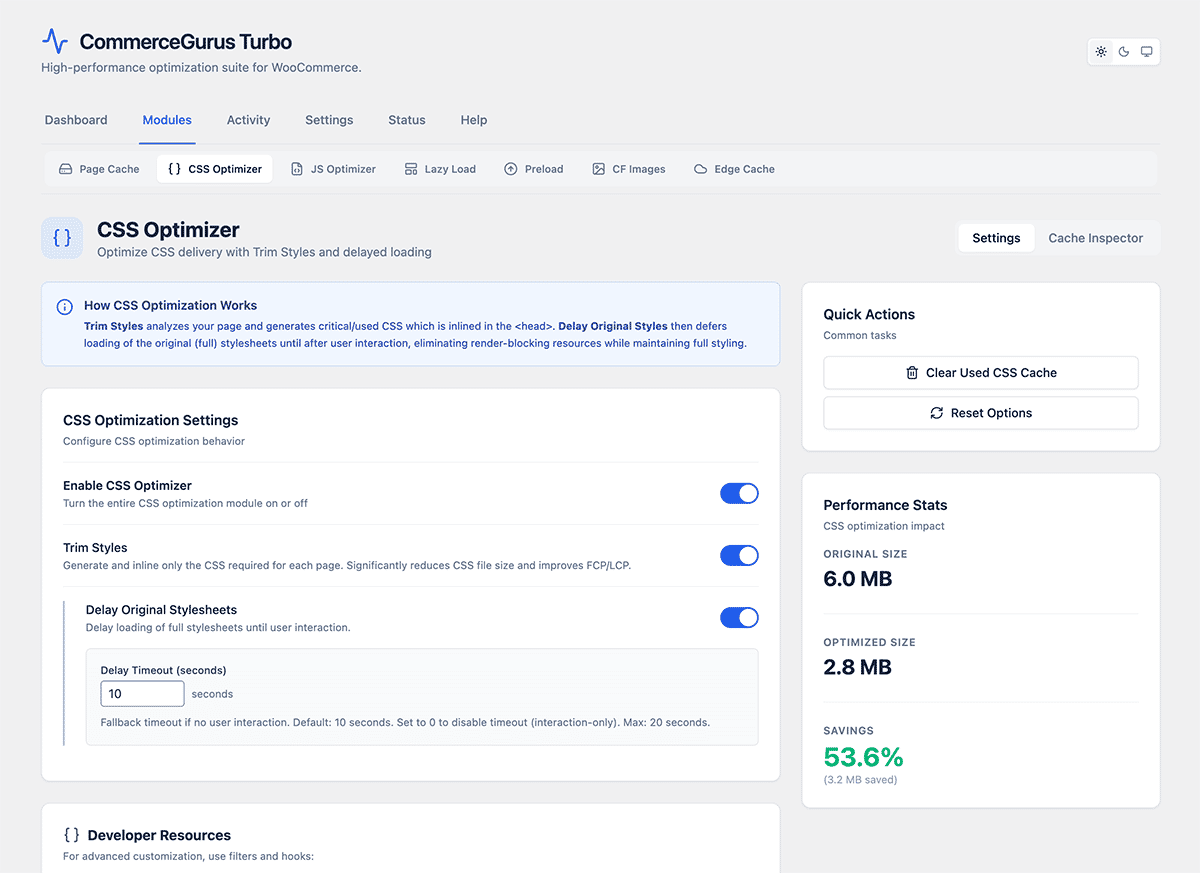
- Trim Styles – the core feature. When enabled, CommerceGurus Turbo generates Used CSS for each page type. Enabled by default.
- Delay Original Styles – controls whether the original full stylesheets are delayed and loaded after a timeout. This ensures styles are still available as a fallback for any dynamic content that appears after the initial page load. Enabled by default.
- Delay Style Timeout – how long (in seconds) before the original stylesheets are loaded. Default is 10s.
Clearing the CSS cache
The Used CSS cache is stored in wp-content/cache/cg-turbo/css/ – you should clear it when:
- You update your theme or any plugin that adds frontend styles
- You make design changes (e.g. customizer settings, page builder edits)
- You notice missing styles on a page
To clear the cache, click Clear CSS Cache in the CommerceGurus Turbo admin bar dropdown, or from the CSS Optimizer module page.
Cache Inspector
The CSS Optimizer modules includes a built-in Cache Inspector – a powerful tool that gives you full visibility into what’s happening with your CSS optimization. You’ll find it under the Cache Inspector tab on the CSS Optimizer page.
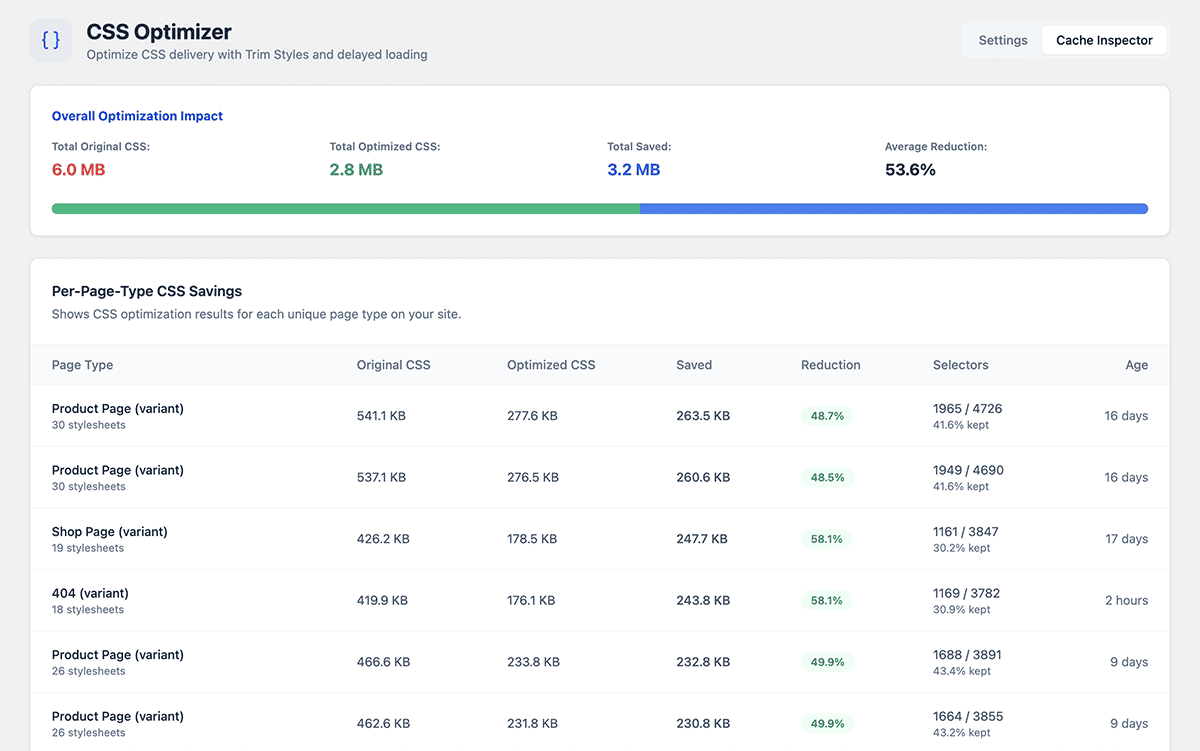
Overall Optimization Impact
At the top you’ll see a summary of your total CSS savings across the entire site:
- Total Original CSS – the combined size of all your stylesheets before optimization
- Total Optimized CSS – the size after CommerceGurus Turbo has trimmed unused selectors
- Total Saved – how much CSS has been eliminated
- Average Reduction – the overall percentage reduction, shown with a visual progress bar
It’s interesting to see just how much unnecessary CSS most WooCommerce stores are loading – reductions of 50-70% are common.
Troubleshooting
- Flash of unstyled content (FOUC) – if you briefly see unstyled content before the page renders correctly, the Used CSS may be missing some selectors. Clear the CSS cache and revisit the page to regenerate it.
- Styles missing on a specific page – if a page relies on styles loaded dynamically (e.g. via JavaScript), the Used CSS generator may not capture them. Use the per-page meta box in the WordPress editor to exclude that page from CSS optimization.