Edge caching is where things get really fast. Instead of serving pages from your origin server, CommerceGurus Turbo stores your pages on Cloudflare’s global CDN – a network of 300+ data centres around the world.
Visitors are served cached pages from the location nearest to them, which means near-instant page loads regardless of where your server is hosted.
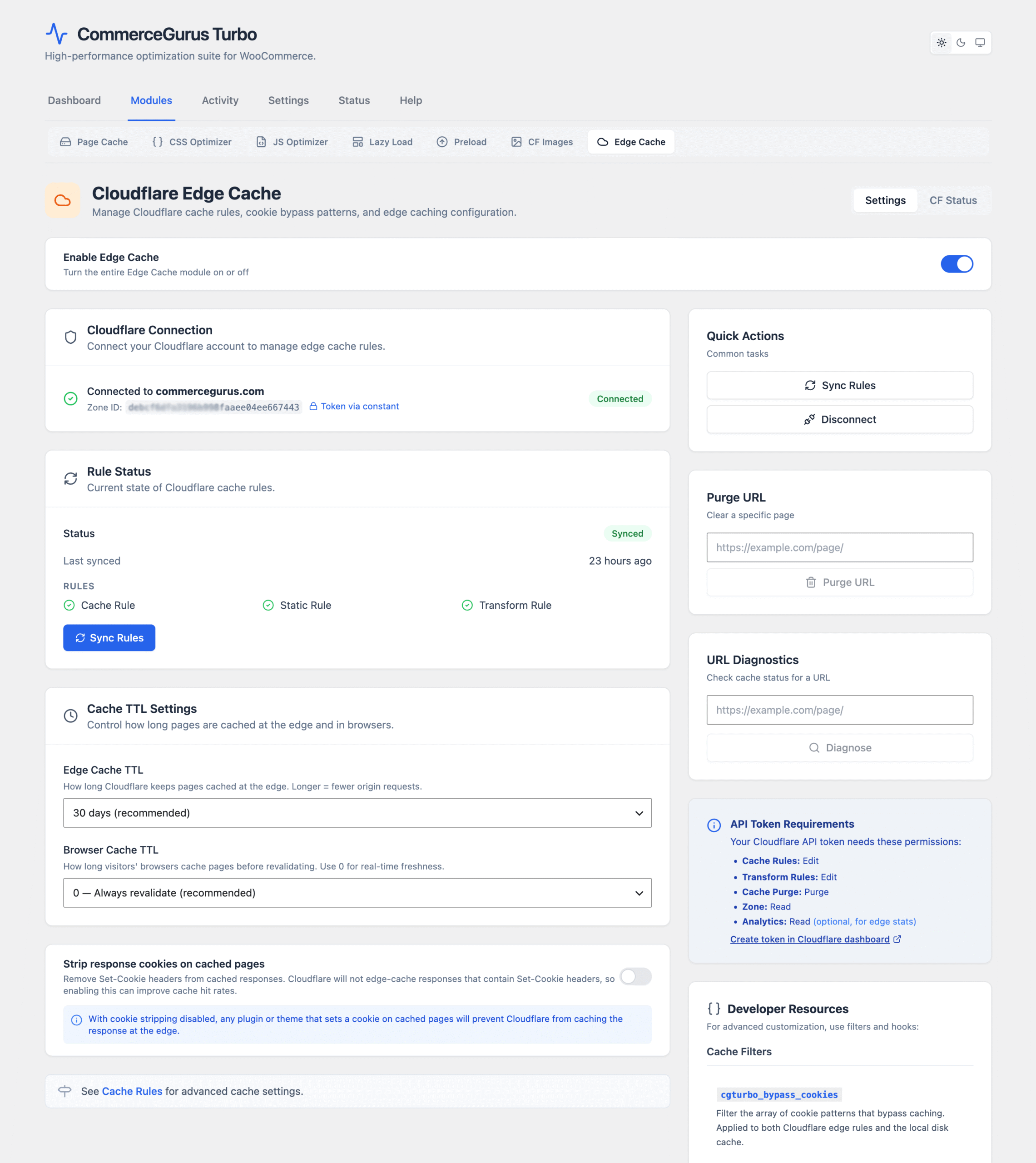
Navigate to WooCommerce > CG Turbo > Modules > Edge Cache to configure these settings.
How it differs from page caching
Page caching stores HTML on your server’s disk. Edge caching stores it on Cloudflare’s CDN. They complement each other – page cache acts as a fast fallback at the origin, while edge cache delivers your pages globally at CDN speed.
For the best performance, we recommend enabling both.
Requirements
- A Cloudflare account (the free plan works)
- Your domain must be proxied through Cloudflare (orange cloud icon in DNS settings)
- A Cloudflare API token with the correct permissions
Setup
CommerceGurus Turbo automatically creates the necessary cache rules in your Cloudflare account. You don’t need to configure anything manually in the Cloudflare dashboard – the plugin handles everything for you.
Within your Cloudflare account:
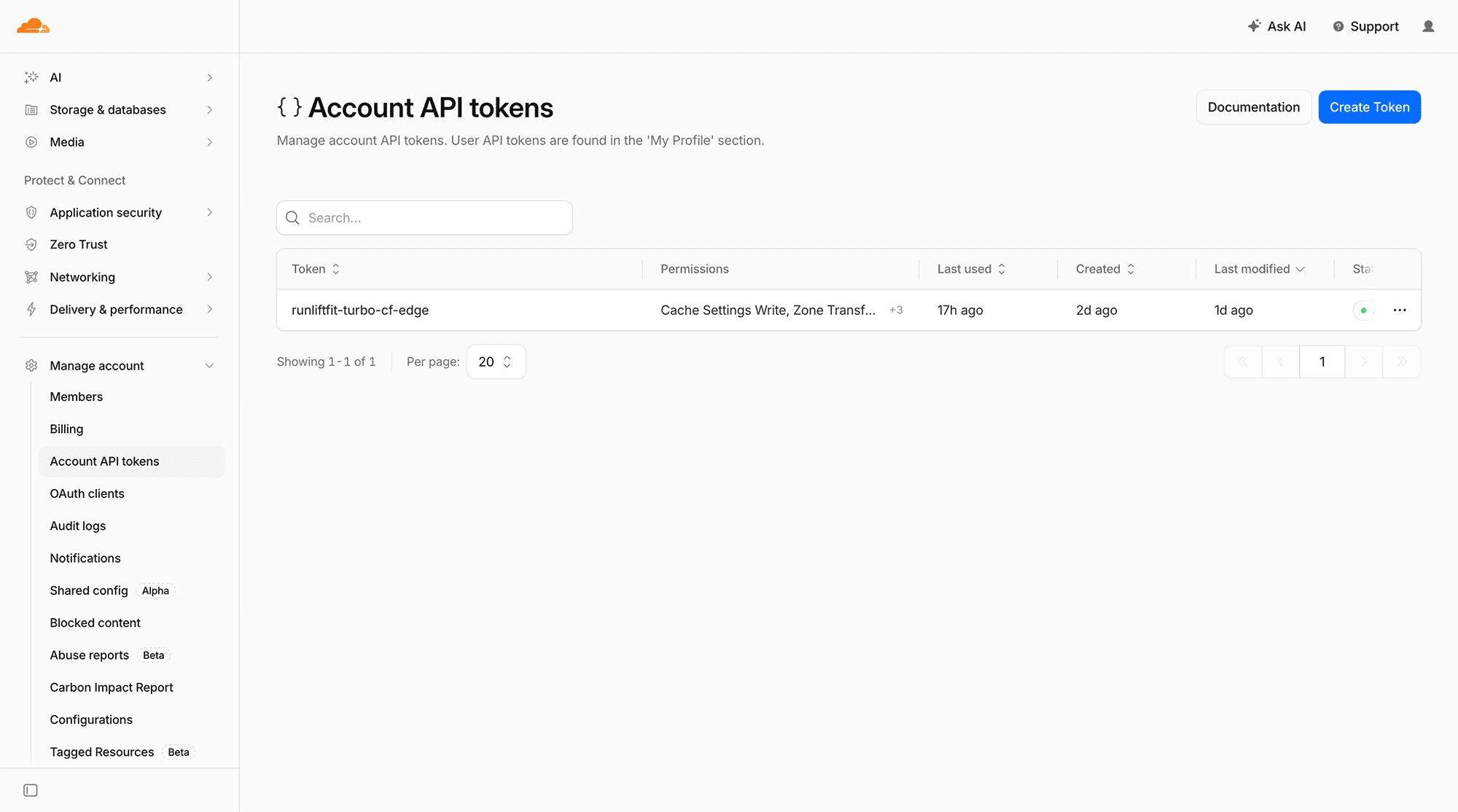
In your Cloudflare dashboard, go to Manage account > Account API tokens. Note you need to be a Super Admin to create Account API Tokens, so usually only the account holder can do this.
Here you can click Create a token.
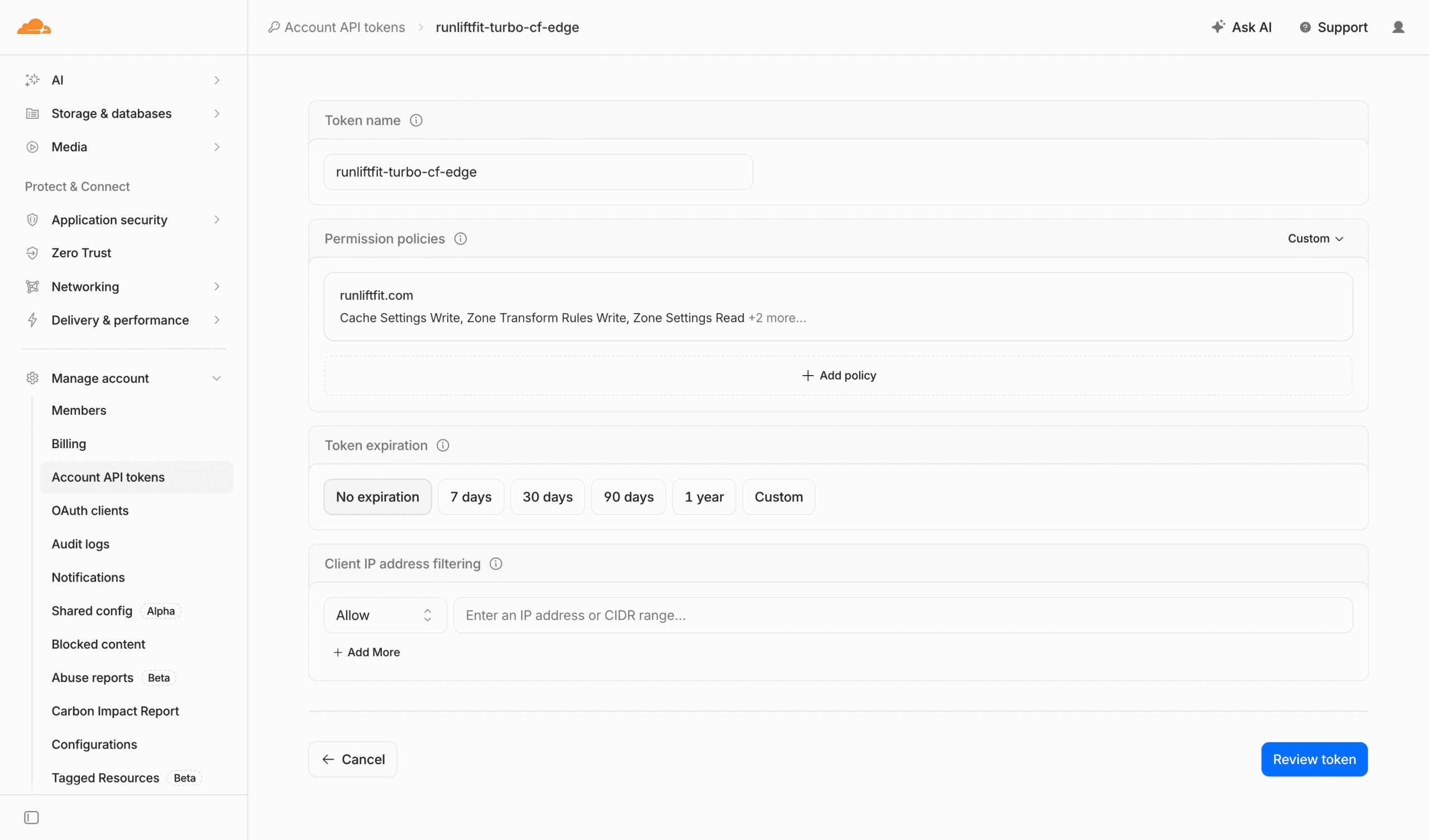
Next, give it a token name. It should be easily identifiable. We suggest this format: websitename-turbo-cf-edge – replacing websitename with your own site.
Ensure that No expiration is set.
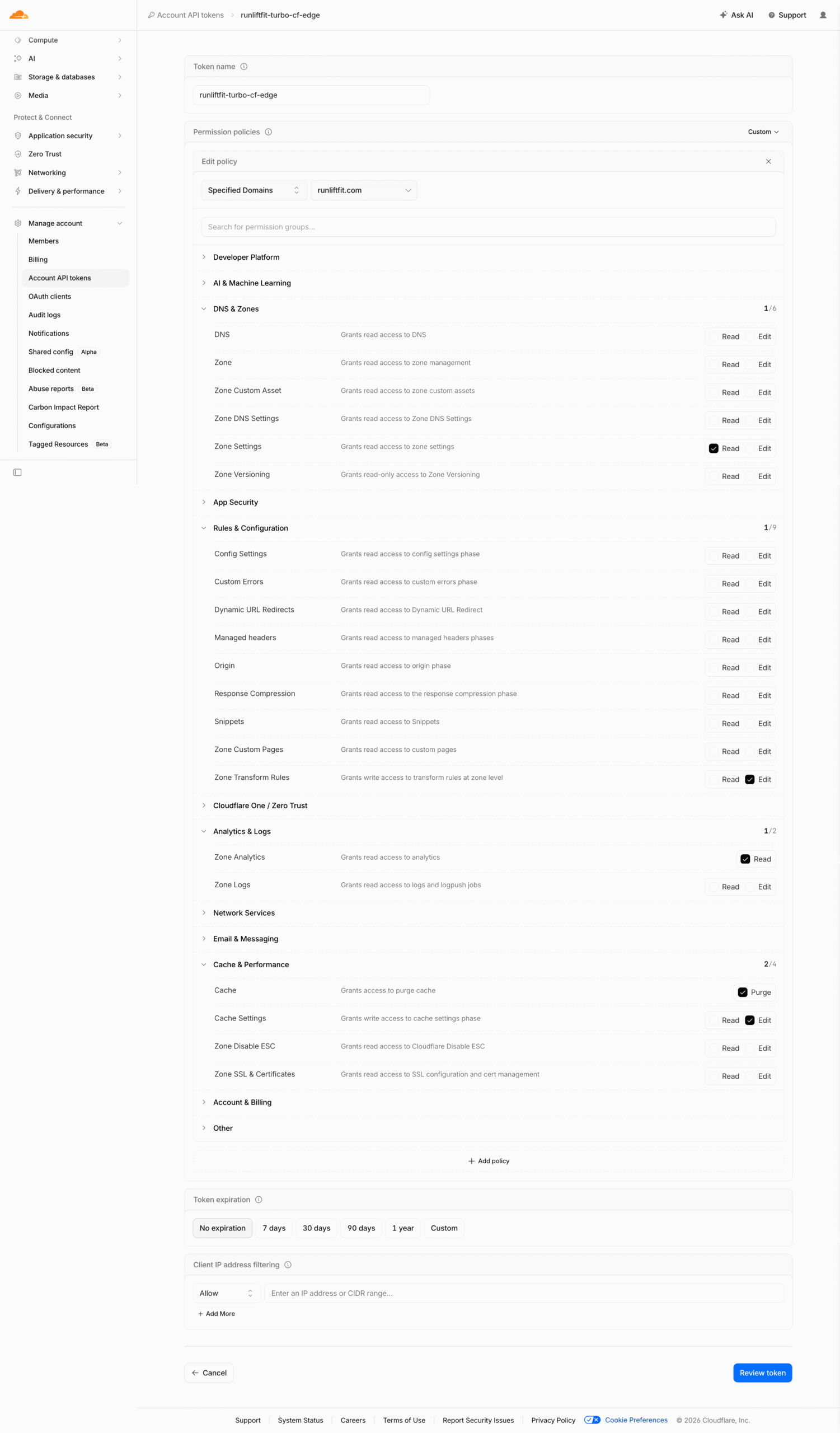
Finally we need to set some permissions.
DNS & Zones 1/6
Zone Settings – Read
Rules & Configuration 1/9
Zone Transform Rules – Edit
Analytics & Logs 1/2
Zone Analytics – Read
Cache & Performance 2/4
Cache – Purge
Cache Settings – Edit
When this is done – click Review Token and it will be created for you. Remember to keep a note of the long token string safe, we’ll be using it in the next step.
Within WordPress:
- Go to
WooCommerce > CG Turbo > Edge Cache. - Paste your API token and click Connect.
- Select your zone (domain) from the dropdown.
See more within Cloudflare’s Edge Caching Documentation.
Edge Caching Settings
- Edge TTL – how long Cloudflare caches your pages. Default is 30 days. Since CommerceGurus Turbo automatically purges the cache when you update content, a long TTL is safe and recommended.
- Browser TTL – how long the visitor’s browser caches pages. Default is 0 (revalidate every time).
- Strip cookies – removes Set-Cookie headers from cached responses. Same as the page cache option.
Rule sync status
The Edge Cache page shows a sync status badge:
- Synced – your Cloudflare cache rules are up to date.
- Pending – rules need to be synced. Click the sync button.
- Error – something went wrong. Check the error message and verify your API token permissions.
Edge Analytics
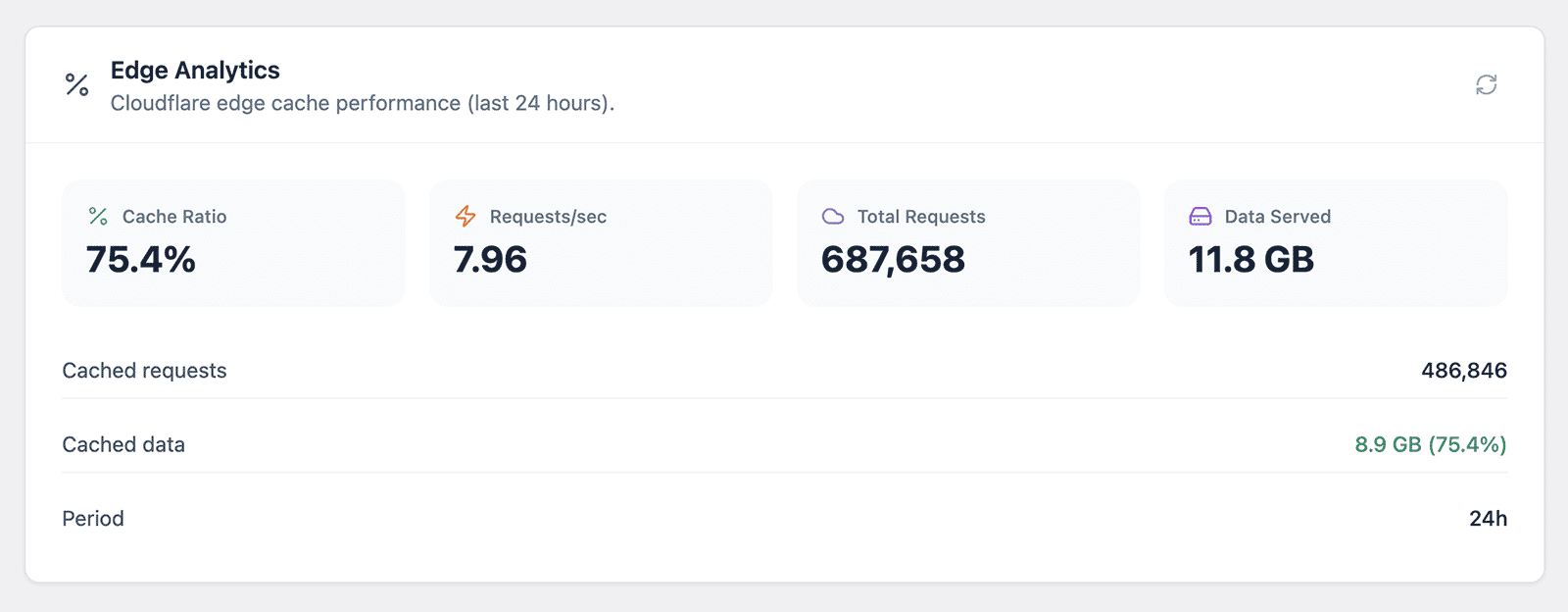
Once connected, the CF Status tab includes a built-in analytics dashboard showing your Cloudflare edge cache performance over the last 24 hours.
This gives you real visibility into how well your caching is working – no need to log into the Cloudflare dashboard separately.
You’ll see four key metrics at a glance:
- Cache Ratio – the percentage of requests served from Cloudflare’s cache vs hitting your origin server. A high ratio means your store is flying.
- Requests/sec – how many requests per second your site is handling.
- Total Requests – the total number of requests in the last 24 hours.
- Data Served – the total amount of data served by Cloudflare.
Below these you’ll also see a breakdown of cached vs uncached requests and data, so you can see exactly how much load Cloudflare is taking off your server.
To enable Edge Analytics, add the Analytics: Read permission to your Cloudflare API token. This is optional – everything else works without it – but it’s well worth adding for the visibility it provides.
Automatic purging
When you publish, update, or delete content, CommerceGurus Turbo automatically purges the relevant URLs from Cloudflare’s cache. It just works – no manual intervention needed.
Cache warming also works with edge caching. After a purge, CommerceGurus Turbo crawls your sitemap to re-warm both the page cache and edge cache, so your visitors always hit a fast, cached page.