Adding something to your cart rarely means you’ve finished shopping. You might want to compare another product, browse a different category, or find something to go with it.
On many WooCommerce caching setups, adding that first item means subsequent page visits bypass the cache. The shopper is still browsing the same products and categories, but WordPress now has to build those pages from scratch.
That’s a frustrating place to lose the speed benefits of caching – just as someone has shown they’re interested in buying.
Cart Aware caching keeps eligible product, category, and shop pages available from the cache for guest shoppers, even when they have items in their cart. It’s one of the ways CommerceGurus Turbo handles the particular demands of a WooCommerce store.
The important distinction is that serving a cached product page doesn’t mean caching someone’s cart. Cart, checkout, and account pages remain excluded. CommerceGurus Turbo also never uses pages generated for shoppers with active carts to populate the shared cache, keeping their personalised cart content out of it.
This works with both Page Cache and Cloudflare Edge Cache. You don’t need Cloudflare to benefit from it.
Enabling Cart Aware caching
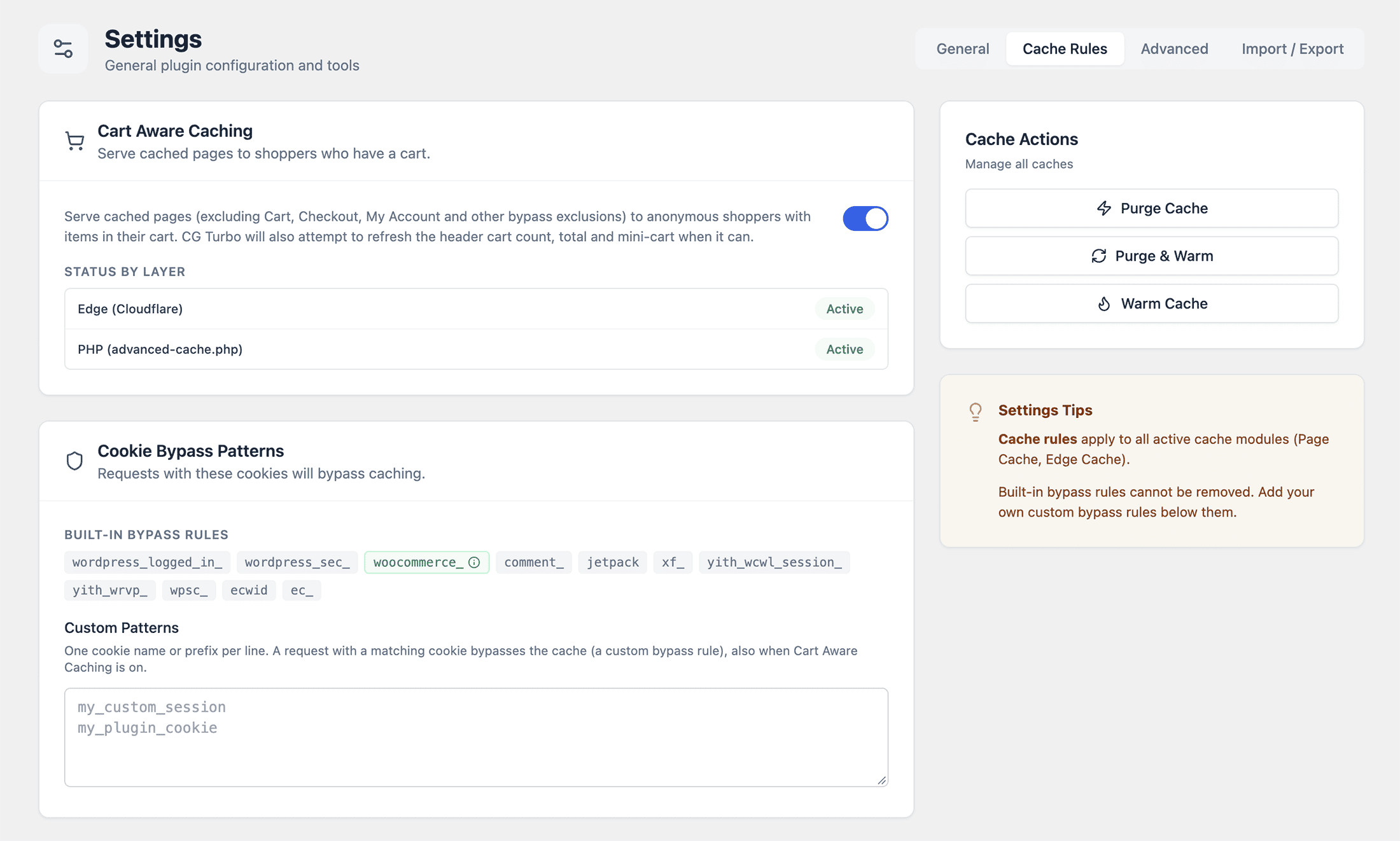
Navigate to WooCommerce > CG Turbo > Settings > Cache Rules and enable Cart Aware caching.
Changing this setting purges the page and edge caches so the updated rules can take effect. Allow time for the cache to warm again before checking performance.
If you use Cloudflare Edge Cache, check that your cache rules show as synced.
How it works
Cart Aware caching distinguishes between serving an existing cached page and creating a new cached copy.
A guest shopper with items in their cart can receive an existing cached page. However, CommerceGurus Turbo never uses a page generated for that shopper to populate the shared cache.
This prevents personalised cart content from being saved in a cached page and shown to other visitors.
| Visitor | Can receive existing cached pages? | Can populate the shared cache? |
|---|---|---|
| Guest without an active cart session | Yes | Yes, when the page is eligible for caching |
| Guest with an active cart session | Yes | No |
| Logged-in visitor | No | No |
Your other cache exclusions still apply.
Which pages remain excluded?
Cart Aware caching applies to eligible browsing pages, such as your shop, product categories, and individual products.
CommerceGurus Turbo continues to exclude cart, checkout, my account, and payment pages from caching. Logged-in visitors also continue to bypass the cache.
Any additional path or cookie exclusions you have configured still apply. See Cache Rules and Exclusions for more details.
Why cache warming matters
Cart Aware caching works best when your pages are already cached.
CommerceGurus Turbo can populate the cache through its cache warmer or when an eligible guest without an active cart session visits a page.
If a shopper with an active cart visits a page that hasn’t been cached yet, WordPress generates the page normally. That response isn’t saved to the shared cache.
Visiting the same page again with that active cart can therefore still be slower. This is expected – the page needs to be warmed by CommerceGurus Turbo or visited by an eligible guest without an active cart session first.
For example:
- A product page hasn’t been cached yet.
- A guest with an active cart opens it. The page loads normally, but isn’t added to the cache.
- CommerceGurus Turbo’s cache warmer visits the product page and creates a cached copy.
- The shopper visits again and can now receive the cached page.
After a cache purge, allow warming to complete before comparing page speeds.
Checking that it’s working
Test in a private browser window so you’re browsing as a guest.
- Make sure Cart Aware caching is enabled.
- Warm the product or category pages you plan to test.
- Open one of those pages and add a product to your cart.
- Visit another warmed product or category page.
- Check that your cart still shows the correct items and quantity.
- Open the cart and checkout to confirm they display your current cart correctly.
If you’re checking cache response headers in your browser’s developer tools, inspect the main page request. An eligible, warmed page should be able to return a cache hit even after you’ve added an item to your cart.
Troubleshooting
Pages are still slow after adding to cart
Check whether the pages have been warmed. A shopper with an active cart won’t populate the shared cache, so repeatedly visiting an uncached page from that session won’t warm it.
Also check that you’re logged out and that the page isn’t covered by a path or cookie exclusion.
Pages are slower immediately after changing the setting
Changing Cart Aware caching purges the caches. The first requests may be slower while cached copies are being rebuilt.
Allow the cache warmer to finish, then test again.
Cloudflare isn’t serving a cache hit
Check the rule sync status in the Edge Cache settings. If the rules are pending or show an error, resolve that before testing again.
Remember that a Cloudflare cache miss doesn’t necessarily mean page caching has failed. CommerceGurus Turbo’s page cache can still serve a cached copy from your server.