Within the JavaScript Optimization module, when you set Delay JS to Delay All Scripts, CommerceGurus Turbo delays every JavaScript file on the page until the user interacts or a timeout expires. This is the default mode and gives you the best possible PageSpeed scores.
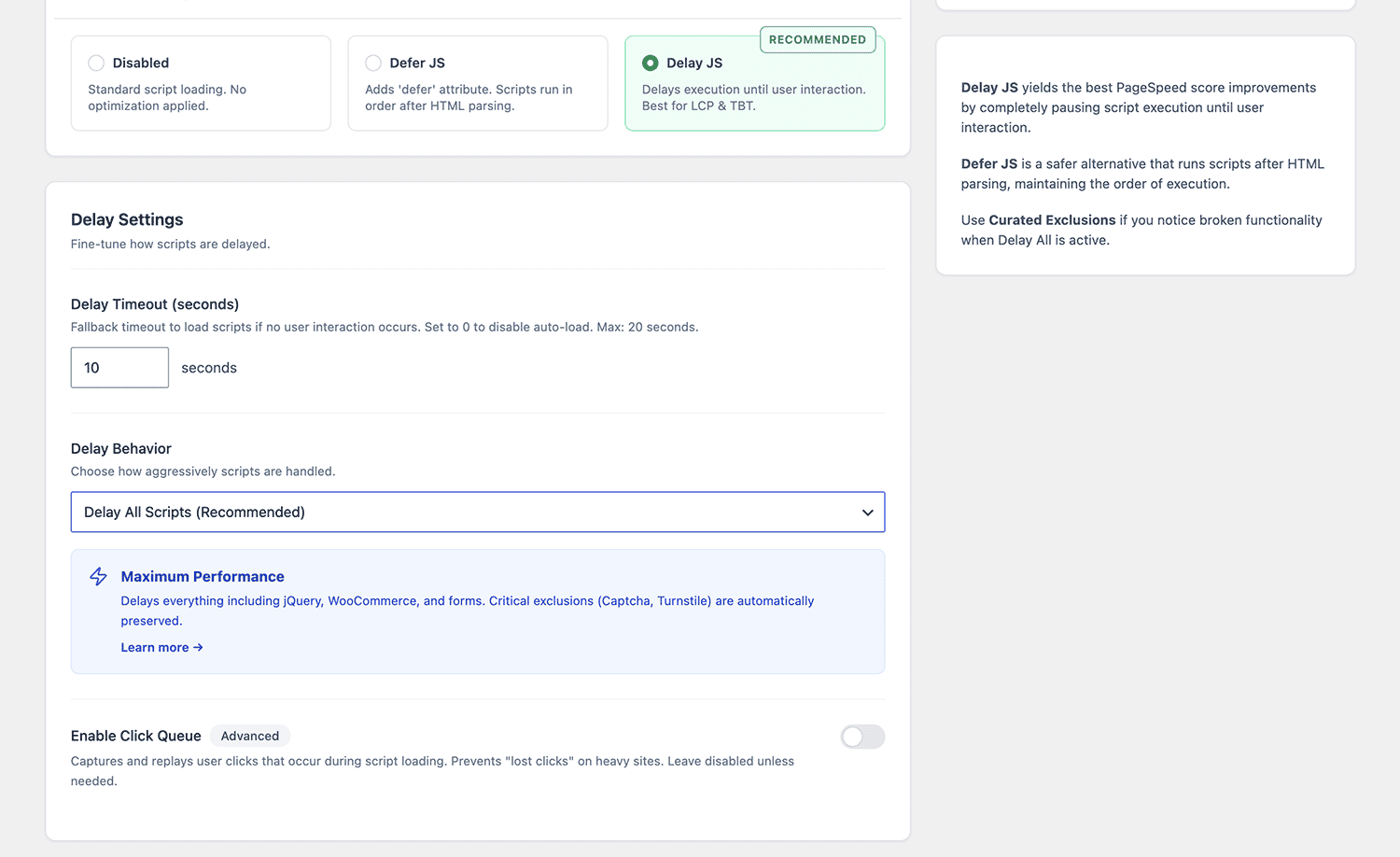
Go to WooCommerce > CommerceGurus Turbo > Modules > JS Optimizer and select Delay All Scripts (Recommended) from the Delay Behavior dropdown.
How it works
With Delay All Scripts enabled, no JS runs during the initial page load. Scripts are held back entirely – not downloaded, parsed, or executed – until one of two things happens:
- User interaction: the visitor scrolls, clicks, taps, or presses a key
- Timeout: the configured timeout expires (default: 10 seconds)
Once triggered, all delayed scripts load and execute in their original order. The browser replays DOMContentLoaded and load events so scripts that depend on these work correctly.
The result is a page load that’s completely free of JavaScript overhead. PageSpeed sees a fast-rendering page with zero Total Blocking Time.
What’s always excluded
Even in this aggressive mode, two categories of scripts are never delayed:
Security and Captcha: Google reCAPTCHA, hCaptcha, and Cloudflare Turnstile always load immediately to protect your forms from bots.
Turbo’s own scripts: the delay controller, lazy load script, CSS delay handler, and CG Vitals need to run before anything else loads.
Everything else such as jQuery, WooCommerce scripts, payment gateways, form plugins, page builder scripts – is delayed. This is fine because CommerceGurus Turbo already excludes cart, checkout, and account pages from all optimizations at a higher level.
WooCommerce page protection
The obvious concern with delaying all scripts is breaking checkout. CommerceGurus Turbo handles this automatically – so cart, checkout, my account, and payment pages are completely excluded from JS optimization. No scripts are delayed on these pages regardless of your Delay Behavior setting.
This is built into the architecture, not something you need to configure. You can verify it by visiting your checkout page and confirming no scripts have the delayed attribute.
So you get the full benefit of Delay All Scripts on product pages, category pages, the homepage, and content pages – while checkout is left completely alone.
Timeout
The timeout is a safety net for visitors who don’t interact with the page. If someone lands and just reads without scrolling or clicking, scripts still load once the timeout hits.
- Default: 10 seconds – long enough for PageSpeed to score well, short enough that scripts are ready before most visitors need them
- Maximum: 20 seconds
- Set to 0 to disable – scripts will only load on user interaction
The default of 10 seconds works well for most stores.
Click Queue
On JavaScript-heavy sites there’s a small window between when a visitor clicks something (like add-to-cart) and when scripts finish loading. Click Queue captures those early clicks and replays them once everything’s ready, so the action isn’t lost.
This is an advanced option – it is best leave it off unless you’re seeing reports of lost clicks on interactive elements.
When to use Delay All Scripts
This is the right mode for most WooCommerce stores:
- You want the best possible PageSpeed scores
- You want zero Total Blocking Time on initial load
- You’re happy that checkout pages are automatically protected
When to switch to Curated Exclusions
Switch to Curated Exclusions (Conservative Mode) if:
- A plugin breaks and you can’t pin down which script to exclude
- You’d prefer broader compatibility over maximum performance
- Cookie consent banners or form plugins aren’t loading quickly enough
Custom exclusions
If one specific script needs to load immediately, add its URL or handle name to the Custom Exclusions field. This keeps you in maximum performance mode while fixing the one script that needs it. There is no need to switch to Curated mode entirely.
Scripts that sometimes need excluding:
- Sliders or carousels that render above the fold
- Live chat widgets that should appear on page load
- Analytics scripts that need to capture early page view data
Check your browser console for JavaScript errors after load – that’ll usually identify the culprit.