Cloudflare Images takes your image optimization to the next level. Instead of manually creating different image sizes or converting formats, CommerceGurus Turbo uses Cloudflare’s Image Resizing service to do it all automatically and on the fly.
Your visitors get images served in modern formats like WebP or AVIF, at the perfect size for their device – with zero effort on your part.
The difference can be dramatic. Product images that were previously served as large JPEGs are automatically converted to much smaller modern formats, reducing page weight significantly while maintaining visual quality.
Navigate to WooCommerce > CG Turbo > Modules > Cloudflare Images to configure these settings.
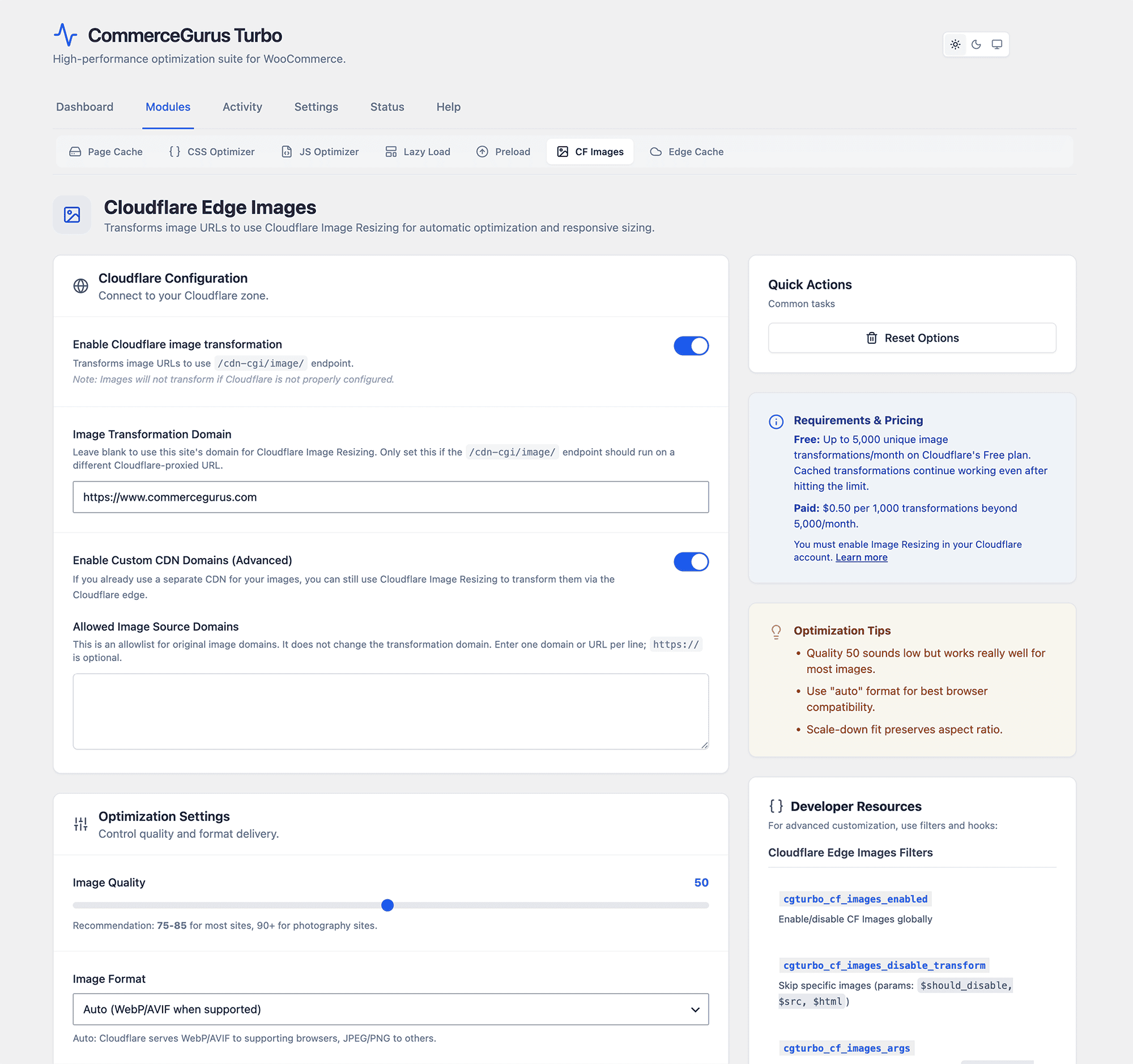
Settings
- Quality – image quality from 1-100. Default is 50, which provides a good balance between file size and visual quality. If your product images look too compressed, increase this value. For most stores, anything between 50-70 works well.
- Format – default is Auto, which intelligently serves WebP or AVIF depending on what the visitor’s browser supports. Modern browsers get the smallest possible file, while older browsers still receive compatible images. You can also force a specific format if needed.
- Max width – the maximum width images are resized to. Default is 1200px. Images smaller than this are not upscaled – they’re only optimized, never stretched.
- Srcset multipliers – controls the responsive image sizes generated. The defaults (0.5x, 1x, 2x) cover most use cases, ensuring retina displays get sharp images while smaller screens get appropriately sized files.
- Skip WooCommerce gallery – enabled by default. WooCommerce product galleries use their own zoom and lightbox functionality, which can conflict with image resizing. Keep this enabled unless you’ve tested it thoroughly.
- CDN domains – if your images are served from a CDN domain (different from your main domain), add it here so those images are also transformed.
Cloudflare Setup
First create and log into a Cloudflare account (the free plan works)
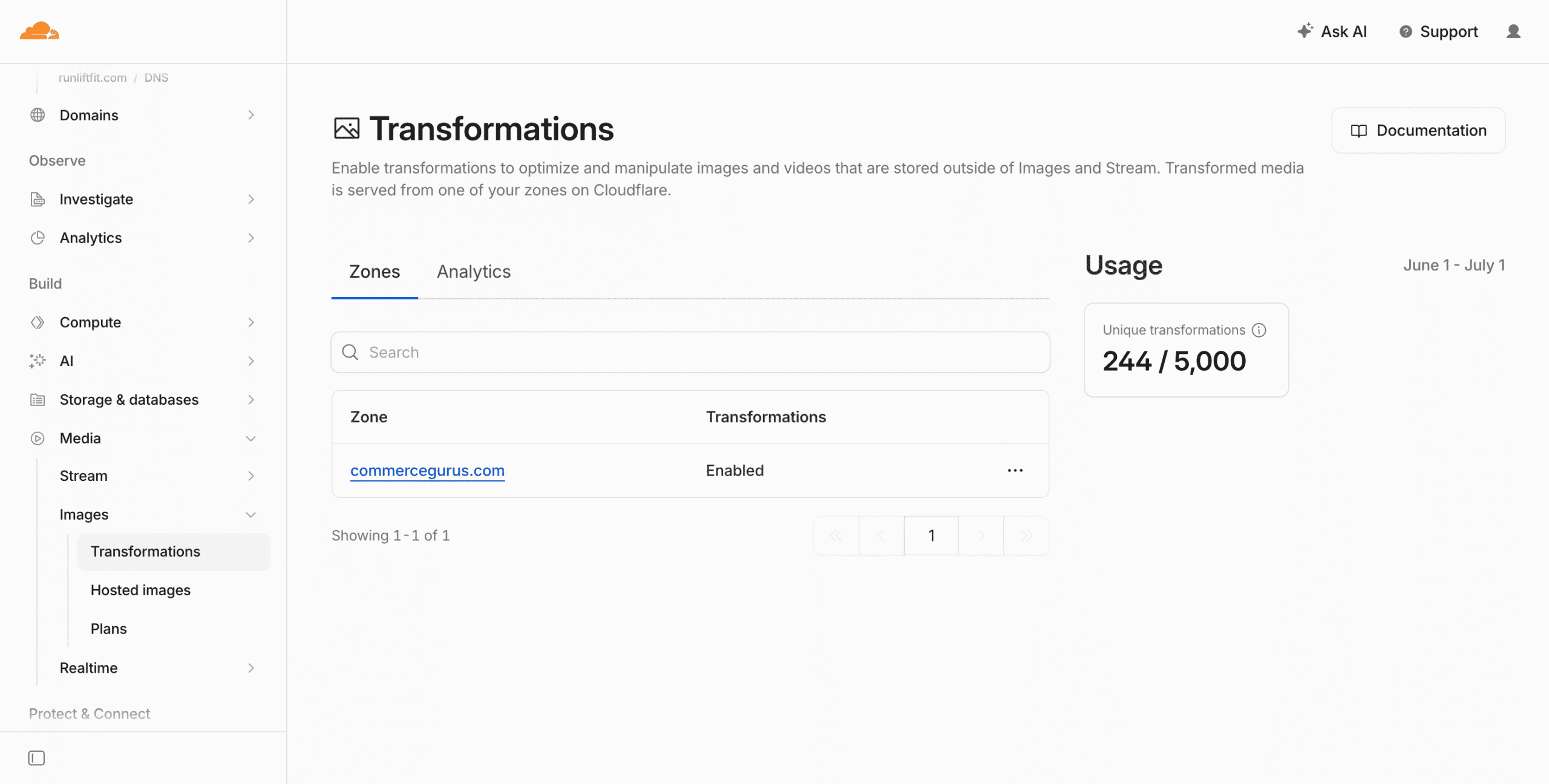
Go to Media > Images > Transformations – and ensure that your domain is visible within Zone and is Enabled.
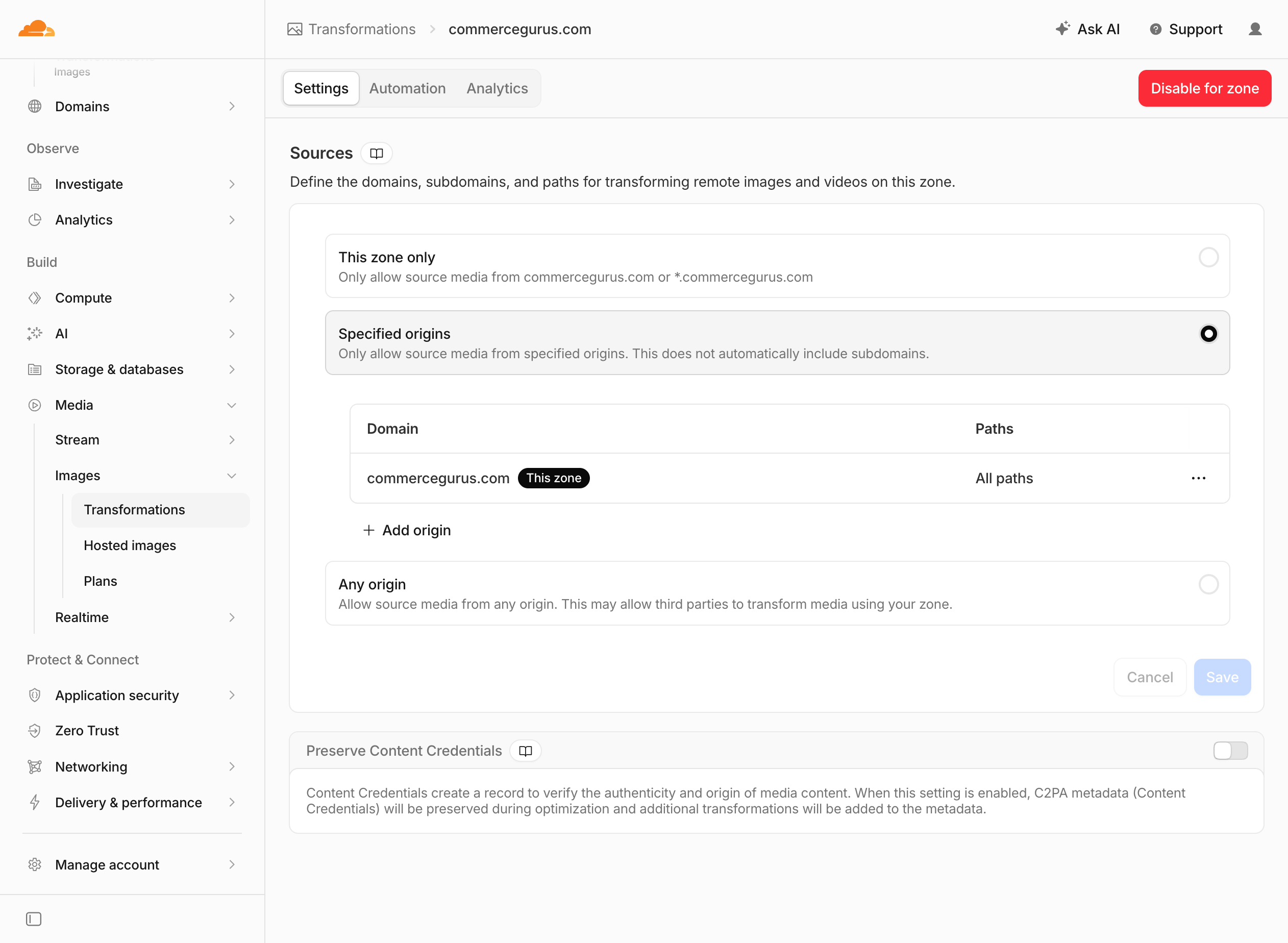
Also check within the Settings area within Transformations that Specified Origins is selected and your domain is present. If not, add it via the Add origin button.