Images and embedded media are often the largest assets on a WooCommerce store. Without lazy loading, the browser can download images and videos that are far below the visible part of the page.
CommerceGurus Turbo’s Lazy Load module defers eligible media until it is close to the viewport. This reduces the initial page weight while still beginning each download shortly before the visitor reaches it.
Navigate to WooCommerce > CG Turbo > Modules > Lazy Load to configure these settings.
What gets lazy loaded
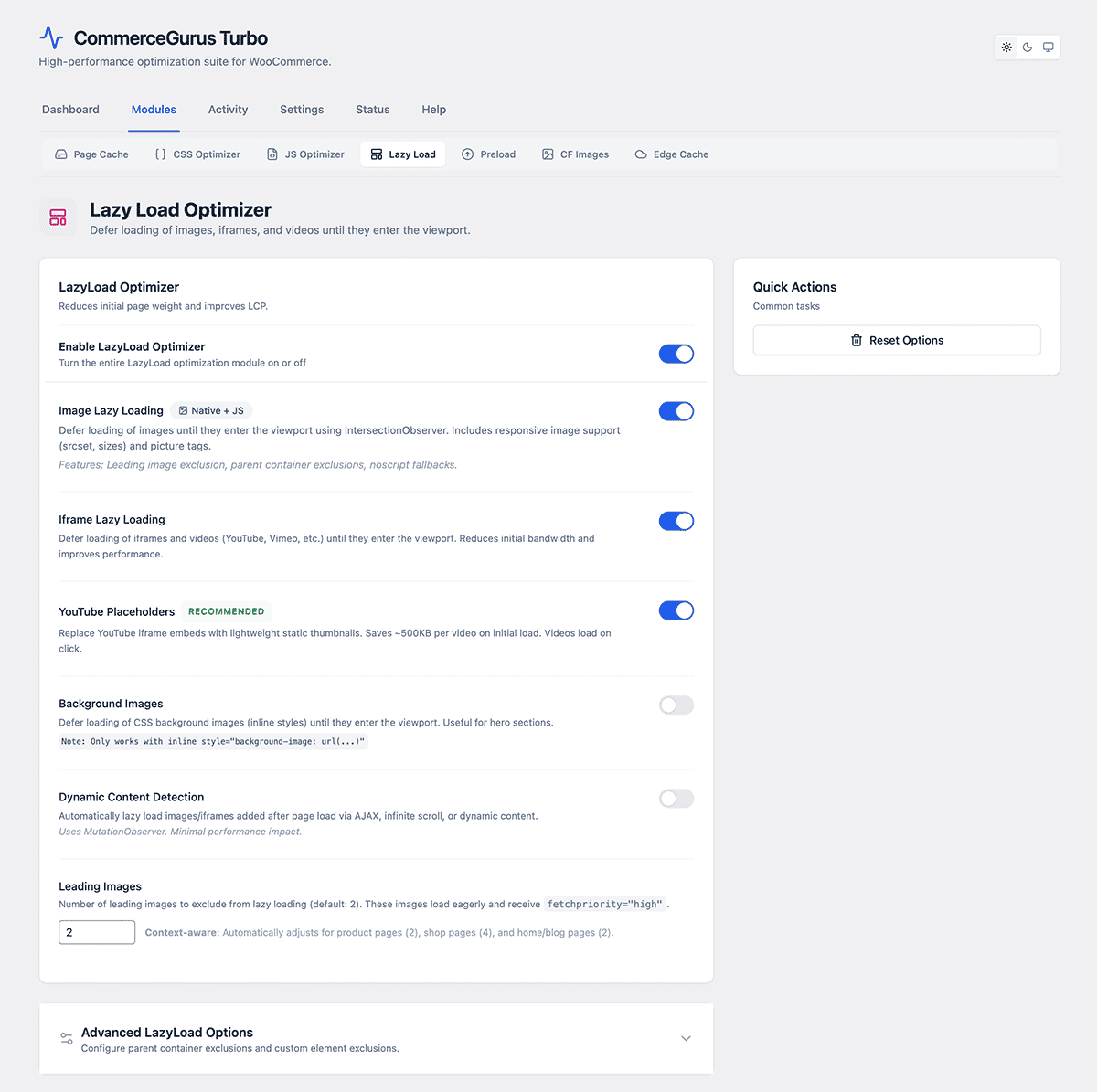
- Images – lazy loads eligible
<img>elements and supports responsivesrcset,sizes, and<picture>markup. Enabled by default. - Iframes and videos – defers embedded iframes and HTML5 video elements until they are close to the viewport. This includes providers such as Vimeo. Enabled by default.
- YouTube placeholders – replaces a YouTube iframe with a lightweight thumbnail and play button. The video player is only loaded after the visitor clicks play. Enabled by default and recommended.
- Background images – lazy loads background images added directly to an element with an inline
style="background-image: url(...)"attribute. Images defined in a stylesheet or CSS class are not processed. This option is disabled by default; test it carefully and use it only for below-the-fold backgrounds.
Dynamic content detection
Keep this option enabled if you use Shoptimizer’s Load More feature.
Dynamic Content Detection watches for CommerceGurus Turbo lazy loaded media that is added or revealed after the initial page load and registers it with the lazy loader.
When additional products are inserted on shop or category pages, their images are added after Turbo’s first page scan. Without Dynamic Content Detection, those images can remain as placeholders or appear blank.
It is also useful for:
- Infinite scroll and AJAX product filters.
- Live search results and dynamically loaded product grids.
- Quickviews, modal galleries, tabs, accordions, and sliders.
- Page-builder widgets or third-party plugins that insert or reveal media after page load.
Dynamic Content Detection uses the browser’s built-in MutationObserver and has minimal performance impact. It is enabled by default in current releases. If your site was configured with an earlier version, check that the switch is on because an existing saved setting may be retained during an upgrade.
Leading images
Leading Images controls how many early images are kept out of lazy loading. These images load eagerly and receive fetchpriority="high", which helps prevent the page’s LCP (Largest Contentful Paint) image from being delayed.
The normal default is 2. CG Turbo uses context-aware values for common WooCommerce pages: 2 on product pages and 4 on shop and product-category pages.
Do not set this unnecessarily high. Giving too many images high priority can make them compete with the image that matters most. If a specific hero or LCP image is still being lazy loaded, exclude that image or its container rather than eagerly loading many unrelated images.
Exclusions
Open Advanced LazyLoad Options when a specific image or component must load immediately.
- Container exclusions – enter a CSS selector for a wrapper whose images should not be lazy loaded. This is useful for sliders or galleries that require all images to be available during initialization.
- Pattern exclusions – enter a distinctive string found in the media element’s markup, such as part of a URL, filename, class, or data attribute.
Add one exclusion per line and save the advanced settings. Elements marked with common exclusions such as no-lazy, skip-lazy, or fetchpriority="high" are also left untouched.
Compatibility and testing
Avoid running a second image lazy-loading feature in another performance plugin at the same time, as two loaders can rewrite the same media and cause missing images or layout issues.
CommerceGurus Turbo automatically skips Lazy Load on sensitive WooCommerce pages including the cart, checkout, account, and add-payment-method screens.
After changing these settings, clear any active page cache and test the site while logged out. Open a shop or category page, load another set of products, and confirm that the newly added images appear as you scroll.