JavaScript has a habit of piling up on a WooCommerce store. Your theme adds some, WooCommerce adds more, and then come payment gateways, forms, sliders, analytics, cookie banners and everything else needed to run a modern shop.
These scripts are important, but many of them don’t need to run while the first part of the page is appearing. That is where the JavaScript Optimizer in CommerceGurus Turbo can make a big difference.
It controls when scripts run, helping the browser display the page more quickly and reducing the unused JavaScript and main-thread work highlighted by PageSpeed Insights.
You’ll find these settings within:
WooCommerce → CG Turbo → Modules → JS Optimizer
Enabling the JavaScript Optimizer
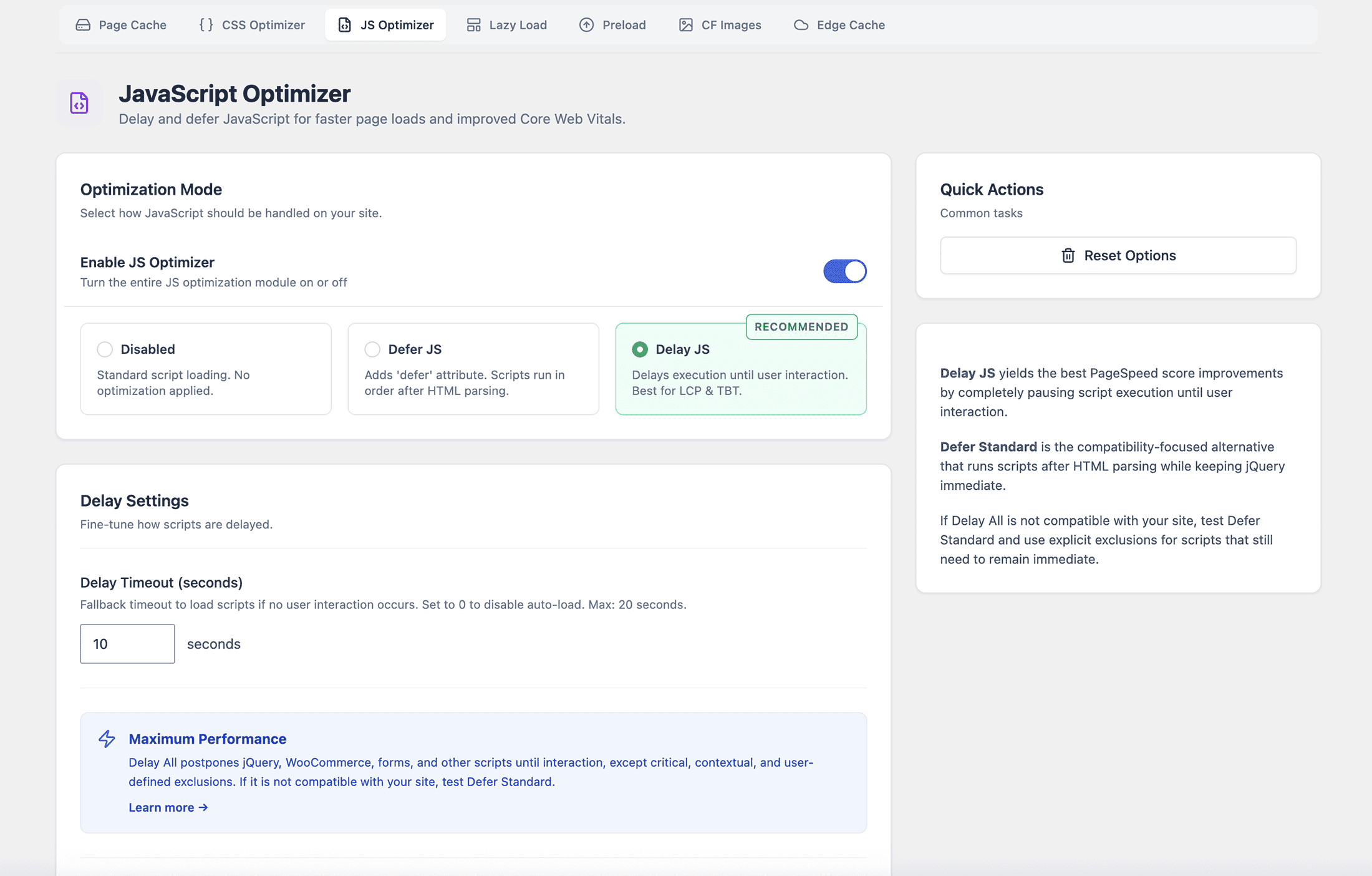
At the top of the page, switch on Enable JS Optimizer.
You can then choose how Turbo should handle JavaScript on your site:
- Delay JS provides the largest potential performance improvement.
- Defer JS is a compatibility-focused alternative.
- Disabled applies no delay or defer optimization.
For stores using the Shoptimizer theme, we recommend starting with Delay JS.
If another theme or plugin does not behave correctly with Delay JS, try Defer JS with its behavior set to Standard.
Delay JS
Delay JS is enabled by default on a new installation of CommerceGurus Turbo.
It postpones most JavaScript until either:
- the visitor interacts with the page or
- the Delay Timeout is reached.
This gives the browser far less JavaScript to deal with during the initial page load and can have an excellent effect on Core Web Vitals and PageSpeed scores.
Within the plugin, this is known as the Delay All behavior. It delays most scripts while keeping Turbo’s own runtime, important security scripts, page-specific protections and anything you have excluded available immediately.
Delay JS is the more aggressive option, so it is important to test the interactive parts of your store after enabling it.
A brilliant PageSpeed score isn’t much use if your mobile menu, product gallery or add-to-cart button doesn’t work properly.
Delay Timeout
The Delay Timeout is the fallback period before delayed scripts are loaded when the visitor has not yet interacted with the page.
The default value of 10 seconds is a good starting point for most stores.
A longer delay may improve synthetic performance results, but it also increases the time before non-essential interactive features become available to a visitor who is simply reading the page.
Judge this setting on the real experience of using the store rather than on the PageSpeed score alone.
Click Queue
Click Queue is an advanced option available when using Delay JS.
It can capture an early JavaScript-controlled click while delayed scripts are loading, then replay that click once the relevant handlers have initialized.
This can be useful for a carefully tested interaction which would otherwise be lost during script loading.
Click Queue is not a general compatibility switch. It does not:
- make scripts load earlier
- provide a missing dependency
- correct an invalid execution order or
- repair a JavaScript error.
Leave it disabled unless your site has a specific need for interaction replay and you have tested the result carefully on both desktop and mobile.
Defer JS
Defer JS is a good alternative when a theme or plugin does not behave correctly with Delay JS.
Rather than holding scripts back until an interaction, the browser can download them while the page is being parsed and run them after the HTML is ready.
This is less aggressive than Delay JS and may produce a smaller PageSpeed improvement, but it offers a useful balance for sites with a more complicated theme or plugin setup.
Defer Behavior
When using Defer JS, you can choose between two behaviors:
- Standard keeps jQuery and jQuery Migrate available immediately.
- Aggressive defers jQuery along with the other scripts.
We recommend Standard for most sites. This combination may also be referred to as Defer Standard.
A great many WordPress themes and plugins expect jQuery to be available immediately. Only use Aggressive if you are certain that your site’s jQuery-dependent scripts can handle deferred execution.
Defer Inline Scripts
When selecting Defer JS, we recommend leaving Defer Inline Scripts enabled.
Browsers cannot normally defer inline JavaScript in the same way as an external file. Turbo handles this for you and keeps inline scripts in the same deferred execution order as external scripts.
Disable this setting only when troubleshooting a specific compatibility problem.
Legacy Curated mode
Some existing sites may display a Legacy Curated mode notice.
Curated was an older Delay JS behavior which used a broad, flat list of exclusions covering common WooCommerce scripts, payment gateways, forms, cookie banners, page builders and jQuery.
Turbo preserves an existing Curated configuration so that a site is not silently changed during an update. It is not offered as a choice for new configurations and is no longer our recommended compatibility path.
Legacy Curated may remain saved even while Defer JS is active. If you select Delay JS without completing the migration, the saved Curated behavior will become active again.
To move away from it, use one of the migration buttons shown within the Legacy Curated notice:
- Use Delay All switches the site to the current Delay JS behavior for maximum performance.
- Use Defer Standard switches the site to Defer JS with Standard behavior.
Use these migration buttons rather than simply selecting a different optimization mode.
Managing exclusions
If a particular script needs to run immediately, open Manage Exclusions within the JavaScript Optimizer.
The exclusion list changes depending on your selected mode:
- Delay JS Exclusions prevent matching scripts from being delayed.
- Defer JS Exclusions prevent matching scripts from being deferred.
These are separate lists. An exclusion added for Delay JS is not automatically added to the Defer JS list, or the other way around.
Add one exclusion per line. You can use a script handle, part of its URL or a regular expression wrapped in forward slashes.
For example:
my-slider-scriptOr, for an advanced regular expression:
/custom-script\.js/After editing the list, click Save Changes to apply your exclusions.
Avoid adding a large copied list without knowing what each entry does. Every excluded script reduces the amount of JavaScript which Turbo can optimize.
You should also consider dependencies. If an excluded script needs another script to exist first, that earlier dependency may also need to remain on the same immediate path.
If excluding one script produces a new JavaScript error, check whether it depends on jQuery or another script which is still being delayed or deferred.
Testing with ?cgturbojsoff
If something stops working, you can quickly compare the page with JavaScript optimization disabled.
It is important to perform this test in a logged-out or private browser window. Turbo leaves JavaScript untouched when the WordPress admin toolbar is displayed, so testing while logged in may not show the experience seen by your customers.
First, open the affected page and reproduce the problem.
Next, add the following to the end of the same URL:
?cgturbojsoffIf the URL already contains a question mark, add it using an ampersand instead:
&cgturbojsoffReload the page and repeat the same interaction at the same screen size.
If the problem disappears, JavaScript optimization is involved. This does not identify the exact script responsible, but it gives you a useful starting point.
If you are using Delay JS, the next step is to try Defer JS with Standard behavior.
If you would prefer to retain Delay JS, identify the earliest script needed by the broken feature and add it to the Delay JS Exclusions list. Remember to check whether that script relies on another dependency.
If the issue remains with ?cgturbojsoff present, the cause is likely elsewhere and adding JavaScript exclusions will not help.
What should I test?
Before leaving JavaScript optimization enabled on a live store, check the important interactions from a fresh page load.
Pay particular attention to:
- the primary mobile navigation
- mobile search, filters and off-screen drawers
- product galleries and variation selectors
- add-to-cart buttons and the mini-cart
- sliders, accordions and pop-ups
- contact, newsletter and login forms
- cookie consent controls and
- any custom interactive elements added by your plugins or theme.
Test important controls on their first interaction after a fresh page load. A feature which only works on its second click or tap still needs attention.
CommerceGurus Turbo automatically avoids applying JavaScript optimization to critical WooCommerce areas, including:
- the cart
- the checkout
- account pages
- add-payment-method pages and
- WooCommerce AJAX requests.
It is still worth completing a test order after changing performance settings so that you have checked the full customer journey.
Disabling JavaScript optimization
If you do not want CommerceGurus Turbo to delay or defer JavaScript, select Disabled within Optimization Mode.
This returns the page to standard script loading while leaving the JavaScript Optimizer module available.
To turn the entire module off, disable the Enable JS Optimizer switch at the top of the page.