CommerceGurus Turbo is the ultimate performance plugin for WooCommerce. It brings together JavaScript and CSS optimization, intelligent image loading, full page caching, and Cloudflare edge caching – everything you need to dramatically speed up your store, all in one plugin.
Most store owners see a significant improvement in their Google PageSpeed scores right out of the box, with no configuration needed.
Installation
- Once purchased, download the CommerceGurus Turbo plugin zip file
- Upload the CommerceGurus Turbo plugin via
Plugins → Add New → Upload Pluginin your WordPress admin. - Activate the CommerceGurus Turbo plugin.
- Navigate to
WooCommerce → CG Turboto access the dashboard.
That’s it – CommerceGurus Turbo is already working! The most impactful optimizations are enabled by default with settings that work well for the vast majority of WooCommerce stores.
Important: If you’re running another performance or caching plugin, deactivate it before using CommerceGurus Turbo. This includes WP Rocket, LiteSpeed Cache, Autoptimize, W3 Total Cache, and NitroPack. CommerceGurus Turbo replaces all of these – you won’t need them anymore. The plugin will display a warning if it detects a known conflict.
Updates and domain registration
To receive automatic CommerceGurus plugin updates, you’ll just need to enter your domain within your CommerceGurus account.
See the Updates and Domain Registration guide for CommerceGurus Turbo for more details.
Setting up Cloudflare
CommerceGurus Turbo works great on its own, but to unlock its full potential, including edge caching and automatic image optimization, we recommend pairing it with a free Cloudflare account.
Cloudflare have a detailed guide on how to set this up in their Cloudflare Full Setup Guide. The key steps are:
- Sign up for a free account at Cloudflare.
- Add your domain and follow the setup wizard.
- Cloudflare will ask you to update your domain’s nameservers. Your domain registrar (where you bought your domain) will have instructions on how to do this – it’s usually just a case of replacing two values in your domain settings.
- Wait for Cloudflare to confirm your domain is active. This can take up to 24 hours but is usually much faster.
If you’re unsure about changing nameservers, your hosting provider’s support team can help – it’s a common and straightforward change.
The free Cloudflare plan is all you need. Every CommerceGurus Turbo feature, including Cloudflare Images and edge caching, works on the free plan.
What’s enabled by default
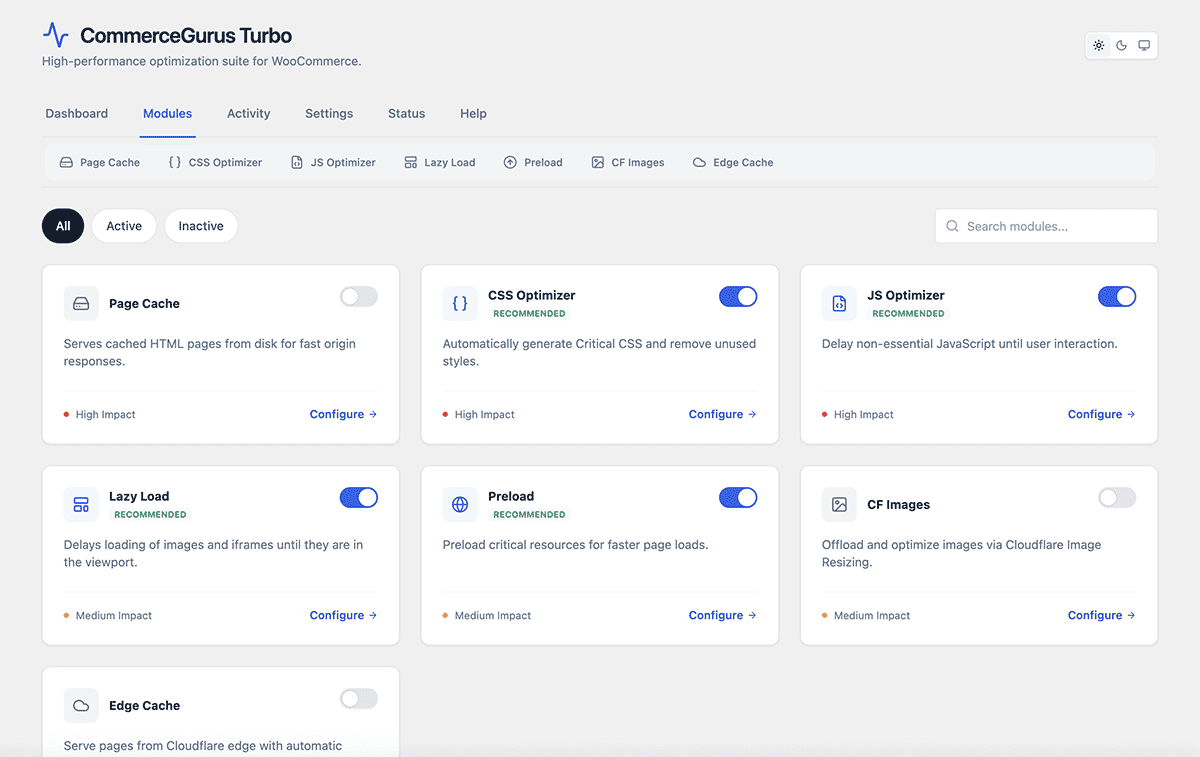
CommerceGurus Turbo ships with sensible defaults so you get a performance boost immediately. The following modules are enabled out of the box:
- JavaScript Optimizer – delays script loading to improve page speed
- CSS Optimizer – generates Used CSS and inlines critical styles
- Lazy Loading – defers offscreen images and iframes
- Preload – prioritizes your most important images for faster rendering
The following modules are disabled by default and can be enabled when you’re ready:
- Page Cache – disk-based full page caching for lightning-fast server response times
- Edge Cache – serves your pages from Cloudflare’s global CDN for near-instant loading times worldwide
- Cloudflare Images – automatic WebP/AVIF conversion and responsive image sizing (requires a free Cloudflare plan)
Built-in WooCommerce intelligence
Unlike generic performance plugins, CommerceGurus Turbo is built specifically for WooCommerce.
It automatically excludes critical pages i.e. the cart, checkout, my account, and payment pages from optimizations that could interfere with the buying process. Your checkout will always work flawlessly.
Testing your changes
You can quickly test disabling all CommerceGurus Turbo optimizations on any page by adding the following string to the end of the URL: ?cgturbooff
This is useful for diagnosing whether an issue is related to CommerceGurus Turbo.
You can also disable individual modules:
- ?cgturbojsoff – disable JS optimization
- ?cgturbocssoff – disable CSS optimization
- ?cgturbonocache – bypass caching
Per-page exclusions
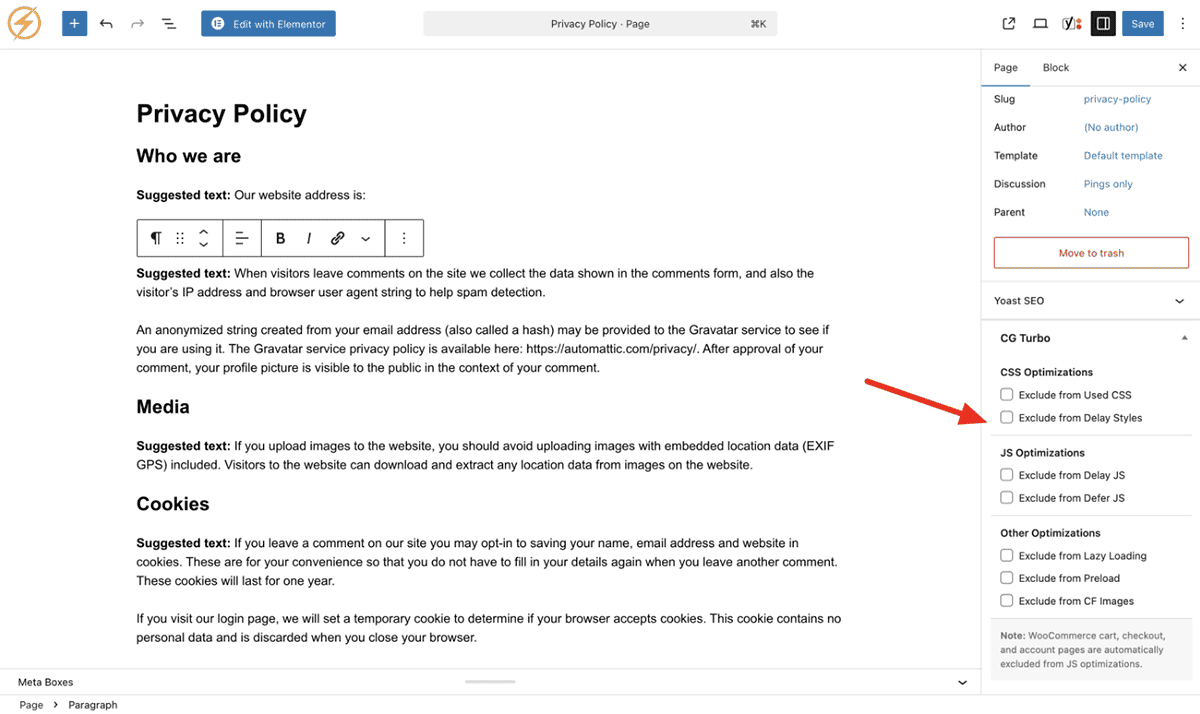
If a specific page needs different treatment, you can fine-tune it. Open the page in the WordPress editor and look for the CommerceGurus Turbo meta box in the sidebar. From there you can disable individual modules for that page.