After activating CommerceGurus Turbo – or after a full cache purge – you may notice that some pages don’t render correctly. The most common signs are oversized icons (a tiny cart or star icon suddenly fills the screen), unstyled or misaligned elements, and product images that appear to be missing when you run a PageSpeed test.
In almost every case, this points to one thing: CommerceGurus Turbo’s Used CSS could not be generated.
Why this happens
CommerceGurus Turbo’s CSS Optimization module generates a lean “Used CSS” stylesheet for each page template, containing only the CSS that page actually needs. This is what makes your render path so fast.
To stay accurate, that file has to be regenerated whenever your styling changes. Turbo handles this automatically by sending a request to its own REST API endpoint to clear and rebuild the cached Used CSS.
If that request is blocked, the Used CSS is never rebuilt. The browser then loads the page without the styles it expects – and because icon fonts and layout rules live in that missing CSS, icons fall back to their default size and the page looks broken. The same incomplete render is what causes images to show as missing in PageSpeed scans.
First, try Clearing Used CSS Cache
Before anything else, confirm whether Used CSS can actually be generated on your site.
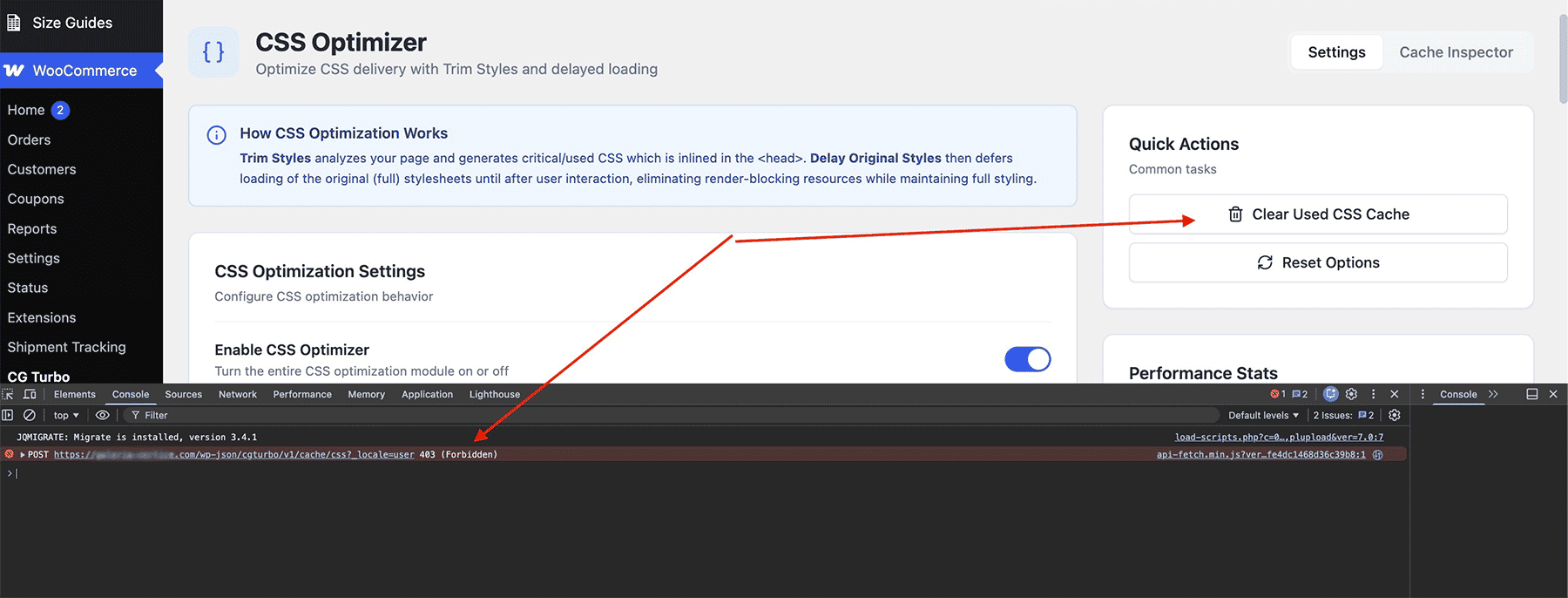
Navigate to WooCommerce > CG Turbo > Modules > CSS Optimization, clear the Used CSS cache, and trigger a regeneration. Then reload a product page that was showing the problem.
- If the page now renders correctly, you’re done – the cache simply needed rebuilding.
- If the Used CSS won’t regenerate, stays empty, or the oversized icons return, the request is most likely being blocked.
Confirm the firewall is blocking the request
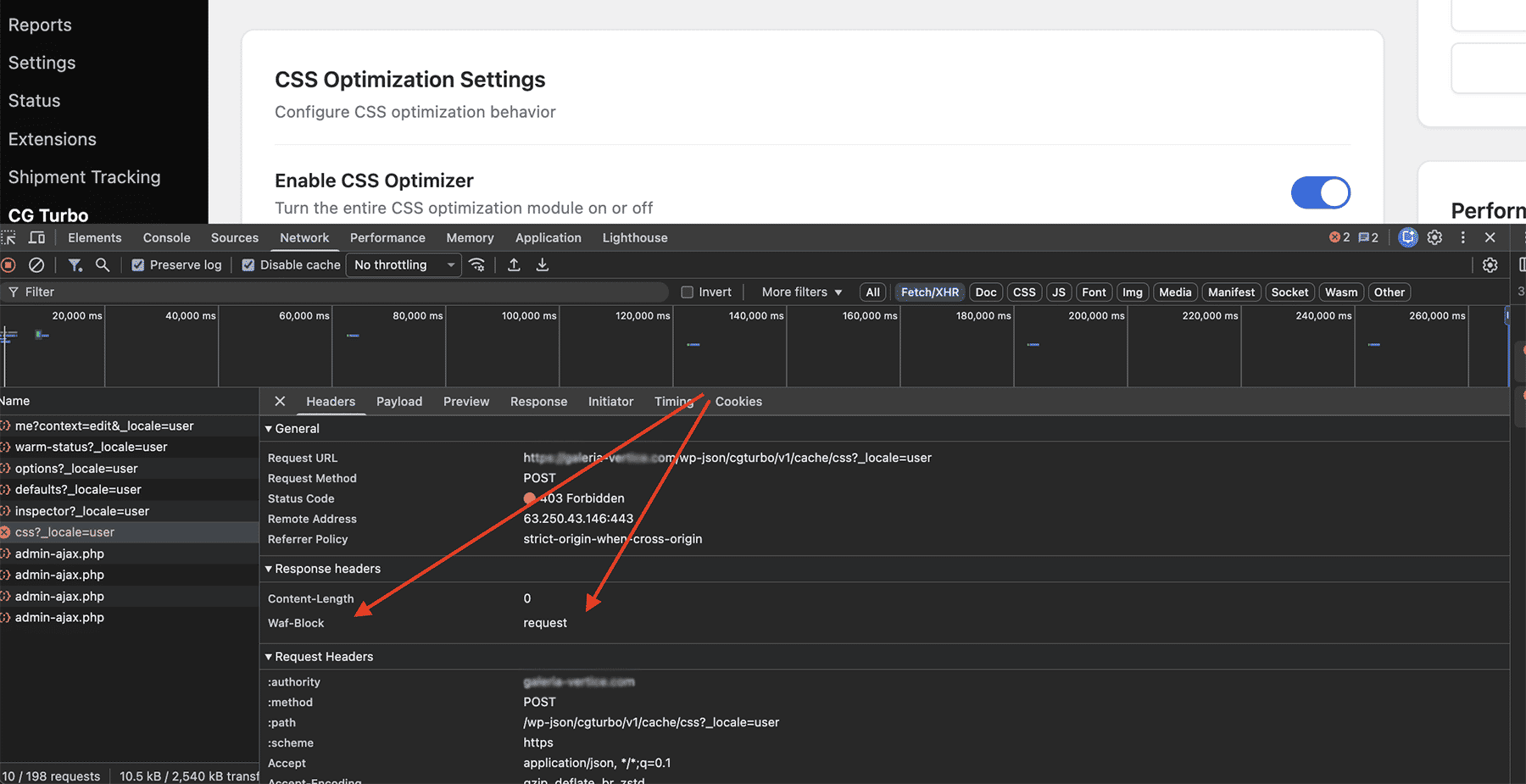
Open your browser’s developer tools, switch to the Network tab, and clear the Used CSS cache again from the CommerceGurus Turbo admin. Watch for the request CommerceGurus Turbo makes to its REST API – it’s a DELETE request to an endpoint under /wp-json/cgturbo/.
If a Web Application Firewall (WAF) is in the way, that request will fail rather than complete. You’ll typically see a 403 response or a message such as “WAF-Block request” instead of a normal success response. That blocked request is why the cache can never regenerate.
Check your security plugins first
Before contacting your host, rule out the most common and easily fixed culprit: a security plugin.
Plugins such as Wordfence, Sucuri, All-In-One Security, or similar often block DELETE requests to the REST API as a default protective measure. This is the quickest thing to check, because you can resolve it yourself.
Temporarily deactivate your security plugins, then clear the Used CSS cache and regenerate it again:
- If it now regenerates successfully, one of those plugins was the cause. Reactivate them one at a time to identify which, then add an exception (an allow rule or firewall whitelist entry) for
DELETErequests to/wp-json/cgturbo/*. Most security plugins offer this under their firewall or REST API settings. - If the request is still blocked with every security plugin disabled, the block is happening upstream at your hosting or CDN level. Move on to the next step.
Ask your host or CDN to allow the request
If your security plugins aren’t the cause, the request needs to be allowed through at the server level. Contact your hosting provider or CDN/WAF provider and ask them to:
Allow
DELETEREST API requests to/wp-json/cgturbo/*
Many providers block DELETE requests by default as a blanket security measure, so this is a common and reasonable request for them to action.
Once the request is allowed through – whether via a security plugin exception or a change at your host – finish up by verifying the fix:
- Return to
WooCommerce > CG Turbo > Modules > CSS Optimizationand regenerate the Used CSS. - Purge all caches via the admin bar:
CommerceGurus Turbo > Purge All Cache. - Reload your product pages and run a fresh PageSpeed test.
Everything should now render correctly, with icons at their proper size and all images loading as expected.
A note on this being environment-specific
This isn’t a bug in CommerceGurus Turbo – the plugin is working exactly as intended by trying to keep your Used CSS fresh.
The block sits between CommerceGurus Turbo and its own REST API, at the hosting or firewall layer, which is why it can only be resolved by allowing the request through.
If your host is unable to make this change, or you’re not sure how to test for the block, get in touch with us and we’ll help you diagnose it.