Note that this doc refers to Shoptimizer for BigCommerce. If you are looking for the WooCommerce version go here.
We recommend adding a progress bar to the cart and checkout pages so a user has a better idea of how long the process takes to complete an order. To add it to the cart page, edit the page and within the editor include a HTML field at the top like so:
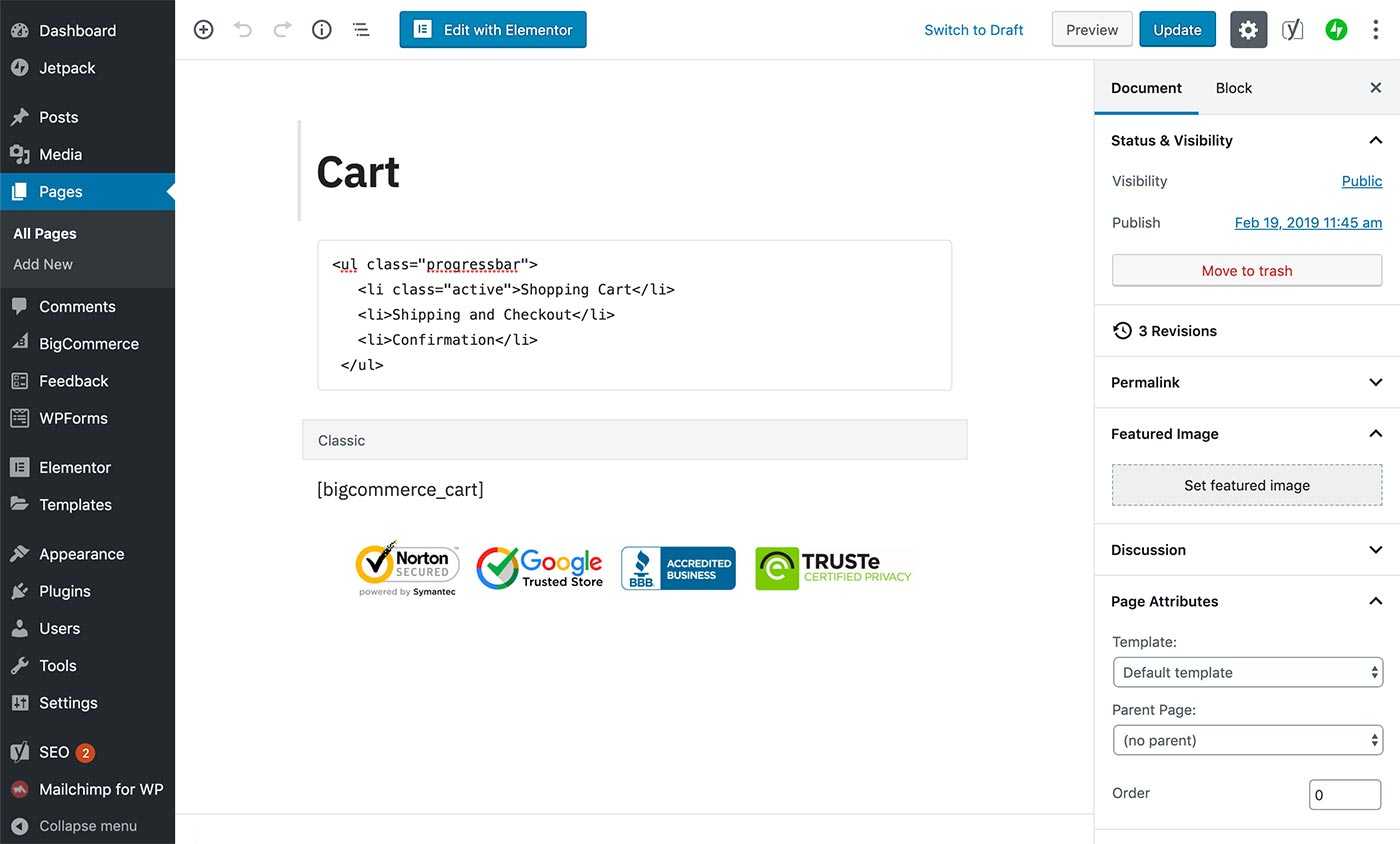
This is the HTML code to use, simply copy and paste it.
<ul class="progressbar">
   <li class="active">Shopping Cart</li>
   <li>Shipping and Checkout</li>
   <li>Confirmation</li>
</ul>
Checkout
You’d do the same for the checkout page but just change the active class to the second list item like so.
<ul class="progressbar">
   <li>Shopping Cart</li>
   <li class="active">Shipping and Checkout</li>
   <li>Confirmation</li>
</ul>