The CommerceKit Wishlist module lets customers save products for later and revisit them from a dedicated wishlist page or from their account. No login is required, guests and logged-in users both get a persistent wishlist.
- Go to
CommerceKit → Wishlist. - Toggle Enable Wishlist on.
- Save settings.
Setting up the wishlist page
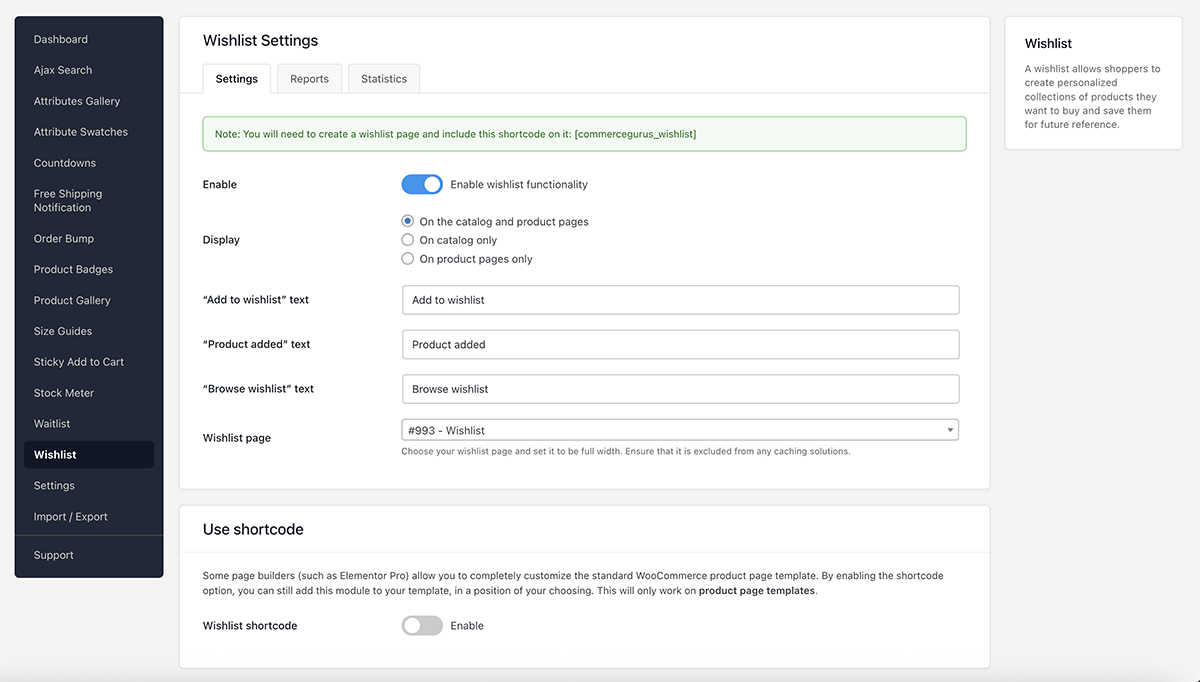
You need a dedicated page to display a customer’s saved wishlist items.
- In WordPress, go to Pages → Add New and create a page (e.g. titled “My Wishlist”).
- Add the following shortcode to the page content:
|
1 |
[commercegurus_wishlist] |
- Set the page to a full-width template (no sidebar).
- Exclude this page from your caching plugin — it contains dynamic, per-user content that must not be cached.
- Publish the page.
- Go back to CommerceKit → Wishlist and select the page you just created under Wishlist page.
The shortcode accepts a columns parameter to control the product grid layout (default is 4):
|
1 |
[commercegurus_wishlist columns="3"] |
Where the wishlist button appears
Use the Display location setting to control where the add-to-wishlist button is shown:
| Option | Where the button appears |
|---|---|
| Catalog and product pages (default) | Product cards and individual product pages |
| Catalog only | Product cards only |
| Product pages only | Individual product pages only |
The button on product pages appears below the add-to-cart area. On the shop grid it appears as a compact icon overlaid on the product image.
Guest vs logged-in customers
Guest customers — The wishlist is stored in a browser cookie that persists for 12 months. The customer’s wishlist is retained across sessions on the same device and browser.
Logged-in customers — The wishlist is tied to their user account. When a guest customer logs in, any items they saved as a guest are automatically merged into their account wishlist.
Logged-in customers can also access their wishlist from My Account → My Wishlist.
Customising button text
The following text strings are configurable in the settings:
- Add to wishlist — the button label before an item is saved
- Product added — the notification shown after saving
- Browse wishlist — the link label shown once an item is in the wishlist
Using with page builders (shortcode mode)
If you are building your product page with Elementor Pro or another page builder, enable Shortcode mode in the Wishlist settings. This prevents the button from rendering automatically via WooCommerce hooks.
You can then place the wishlist button exactly where you want it:
- Use the CommerceKit Wishlist Elementor widget, or
- Add the
[commercekit_wishlist]shortcode in a Shortcode widget
Wishlist analytics
CommerceKit tracks wishlist activity and conversion data, giving you insight into which products customers are saving and how many wishlist saves are turning into purchases.
Go to CommerceKit → Wishlist. The analytics are split across two sections: Statistics and Reports.
Statistics
| Metric | Definition |
|---|---|
| Products | Total number of products added to wishlists across all customers |
| Revenue | Total revenue from orders that included a product previously on a customer’s wishlist |
| Additional Sales | Number of wishlist items that were purchased |
| Conversion rate | Sales ÷ Products × 100 — the percentage of wishlisted products that were eventually purchased |
These metrics accumulate over time from the point CommerceKit was activated (or last reset).
Reports
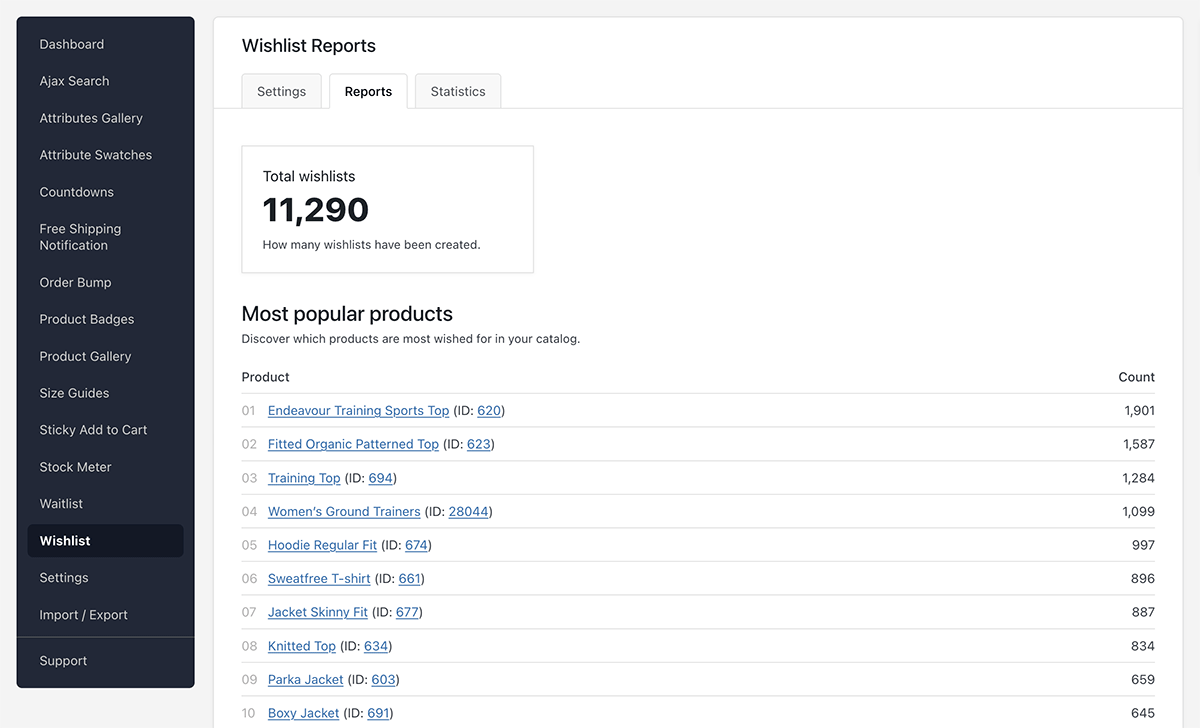
- Total wishlists — the number of active wishlist sessions
- Most popular products — the top 20 products most frequently saved to wishlists, with save counts
This data is useful for identifying high-interest products that may be under-promoted, out of stock, or not converting at the expected rate.
Resetting statistics
To clear all wishlist statistics and start fresh:
- Go to
CommerceKit → Wishlist → Statistics. - Click Reset Statistics.
This clears the products, revenue, sales, and conversion rate counters. The reset timestamp is recorded so you know when the current tracking period began. Report data (most popular products) is cached separately and will refresh automatically.
This action cannot be undone.