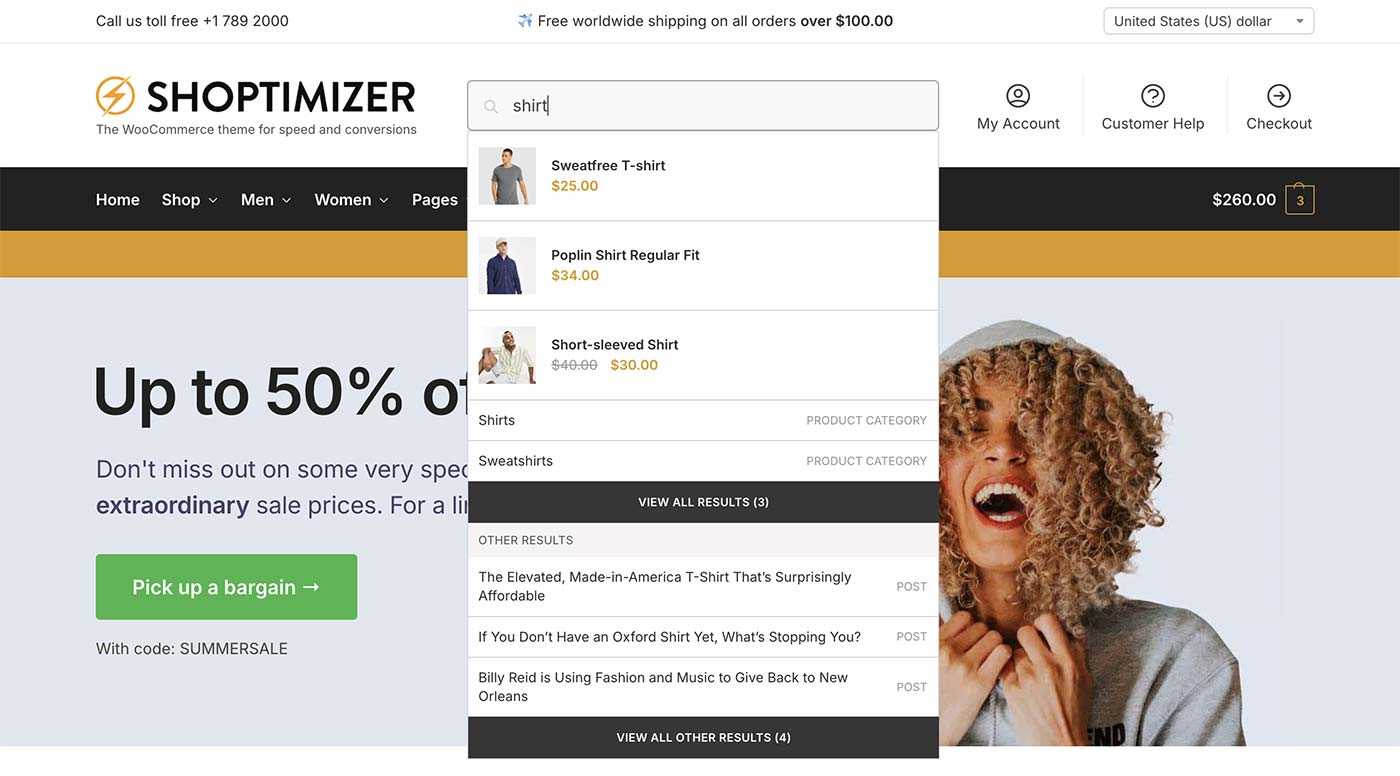
The CommerceKit Ajax Search module replaces the default WooCommerce search with a live suggestions panel that appears as the customer types.
Unlike many other search solutions, it can also return regular pages such as the Delivery Costs and Refund Policy pages, crucial for conversions.
Enabling Ajax Search
- Go to
CommerceKit → Ajax Search - Toggle Enable Ajax Search on.
- Save settings.
The search bar on your store will now show live product results as customers type.
Configuring search fields
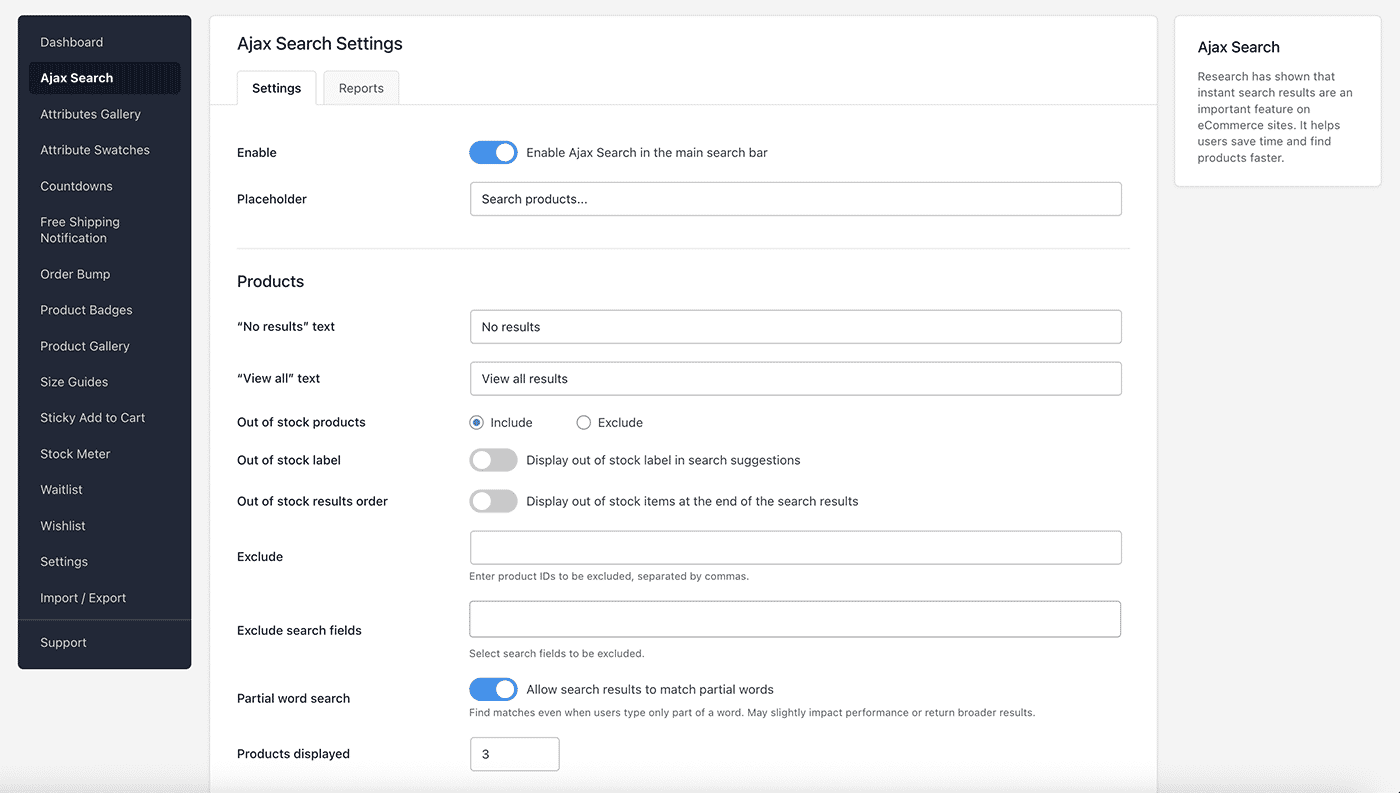
By default, CommerceKit performs searches across all available fields. However, you have the option to exclude specific fields from the search:
| Field | What it searches |
|---|---|
| Product SKU | The main product SKU |
| Variation SKU | SKUs for individual product variations |
| Product GTIN | The GTIN or barcode of the main product |
| Variation GTIN | The GTIN or barcode for individual variations |
| Attributes | Product attribute terms such as color or size |
You can also enable partial word matching, which is especially helpful for stores that rely on SKU-based searches.
Out-of-stock products
By default, out-of-stock products are included in search results. You can change this behaviour:
- Exclude out-of-stock products: hides them from results entirely
- Show out-of-stock label: displays a label on out-of-stock items in results
- Move out-of-stock to end: keeps them visible but ranks them below in-stock products
Fast mode vs standard mode
- Standard mode: searches the WordPress database in real time. Supports full field search including prices in results, compatible with all server configurations.
- Fast mode: uses a custom FULLTEXT index for significantly faster results on large catalogues. Recommended for stores with 500+ products.
To switch to fast mode, enable Lightning Fast Results in the settings. On first enable, an index will be built from your product catalogue.
The index rebuilds automatically when products are added or updated, and can be manually rebuilt from the settings page if needed.
Note: prices are not displayed in fast mode results.
Customising text strings
The following text strings are configurable in the settings:
- Search bar placeholder text
- “No results found” message
- “View all results” link label
- “Other results” section heading
- “View all other results” link label
Search analytics
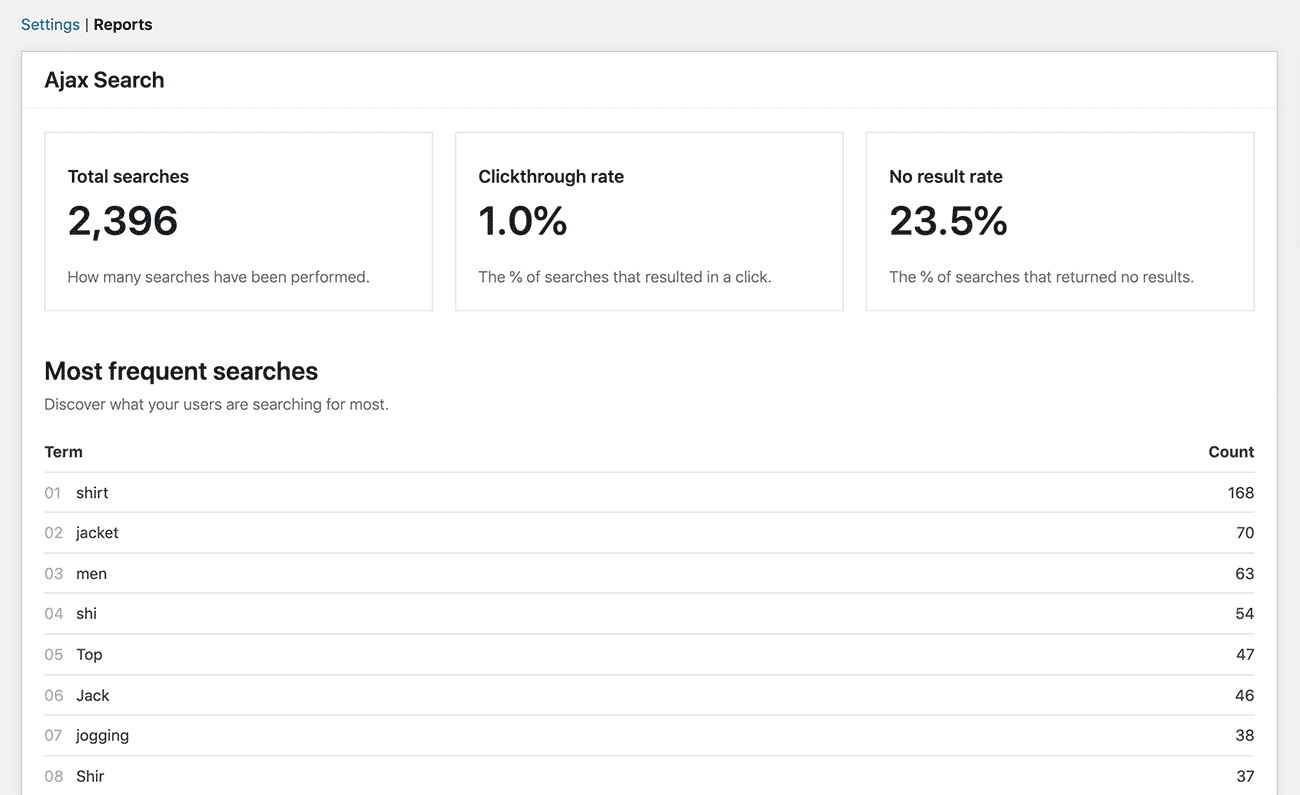
Ajax Search tracks search behaviour in the background, providing critical insights into which products your customers are looking for, including items which you do not currently stock.
View the data under CommerceKit → Ajax Search → Statistics:
- Total searches: how many searches have been performed
- Click-through rate: percentage of searches that resulted in a product click
- No-result rate: percentage of searches that returned zero results
- Top search terms: the 20 most searched queries
- Top zero-result terms: the 20 most searched queries that returned nothing
Statistics can be reset from the statistics page. Zero-result terms can also be reset independently.